Overlay pages
Overlay Pages allows you to merge PDF content from two or more files into one PDF that highlights the differences between the files in different colors. This feature is useful when you want to compare original and revised drawings, or when you want to view various building plans (e.g. electrical, HVAC, plumbing, etc.) layered in one PDF. Where the colors are stacked directly over each other, they blend to create a darker color, making it easier to see which elements have changed and which ones have remained the same from revision to revision. There is also a batch version of Overlay.
This feature is similar to Compare Documents, which compares two or more PDFs and uses markups to identify differences. The Overlay function works well for PDFs with vector graphics, while Compare Documents is best suited for working with scanned—that is, rasterized—images or drawings.
 How to compare documents Video3:07
Compare two documents with cloud markups and store the results in the Markups List. Watch at Bluebeam University.
How to overlay pages Video2:20
Find differences in documents as they are placed on separate, colored layers to highlight variation. Watch at Bluebeam University.
 Align sheets with Overlay Pages
- Go to Document >
 Overlay Pages. The currently opened document is listed in the Overlay Pages dialog. To add additional files, select
  Add Files, and select one of the following:
- A file from the list of opened files
- Add Files to use the Windows File Explorer to browse for and open a file
- Add Open Files to add all files currently open in Revu
Each layer is automatically assigned a color. These colors are changeable, but they have been specifically chosen to make the overlay process work more smoothly, so keeping the default colors is recommended.
To remove a file, select the file, and click
 Delete layer.
 - (Optional) To add a specific region of a drawing instead of the entire page, do the following:
- Select the file, and click
 Edit Layer.
 - Select Select Region, and select the area of the drawing to include in the overlay.
- Select OK.
- Select the file, and click
- (Optional) To choose specific page ranges, select Edit Layer and choose one of the following from the Pages dropdown menu:
- All Pages: Sets the range to all pages.
- Current: Sets the range to the current page only. The current page number will appear in parentheses, for example, Current (2) if page 2 is the current page.
- Selected: Sets the range to the current selection. This option only appears if pages were selected prior to invoking the command.
- Custom: Sets the range to a custom value. When you select this option, replace any text left in the field with the page or pages to be printed directly. To enter a custom range:
- Use a dash between page numbers to define those two pages and all pages in between.
- Use a comma to define pages that are separated.
For example: 1-3, 5, 9 will include pages 1, 2, 3, 5 and 9.
- In the Overlay Pages dialog, choose the alignment method:
- Page Align: By default, Revu places your PDFs directly on top of each other. Recommended for drawings that have minor revisions but are otherwise the same in terms of scale and position on the page.
- Auto Align: Revu automatically finds points of alignment between your PDFs. Recommended for drawings that vary in size and scale.
- Manual Align: Revu allows you to select three points that will act as anchor points between the drawings. You must select the same three points in the same order for all your selected drawings. Recommended when Auto Align doesn't work as intended.
To ensure that the alignment points you select overlay accurately, select View > Snap to Content.
 - Select OK.
Overlay Pages settings
To modify any of the overlay settings for a document, right-click the document, and select Edit Layer.
Revu provides the following options to edit the layer:
- Pages:
- All Pages: Sets the range to all pages.
- Current: Sets the range to the current page only. The current page number will appear in parentheses, for example, Current (2) if page 2 is the current page.
- Selected: Sets the range to the current selection. This option only appears if pages were selected prior to invoking the command.
- Custom: Sets the range to a custom value. When you select this option, replace any text left in the field with the page or pages to be printed directly. To enter a custom range:
- Use a dash between page numbers to define those two pages and all pages in between.
- Use a comma to define pages that are separated.
For example: 1-3, 5, 9 will include pages 1, 2, 3, 5 and 9.
- Layer: Allows you to update the layer name apart from the default file name.
- Appearance options
- Color: Sets the color of the overlay.
- Background: Sets the color of the whitespace of your files.
- Select Region: Defines an area of the drawing to overlay.
An example of overlay at work
In the example below, an overlay was created from two revisions of a drawing, with the first revision converted to red and the second to green. When the same line existed in both drawings, they stacked to create a dark, nearly black line, indicating areas where no changes had been made from the one revision to the next.
Where something was in the second revision that was not in the first, a green line appeared.
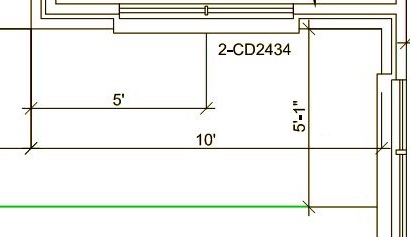
Where something was present in the first revision and was not in the second, a red line appeared.

This made it easy not only to see changes made from one drawing to the next, but to know what had been added and what had been removed.
Edit default overlay settings
The default overlay settings in Revu are changeable. To access the default settings, go to Batch >  Overlay Pages and select Edit Defaults. Change any of the available settings, as desired, and select OK.
-dialog-box.png)
- Appearance: Sets the default line color of the Layers. To change the default line color for a Layer, select the color box and select the desired color.
- Default Background: Set the default background color. The default is transparent. To change the default background colorselect select the color box and select the desired color.
- Default Blend: Determines how the color of overlapping elements are treated.
- Default Opacity: Sets the transparency of the content in the Layer. Range is from 0% (fully transparent) to 100% (fully opaque).
- Auto Align Limit: Filters out objects smaller than the selected limit. Larger values (such as 1/8 inch) may improve performance but don't align smaller details, while smaller values (such as 1/32 inch) may include more detail but could impact performance.
- Advanced Color Shading: When enabled, the overlay process will employ advanced shading methods when blending colors, allowing for greater detail in the resulting drawing.
- Include Flattened Markups: When enabled, overrides the default behavior that ignores markups that have been flattened as "recoverable".
- Position:
- Rotation: Sets the default rotation (in degrees) of the Layer. Range is from 0 to 360.
- Scale: Sets the default scale of the Layer, where 1.00 is equal to 100% (so, for example, a 75% scale should be entered as .75 while a 125% scale should be entered as 1.25). Select Scale Adjustment to enable.
- Offset X & Y: Sets the default offset position of Layer along the X and/or Y axes.