Delete layers
When deleting a layer, you have the option to delete the content and markups contained within the layer or move this information to the base PDF.
If you just want to conceal a layer and its content from view, see Using Layer Visibility.
- Go to Window > Panels >
 Layers or press ALT+Y to show the Layers panel.
 - Right-click the desired layer and select Delete. To delete multiple layers at the same time, hold down SHIFT or CTRL, select the desired layers, then right-click one of them and select Delete.
The layers that will be deleted are listed at the top of the dialog. If this list contains a layer you do not want to delete, select Cancel and start over.
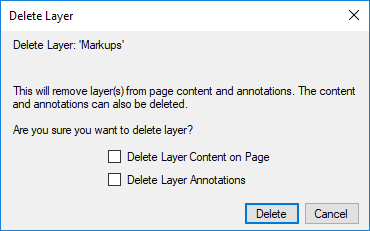
- To delete the content on these layers, select Delete Layer Content on Page. Otherwise, the content will be moved to the base PDF.
-
To delete the markups on these layers, select Delete Layer Annotations. Otherwise, the markups will be moved to the base PDF.
Clearing both boxes will delete the definition of the layer and keep all content and markups by moving them to the base PDF. - Select Delete.