Properties panel
The  Properties panel shows metadata about the active PDF as well as any files attached to it. If a markup, measurement, or other such annotation is selected, the Properties panel will show properties specific to that element instead. Details concerning the Properties panel for markups, measurements, and other annotations can be found on their individual pages in this Help guide.
Go to Window > Panels > Properties to show the Properties panel.
 File properties sections
When no markup, measurement, or other such annotation is selected, the properties of the active PDF are shown in the Properties panel.
File attachments
The File Attachments section lists any attachments saved in the current document. Select a file, then use the tools in the File Attachments toolbar to open, save, or delete it. Or, double-click a file name to open it.
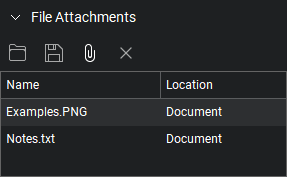
File Attachments toolbar


 Open: Opens the selected file.
 Save: Saves a copy of the selected file locally, outside of the document it's attached to.
 Add New: Adds a file from a local or network drive to the current document as an attachment.
 Delete: Removes the selected attached file from the document.
File properties
The File Properties section shows several standard metadata fields for the current PDF. These fields can be edited.
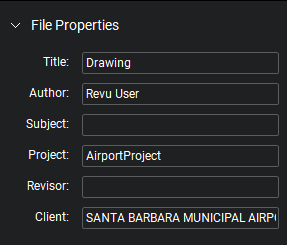
Tags
The Tags section shows any tags currently placed on the page. These are not editable and are shown for information purposes only.
Custom properties
The Custom Properties section contains custom metadata fields. These fields can be edited and new fields can be added.
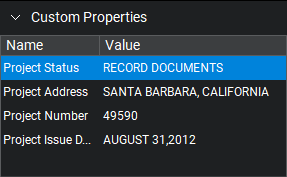
To add a new field, select an empty cell in the Name column, type a name for the property, then select the corresponding Value column cell and add the value. To delete a custom row, select either cell and press DELETE.
Markup properties sections
When a markup, measurement, or other such annotation is selected, the Properties panel shows data and parameters specific to it. Some of these parameters, found in the General section of the Properties panel, are universal to nearly all annotations. Others vary according to the type of annotation. Details concerning these sections according to annotation can be found on their individual pages in this Help guide.
General
The General section of the Properties panel contains the following:
- Author: Records the creator of the markup. Useful for tracking responsibility.
- Subject: Records a subject associated with the markup. Often used to define the category of the takeoff.
- Label: Generally found only in measurements, labels can be shown in the takeoff itself. Often a short code that corresponds to a particular material or a custom caption created from custom columns.
- Comments: Previews the markup caption. It will update automatically as the caption or caption style, defined in the Appearance section, is changed.
- Lock: When selected, prevents accidental moving or resizing of an annotation.
Appearance
This section contains settings pertaining to the display style of the markup. See the sections on individual annotations for what specific appearance settings are available for that tool.
Custom
This section contains data pertaining to any Custom Columns used in the Markups list. If no Custom Columns are currently in use, this section will not appear.
Layout
This section reports where the annotation exists on the document page. Enter values to place markups precisely. If you move a markup by dragging, the change is reflected here.
Options
This section will vary from annotation to annotation, but generally holds a quick menu to allow adding the current tool to My Tools or another tool set in your tool chest and a button to make the current settings the default for that tool.