Stitching panel
The Stitching panel provides an overview of all sheets within your PDF that you intend to combine. You can view the regions and matchlines across your PDF. To learn how to stitch drawings, see Create a continuous view from multiple drawing sheets.
To access the panel, select Document > Stitching or go to Windows > Panel > Stitching.
By default, all pages are collapsed. To expand a page to view your selected regions and matchlines, select the down chevron  . To collapse a page, select the up chevron
  .
.
When you expand a page, you'll see its selected regions and matchlines.

You can rename matchlines by selecting the name next to the  matchline icon.
The Match to dropdown allows you to select a matchline on another page.
By default, Include markups in stitching result is enabled. If there are markups in your stitching regions, Revu will flatten them before they appear in the final stitched drawing.
To remove all matchlines and regions, select Erase All.
 Change the appearance of a matchline or stitching region
The appearance of matchlines or stitching regions is configurable, including line and fill color, hatch pattern, line width and style, and opacity.
To change the appearance of a matchline or stitching region, select the markup and select the Properties panel. Go to Window > Panels > Properties to show the Properties panel if it is hidden. Several properties will also be available on the Properties toolbar when the markup is selected.
Appearance properties
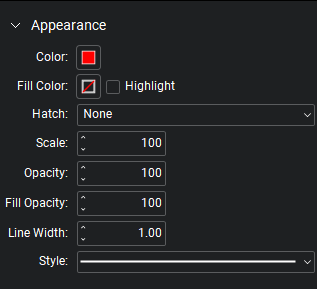
Color: Sets the line color.
Fill Color: Sets a fill color.
Highlight: Makes the fill color and/or hatch pattern transparent so underlying content shows through.
Hatch: Sets a hatch pattern. The associated color selector sets the line color of the hatch pattern.
Scale: Sets the scale of the hatch pattern, from 50 (half the default scale) to 200 (twice the default scale).
Opacity: Sets opacity level of the line and endpoints, from 0 (invisible) to 100 (opaque).
Fill Opacity: Sets the fill and hatch pattern opacity, from 0 (invisible) to 100 (opaque).
Line Width: Sets the line thickness in points. A setting of 0 effectively renders the line invisible.
Style: Determines the line pattern.