Create and edit templates
Templates are PDFs with page settings, formatting, and other elements already in place that make it easier to create new documents of a particular type. Bluebeam Revu comes with several templates that are ready to use, or you can create your own. Templates can be created from any PDF file.
This document covers the process of creating and editing PDF templates in Revu. Creating PDFs based on existing templates is discussed in another document (see Creating a New PDF Based on a Template).
 Create a new template
New templates are created in Revu using existing PDFs. The process varies slightly depending on whether or not the source PDF is open in Revu or not.
Create a template from an existing PDF that is open in Revu
- Select the PDF's tab so that it is the active document in Revu.
-
Go to File > New from Template > Save as Template.
- Navigate to and select the folder you would like to save this template in. It is generally a good idea to keep related templates in the same folder as Revu will only list templates saved in one folder at a time when creating a template-based PDF.
-
Rename the file if desired and select Save.
The file name is not necessarily the name that appears in the New list. Revu uses the document's Title (found in the Document Properties) instead. See Editing an Existing Template below for more information about changing the Title.
Create a template from a PDF that is not open in Revu
- Go to File > New from Template > Import Template.
Imported templates are automatically saved in the active Template folder. If the one that is currently active is not the one you want to save this new template in (you can tell by reviewing the list of templates available in the list; they are all in the currently selected Template folder), select Change Template Folder, then navigate to and select the desired folder first.
- Navigate to and select the desired PDF.
-
Rename the file if desired and select Open.
The file name is not necessarily the name that appears in the New list. Revu uses the document's Title (found in the Document Properties) instead. See Editing an Existing Template below for more information about changing the Title.
Edit an existing template
Templates exist as special files in Revu and should be edited in Revu.
-
Go to File > New from Template and select
 Edit to the right of the desired template when you hover over that area.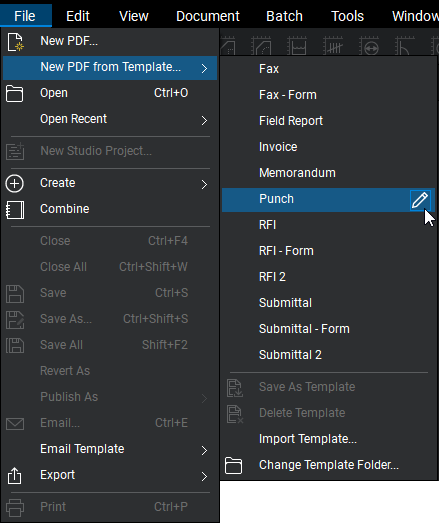
- Only templates from the active Template folder are listed. If the desired template is not shown, select Change Template Folder, then navigate to and select the folder it's in.
- When the template opens, it will have an icon on its tab that lets you know that it's a template and not another document.

- Add any fields or markups that you want to be not editable on PDFs using this template (for example, logos, field labels and the like) using the Markup tools.
- Once you have finished editing the Template, go to Document >
 Flatten.
 - Make sure All Markups is selected (it should be by default) and click Flatten.
- Add any fields you want to be editable on PDFs created using this template using the Markup tools. Do not flatten them.
Templates can contain other PDF information besides markups, like Form Fields, Layers, and Spaces. A template can also contain multiple pages. See Template Editing Notes below.
- The name that appears in the New list is the document's Title found in its Document Properties. To change the Title, select
 Show Document Properties from the
  Document menu on the Properties Toolbar. Enter the desired name in the Title field and select OK.
 - To save this template under the same file name and in the same folder as the original, select
 Save.
Save.
To save this template under a new name or in a new folder, go to
Save > Save As. Navigate to and select a folder to save it in. Rename it if desired, then select Save.
Template Editing Notes
- When using Layers, there must be some PDF content or a markup on each layer for it to be included in the template.
- While Basics and Core can create new PDFs from templates that contain Form Fields, either Complete or Max is required to create form fields in the template.
Delete templates
-
Go to File > New from Template and select
Edit to the right of the desired template when you hover over that area.
- With the Template as the active file in Revu, go to File > New from Template > Delete Template.
- A confirmation dialog will appear asking you to confirm that you wish to delete the template. Select Yes todelete the template.