Maintain revisions
By default Bluebeam Revu does not maintain revisions on save. This feature, if enabled, will retain every saved version of a PDF, allowing reversion to earlier saved revisions.
 Enable revisions
To enable maintaining revisions:
- Go to Revu >
 Preferences.
 -
Go to General > Document.
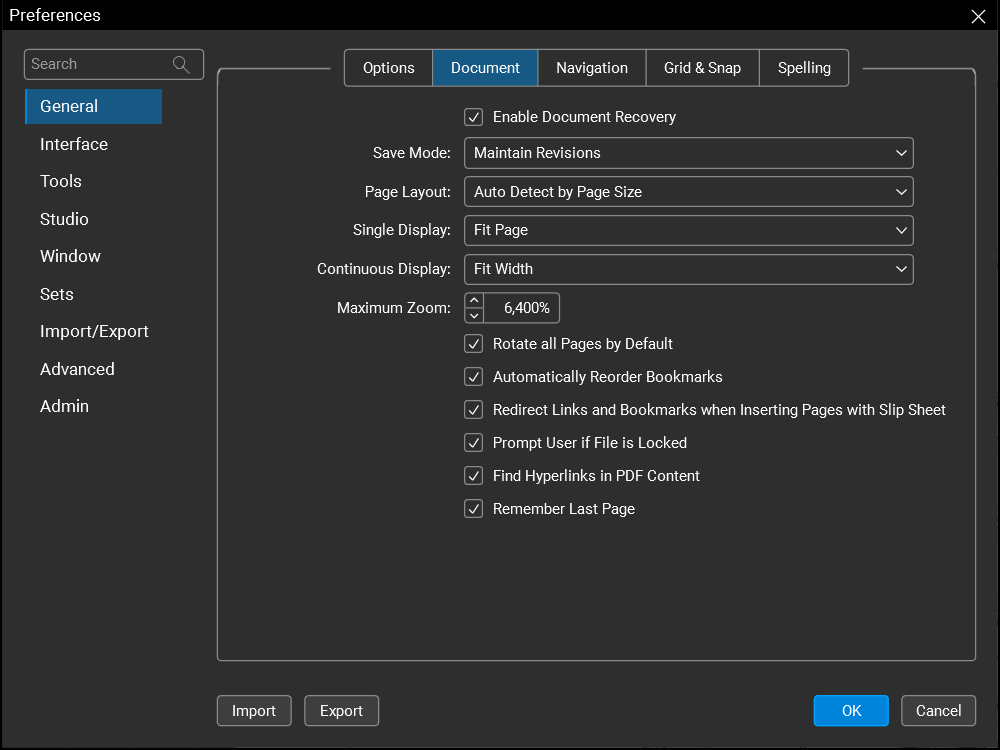
- From the Save Mode dropdown menu, select Maintain Revisions.
When this setting is enabled, saving a PDF will cause a new revision to be saved automatically.
Revert to a previous version
To revert to a previous version:
- Go to File > Revert As and select the version you wish to revert to. The Save As dialog appears.
- Navigate to and select a location to save the new reverted file. If desired, enter a new name for the file. The default name for reverted files is <PDF name>_Rev#.
- Select Save.
Remove revisions
Removing all previous revision histories has two benefits: others cannot access previous revisions of the PDF, and eliminating old versions reduces the file size.
To remove all revisions from a PDF, go to File > Publish and select one of the available options:
- Publish As Flattened: Removes all revisions and flattens the markups on the PDF.
- Publish As Compressed 1.x: Removes all revisions and provides further file size reduction.
- Publish As Uncompressed: Removes all revisions.