Saving a PDF to SharePoint
Revu can save files directly to SharePoint when a DMS interface is configured.
- With the desired PDF active in Revu, do one of the following:
- Go to File >
 Save As.
 - Select
 Save As (DMS) on the Document Management toolbar. If you have enabled Toolbar integration only in File Access Preferences, this is the only option that will work for you.
- Go to File >
-
If Revu has been configured with multiple DMS interfaces, the Save To dialog appears.
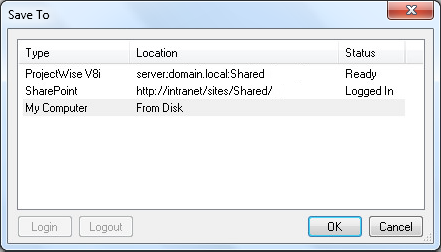
Select the desired SharePoint site and select OK. If you are prompted to log in, do so. The Save File to SharePoint Library dialog appears.
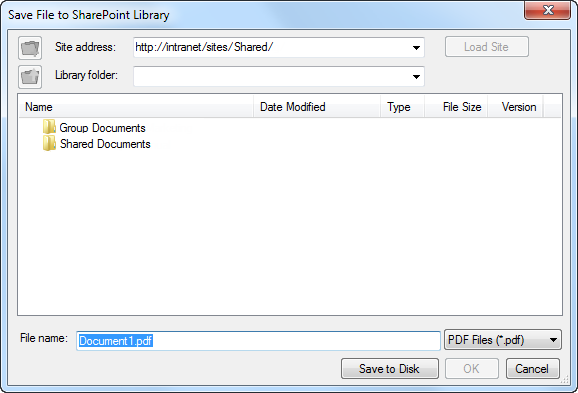
If only SharePoint interfaces have been configured, the Save File to SharePoint Library dialog opens directly.
- Select the desired SharePoint site from the Site address dropdown list.
- Only SharePoint sites that have had a configured interface will appear in the list.
- To access a SharePoint site that is not in the dropdown list, enter it in the Site Address field and select Load Site.
Or, to save the file to a local or network drive, select Save to Disk.
- Select the desired folder within the SharePoint site from the Library folder dropdown list. Or, navigate to the desired folder from the list below.
- Enter the desired name of the file in the File name field. By default, the current name of the file is auto-populated.
- Select OK.