Forms panel
The Forms panel provides a list of form fields on the active PDF and tools to edit those form fields as well as manually create new ones. To automatically create a form, see Auto Create.
Go to Window > Panels >  Forms to open the Forms panel.
 How to create PDF forms Video1:39
Learn how to create PDF forms in Revu. Go to Bluebeam University to learn more.
Form editing and creation Self-paced course41:00
PDF forms allow you to easily collect data. Review lets you enter data and create your own forms. Go to Bluebeam University to learn more.
 Forms panel toolbar
The Forms panel toolbar provides easy access to tools to add fields to a PDF form, as well as the means to automatically sort form fields.
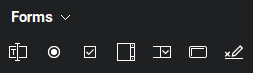
Each of the form fields available on the Forms panel toolbar are discussed in more detail on the Form fields page. Placing a new form field on the current PDF is as simple as clicking the desired field type then clicking on the PDF to place it. This method will place a field of the default size; to customize its size, drag one of its control points to describe the desired size (it might be necessary to press ESC to exit form editing mode first).
Form fields list
The area below the Forms panel toolbar shows the form fields on the current page (or all pages of the PDF if Show All Pages is selected from the Forms menu on the Forms panel toolbar).
- Select a form field from the list and go to the Properties tab to edit its appearance. See Edit forms for more information about editing form field appearances.
- Drag form fields in the list to change their tab-through order. See Sorting Form Fields Manually for more information.
Sort form fields
The order of the fields in the Forms panel corresponds to the order through which they can be tabbed by a user. They can be sorted automatically or manually.
Sort form fields automatically
Form fields can be automatically sorted by their position on the PDF (row or column). While either of these options is in effect, the order of form fields cannot be changed manually. To sort form fields by row or column, follow these steps:
- Go to Window > Panels > Forms to open the Forms panel.
- From the Forms menu, select one of the following options:
- Order Tabs by Row: Automatically sorts form fields by row.
- Order Tabs by Column: Automatically sorts form fields by column.
Sort form fields manually
- Go to Window > Panels > Forms to open the Forms panel.
- From the Forms menu, select Order Tabs Unspecified.
- Drag a form field to the desired position in the list.