Restore documents from Revision History
Studio Project files are automatically archived every time a new revision is checked in. The Revision History menu provides per-file access to this archive, allowing you to view or restore previous revisions.
 View revision history
To view a document's previous versions, right-click the desired file on the Project tab and select Revision History. The Revision History dialog appears with all previous versions listed.
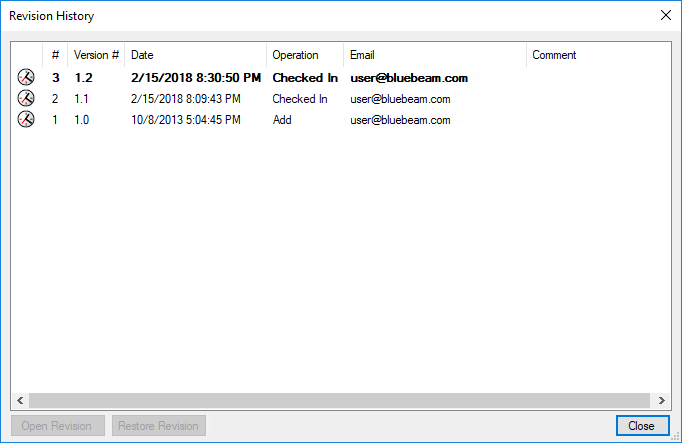
Each file listed in the Revision History dialog box is numbered, with Revision #1 being the file's initial upload. The latest revision, representing the current state of the document, will appear bolded at the top of the list.
View previous file revisions
Each revision, can be opened and viewed in a read-only state.
To open a previous version of a document, follow these steps:
-
Right-click the desired file on the Project tab and select Revision History.
- In the Revision History dialog, select the desired version and select Open Revision. The revision will open in its native application with the revision number automatically appended to its file name.
 icon will appear in the file's tab within Revu. Select this icon and select Revision History to return to the Revision History dialog.Restore a revision
To restore a document to a previous version, follow these steps:
-
Right-click the desired file on the Project tab and select Revision History.
-
In the Revision History dialog, select the desired version and select Restore Revision. A new revision of the document is created from the selected version and added to the Revision History with a note regarding its origin. None of the previous versions are overwritten or deleted.
The Restore Revision button is unavailable to users who do not have the Edit Files permission.