Farbverarbeitung
Verwenden Sie das Farbverarbeitungswerkzeug, um die Farben einer PDF zu bearbeiten. Ausgewählte Farben können in andere Farben geändert werden, Farb-PDFs können in Graustufen oder Schwarz-Weiß geändert werden, Farbeeigenschaften wie Leuchtdichte, Sättigung und Farbton können manipuliert werden und transparente Flächen können in Bildern erstellt werden.
Das Ausführen dieser Aktion auf einer Seite, die geglättete Markierungen enthält, wird verhindern, dass alle Markierungen auf der Seite aufgehoben werden.
- Gehen Sie zu Dokument >
 Farbverarbeitung.
 - Wählen Sie den gewünschten Modus aus der Prozesstyp -Liste aus. Die verfügbaren Optionen hängen von Ihrer Auswahl ab.
Der Vorschau -Bereich des Farbverarbeitung -Dialogs zeigt „Vorher“- und „Nachher“-Miniaturen an, sodass Sie die Änderungen vor dem Anwenden in der Vorschau anzeigen können.
Weitere Informationen zu den einzelnen Modi folgen:
 Farben anpassen
Ersetzt ausgewählte Farben im PDF durch andere Farben.


Farben ändern wirkt sich nur auf Vektorelemente in der PDF-Datei aus. Rasterbilder sind davon nicht betroffen.
Farbverarbeitungsoptionen in diesem Modus sind:
- Quellfarbe: Wählen Sie die Farbe aus, die Sie ändern möchten. Nur in der PDF vorhandene Farben werden angezeigt.
- Zu: Ersatzfarbe auswählen.
- Toleranz: Ermöglicht einen Toleranzbereich, um Farben nahe der Quellfarbe abzugleichen.
- Neu hinzufügen: Ein neues Ersetzungspaar hinzufügen.
- Entfernen: Entfernen Sie das letzte Ersatzpaar.
Einfärben
Konvertiert alle Farben im PDF in eine einzelne Farbskala.

Der Kolorierungsprozess transformiert die Vektorbilddaten in einen von dir definierten Farbbereich. Dies ist nützlich, um ein Graustufendokument zu kolorieren oder ein mehrfarbiges Dokument auf eine einzige Farbe umzuwandeln, während hellere und dunklere Teile der Datei unterscheidbar bleiben.
Farbverarbeitungsoptionen in diesem Modus sind:
- Farbe auswählen: Wähle den Anfang des Farbbereichs. Diese Farbe ersetzt die dunkelsten Farben.
- Bis: Wählen Sie das Ende des Farbbereichs aus. Diese Farbe ersetzt die hellsten Farben.
- Skalenfarbe: Löschen Sie Skalenfarbe, um alle Farben zu einer einzigen Farbe zu verarbeiten. Zum Beispiel: Löschen Sie die Skalenfarbe und wählen Sie Schwarz, um ein Schwarzweiß-PDF zu erstellen.
- Bilder verarbeiten: Wählen Sie diese Option aus, um auch Rasterbilder zu verarbeiten.
-
Seiten: Wählen Sie aus den folgenden Optionen:
- Alle Seiten: Stellt den Bereich auf alle Seiten fest.
- Aktuell: Der Bereich bezieht sich nur auf die aktuelle Seite. Die aktuelle Seitenzahl wird in Klammern angezeigt, z. B. Aktuell (2), wenn Seite 2 die aktuelle Seite ist.
- Ausgewählt: Sets den Bereich auf die aktuelle Auswahl. Diese Option erscheint nur, wenn Seiten vor dem Aufruf des Befehls ausgewählt wurden.
- Benutzerdefiniert: Legt den Bereich auf einen benutzerdefinierten Wert fest. Wenn Sie diese Option auswählen, ersetzen Sie den gesamten im Feld Links Text durch die Seite oder Seiten, die direkt gedruckt werden sollen. So geben Sie einen benutzerdefinierten Bereich ein:
- Verwenden Sie einen Bindestrich zwischen den Seitenzahlen, um diese beiden Seiten und alle dazwischenliegenden Seiten zu definieren.
- Verwenden Sie ein Komma, um getrennte Seiten zu definieren.
Zum Beispiel: 1-3, 5, 9 enthalten die Seiten 1, 2, 3, 5 und 9.
Graustufe
Wandelt alle Farben im PDF in Graustufen um.

Graustufen verarbeiten standardmäßig Vektordaten mit der Option, auch Rasterbilder zu verarbeiten.
Farbverarbeitungsoptionen in diesem Modus sind:
- Bilder verarbeiten: Wählen Sie diese Option aus, um auch Rasterbilder zu verarbeiten.
-
Seiten: Wählen Sie aus den folgenden Optionen:
- Alle Seiten: Stellt den Bereich auf alle Seiten fest.
- Aktuell: Der Bereich bezieht sich nur auf die aktuelle Seite. Die aktuelle Seitenzahl wird in Klammern angezeigt, z. B. Aktuell (2), wenn Seite 2 die aktuelle Seite ist.
- Ausgewählt: Sets den Bereich auf die aktuelle Auswahl. Diese Option erscheint nur, wenn Seiten vor dem Aufruf des Befehls ausgewählt wurden.
- Benutzerdefiniert: Legt den Bereich auf einen benutzerdefinierten Wert fest. Wenn Sie diese Option auswählen, ersetzen Sie den gesamten im Feld Links Text durch die Seite oder Seiten, die direkt gedruckt werden sollen. So geben Sie einen benutzerdefinierten Bereich ein:
- Verwenden Sie einen Bindestrich zwischen den Seitenzahlen, um diese beiden Seiten und alle dazwischenliegenden Seiten zu definieren.
- Verwenden Sie ein Komma, um getrennte Seiten zu definieren.
Zum Beispiel: 1-3, 5, 9 enthalten die Seiten 1, 2, 3, 5 und 9.
Schwarzweiß
Konvertiert alle Farben im PDF in monochromen Schwarz-Weiß-Modus.
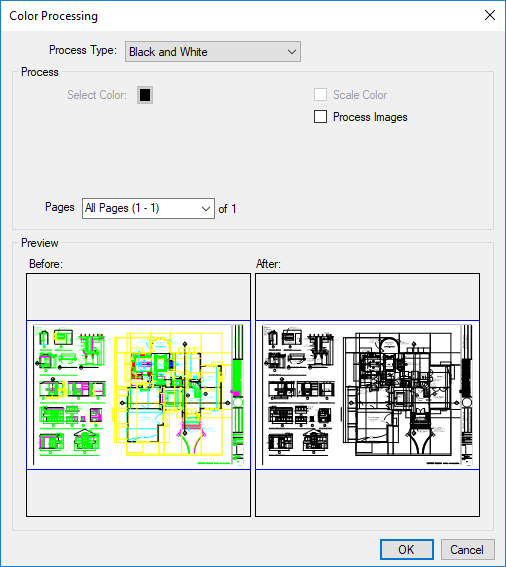
Schwarzweiß wandelt alle Vektordaten in Schwarz um.
Farbverarbeitungsoptionen in diesem Modus sind:
- Bilder verarbeiten: Aktivieren Sie diese Option, um auch Rasterbilder in Monochrom zu verarbeiten.
-
Seiten: Wählen Sie aus den folgenden Optionen:
- Alle Seiten: Stellt den Bereich auf alle Seiten fest.
- Aktuell: Der Bereich bezieht sich nur auf die aktuelle Seite. Die aktuelle Seitenzahl wird in Klammern angezeigt, z. B. Aktuell (2), wenn Seite 2 die aktuelle Seite ist.
- Ausgewählt: Sets den Bereich auf die aktuelle Auswahl. Diese Option erscheint nur, wenn Seiten vor dem Aufruf des Befehls ausgewählt wurden.
- Benutzerdefiniert: Legt den Bereich auf einen benutzerdefinierten Wert fest. Wenn Sie diese Option auswählen, ersetzen Sie den gesamten im Feld Links Text durch die Seite oder Seiten, die direkt gedruckt werden sollen. So geben Sie einen benutzerdefinierten Bereich ein:
- Verwenden Sie einen Bindestrich zwischen den Seitenzahlen, um diese beiden Seiten und alle dazwischenliegenden Seiten zu definieren.
- Verwenden Sie ein Komma, um getrennte Seiten zu definieren.
Zum Beispiel: 1-3, 5, 9 enthalten die Seiten 1, 2, 3, 5 und 9.
Leuchtdichte, Sättigung und Farbton
Transformiert alle Farben im PDF nach Leuchtkraft, Sättigung und Farbton.

Farbverarbeitungsoptionen in diesem Modus sind:
- Leuchtkraft: Verschieben Sie den Regler, um die Leuchtkraft zu definieren.
- Sättigung: Bewegen Sie den Schieberegler, um die Sättigung zu definieren.
- Farbton: Schieben Sie den Schieberegler, um den Farbton festzulegen.
- Bilder verarbeiten: Wählen Sie diese Option aus, um auch Rasterbilder zu verarbeiten.
- Seiten: Wählen Sie aus den folgenden Optionen:
- Alle Seiten: Stellt den Bereich auf alle Seiten fest.
- Aktuell: Der Bereich bezieht sich nur auf die aktuelle Seite. Die aktuelle Seitenzahl wird in Klammern angezeigt, z. B. Aktuell (2), wenn Seite 2 die aktuelle Seite ist.
- Ausgewählt: Sets den Bereich auf die aktuelle Auswahl. Diese Option erscheint nur, wenn Seiten vor dem Aufruf des Befehls ausgewählt wurden.
- Benutzerdefiniert: Legt den Bereich auf einen benutzerdefinierten Wert fest. Wenn Sie diese Option auswählen, ersetzen Sie den gesamten im Feld Links Text durch die Seite oder Seiten, die direkt gedruckt werden sollen. So geben Sie einen benutzerdefinierten Bereich ein:
- Verwenden Sie einen Bindestrich zwischen den Seitenzahlen, um diese beiden Seiten und alle dazwischenliegenden Seiten zu definieren.
- Verwenden Sie ein Komma, um getrennte Seiten zu definieren.
Zum Beispiel: 1-3, 5, 9 enthalten die Seiten 1, 2, 3, 5 und 9.
Bilder maskieren
Erzeugt einen transparenten Bereich in einem Bild, der einer einzelnen Farbe entspricht.

Wählen Sie eine Farbe von Bildern auf einer PDF-Seite aus, die transparent sein sollen. Markierungen werden nicht verarbeitet.
Farbverarbeitungsoptionen in diesem Modus sind:
- Maskenfarbe: Wählen Sie die Farbe aus, die transparent werden soll.
- Toleranzwert: Wählen Sie die Auf- und Abwärtspfeile, um die Farbtoleranz zu definieren.
- Seiten: Wählen Sie aus den folgenden Optionen:
- Alle Seiten: Stellt den Bereich auf alle Seiten fest.
- Aktuell: Der Bereich bezieht sich nur auf die aktuelle Seite. Die aktuelle Seitenzahl wird in Klammern angezeigt, z. B. Aktuell (2), wenn Seite 2 die aktuelle Seite ist.
- Ausgewählt: Sets den Bereich auf die aktuelle Auswahl. Diese Option erscheint nur, wenn Seiten vor dem Aufruf des Befehls ausgewählt wurden.
- Benutzerdefiniert: Legt den Bereich auf einen benutzerdefinierten Wert fest. Wenn Sie diese Option auswählen, ersetzen Sie den gesamten im Feld Links Text durch die Seite oder Seiten, die direkt gedruckt werden sollen. So geben Sie einen benutzerdefinierten Bereich ein:
- Verwenden Sie einen Bindestrich zwischen den Seitenzahlen, um diese beiden Seiten und alle dazwischenliegenden Seiten zu definieren.
- Verwenden Sie ein Komma, um getrennte Seiten zu definieren.
Zum Beispiel: 1-3, 5, 9 enthalten die Seiten 1, 2, 3, 5 und 9.