Tutorial: Verwendung von benutzerdefinierten Spalten für Mengenermittlungen
Revu ermöglicht es Ihnen, der Markierungsliste verschiedene Arten von benutzerdefinierten Spalten hinzuzufügen, die eine Vielzahl von Funktionen ausführen können, einschließlich der Verwendung benutzerdefinierter Formeln. Um zu veranschaulichen, wie das funktioniert, zeigt Ihnen dieses Tutorial die verschiedenen Arten von benutzerdefinierten Spalten, die Sie hinzufügen können, und liefert ein Beispiel, das demonstriert, wie Sie diese einrichten können, um Materialkosten-Zwischensummen zu berechnen.
Es gibt sechs verschiedene Arten von benutzerdefinierten Spalten:
| Type | Beschreibung | Beispiel |
|---|---|---|
| Haken | Präsentiert ein Ja/Nein-Kontrollkästchen |

|
| Auswahl | Erstellt ein Drop-down-Menü mit benutzerdefinierten Auswahlen (optionale Werte, die an Auswahlen gebunden sind, können in Formeln verwendet werden) |

|
| Datum | Verwendet ein formatiertes, dynamisches Datumsfeld |

|
| Formel | berechnet Feldwerte mit einer benutzerdefinierten Gleichung, die an den Inhalt anderer Spalten gebunden ist |

|
| Nummer | Fügt ein Zahlenfeld hinzu, das zum Aufbau von Formeln verwendet werden kann |

|
| Text | Fügt ein Textfeld hinzu (kann nicht als Wert für Formeln verwendet werden, selbst wenn eine Zahl eingegeben wird) |

|
Um Ihnen den Einstieg zu erleichtern, konzentriert sich dieses Tutorial darauf, wie Sie mit den Spalten Formel und Auswahl arbeiten.
Beim Umgang mit diesen Spalten ist es wichtig, das Endergebnis vor Augen zu haben, bevor Sie beginnen. Wenn Sie beispielsweise eine Formel -Spalte einrichten, überlegen Sie, was Ihre Gleichung erfordert. Im ersten Beispiel unten wird eine generische „Spalte A“ zu „Spalte B“ hinzugefügt, um „Spalte C“ zu bilden. Bevor dies funktioniert, müssen „Spalte A“ und „Spalte B“ vorhanden sein, und falls nicht, müssen sie erstellt werden.
Dasselbe Prinzip gilt auch für **Auswahlspalten**. Im zweiten Beispiel unten werden Sie eine Auswahlspalte für Baumaterialien erstellen, um Materialkosten-Zwischensummen zu berechnen, daher benötigen Sie eine Liste der Materialien und ihrer Grundkosten.
 Beispiel 1 – Eine einfache Formel: A + B = C

Grundsätzlich führen benutzerdefinierte Spalte Formeln eine mathematische Operation zwischen zwei (oder mehr) Spalten durch. Zum Beispiel könnten Sie eine Zahl in einer „Spalte A“ und eine weitere Zahl in einer „Spalte B“ haben. Sie könnten dann eine „Spalte C“ mit einer Formel erstellen, die diese beiden Zahlen für Sie addiert; die Summe von „Spalte A“ und „Spalte B“ wird automatisch als Wert in „Spalte C“ eingefügt.
Bevor du anfängst, solltest du eine klare Vorstellung davon haben, was die Formel ist und welche Variablen in der Berechnung verwendet werden. Einige Variablen sind Standard (zum Beispiel Abmessungen wie Länge, Fläche und Volumen), andere können von benutzerdefinierten Spalten bereitgestellt werden. Wenn jedoch eine benutzerdefinierte Spalte in einer Formel verwendet werden soll, muss sie zuerst erstellt werden, sonst ist sie bei der Definition der Formel nicht als Variable verfügbar.
Im Beispiel „Spalte A“ + „Spalte B“ = „Spalte C“ sind „Spalte A“ und „Spalte B“ benutzerdefinierte Spalten vom Typ Zahl. Sollte eine oder beide noch nicht vorhanden sein, müssten Sie diese erstellen, bevor Sie „Spalte C“ erstellen. Um „Spalte C“ einzurichten, gehen Sie dann wie folgt vor:
-
In der **Markierungslisten**-Symbolleiste gehen Sie zu Markierungsliste > Spalten > Spalten verwalten. Das Dialogfenster Spalten verwalten wird geöffnet.

-
Wählen Sie die Registerkarte Benutzerdefinierte Spalten . Vorhandene benutzerdefinierte Spalten (falls vorhanden) sind aufgeführt.

-
auswählen Add. Das Dialogfeld Spalte hinzufügen wird angezeigt.

-
Geben Sie im Feld **Name** einen Namen für die Spalte ein (in diesem Beispiel „Spalte C“).
-
Wählen Sie in der Typenliste Formel aus. Die unter Options verfügbaren Felder werden automatisch aktualisiert.

-
Wählen Sie das Feld Ausdruck aus, und beginnen Sie mit der Eingabe des ersten Teils Ihrer Gleichung (Beginnen Sie in diesem Beispiel mit der Eingabe von „Spalte A“). Sobald Sie mit der Eingabe beginnen, erscheint ein Drop-down-Menü mit verfügbaren Auswahlen.

-
Doppelklicken Sie auf die erste Variable Ihrer Gleichung (verwenden Sie in diesem Beispiel „Spalte A“). Es wird automatisch und richtig formatiert in das **Expression**-Feld eingefügt.
-
Geben Sie einen gültigen Operator (z. B. „+“) nach der **Variablen** ein.
Die gültigen Operatoren sind:
- Addition (+)
- Subtraktion (-)
- Multiplikation (*)
- Division (/)
- Exponential (^)
- Modulus (%)
- Inversion (-)
-
Beginnen Sie mit der Eingabe des zweiten Teils Ihrer Gleichung. Dasselbe Drop-down-Menü erscheint. Doppelklicken Sie auf die zweite Variable Ihrer Gleichung, und sie wird ebenfalls zum Feld Ausdruck hinzugefügt. Das Beispiel sieht letztendlich so aus:

-
auswählen OK. Das Dialogfeld Spalte hinzufügen wird geschlossen, sodass das Dialogfeld Spalten verwalten geöffnet bleibt. auswählen OK again. „Spalte C“ wird automatisch zum aktuellen PDF hinzugefügt, und ihr Wert ist die Summe von „Spalte A“ und „Spalte B.“
Beispiel 2 – Eine übliche Arbeitsablaufformel: Materialkosten
Eine häufige Verwendung von benutzerdefinierten Spalten in Revu ist die Berechnung von Materialkosten. Dazu benötigen Sie eine benutzerdefinierte Spalte vom Typ „Auswahl“, die Materialien auflistet und deren Grundkosten speichert, sowie eine benutzerdefinierte Spalte vom Typ „Formel“ für die Kostenberechnung. Dieses Beispiel nutzt auch eine weitere Funktion in Revu, die automatisch filtert, welche Auswahloptionen Sie für eine bestimmte Markierung je nach deren Thema sehen, wie Sie unten sehen werden.
Bitte beachten Sie: Während wir uns auf die Fähigkeit einer benutzerdefinierten Spalte verlassen, zugehörige numerische Werte (in diesem Fall die Grundkosten jedes Materials) zu speichern, sind diese Spalten auch ohne sie recht nützlich. Jedes Mal, wenn der Wert eines Feldes eine von einer begrenzten Anzahl von Optionen sein soll, ist eine benutzerdefinierte Spalte eine hervorragende Möglichkeit, Konsistenz und Benutzerfreundlichkeit zu gewährleisten.
-
In der **Markierungslisten**-Symbolleiste gehen Sie zu Markierungsliste > Spalten > Spalten verwalten. Das Dialogfenster Spalten verwalten wird geöffnet.
-
Wählen Sie die Registerkarte Benutzerdefinierte Spalten . Vorhandene benutzerdefinierte Spalten (falls vorhanden) sind aufgeführt.

- Das Erste, was man hinzufügen sollte, ist eine Spalte, um zu verfolgen, welche Baumaterialien verwendet werden:
auswählen Add. Das Dialogfeld Spalte hinzufügen öffnet sich.
Im Namensfeld geben Sie einen Namen für die Spalte ein (zum Beispiel "Material").
Wähle in der Typliste Auswahl. Die unter Options verfügbaren Felder werden automatisch aktualisiert.

Um eine Auswahloption hinzuzufügen, wählen Sie Hinzufügen. Es öffnet sich das Dialogfenster **Auswahlobjekt verwalten**.

Geben Sie den Namen des Materials in das Feld Element ein. Dies ist der Name, den Nutzer beim Auswählen eines Materials sehen werden, also gestalten Sie ihn aussagekräftig und wiedererkennbar.
- Um die Fähigkeit von Revu zu nutzen, Auswahlen in der **Markierungsliste** automatisch für Sie zu filtern, geben Sie einen Betreff ein, der dem **Betreff** der Markierung entspricht, für die das Material gilt. Nehmen wir zum Beispiel an, dass Sie Bodenbelagsmaterialien erstellen. Wenn Sie eine Bodenfläche mit der Flächenmarkierung definieren, geben Sie ihr einen Betreff (zum Beispiel „Bodenbeläge“) in der Seitenleiste „Eigenschaften“:
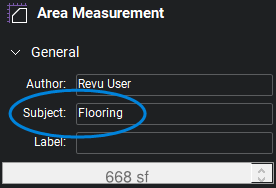
Nun, wenn Sie Ihr Material auch so einrichten, dass es das gleiche Thema hat...

...wenn Sie dann etwas aus dem Menü **Material** für Ihre Bodenbeläge-Markierung auswählen, werden Ihnen nur Bodenbelagsmaterialien angezeigt.
 Auswahlobjekte, die keinen Betreff haben, werden für jede Markierung angezeigt, technisch gesehen würden Sie also Materialien sehen, deren Betreff „Bodenbeläge“ lautet oder die überhaupt keinen Betreff haben.
Mit dieser Funktion können Sie eine beliebig lange Materialliste für Ihr Projekt erstellen. Nutzer können Baumaterialien immer an derselben Stelle (in der Spalte „Material“) auswählen, aber die Auswahlliste ist überschaubar und der Markierung angemessen.
Wählen Sie Numerischen Wert zuweisen und geben Sie die Basiskosten des Materials in das Feld daneben ein.

Wählen Sie OK.
Um weitere Materialien hinzuzufügen, wiederholen Sie die Schritte D bis H.
Auswahlobjekte können auch aus einer CSV-Datei (Comma Separated Value) importiert werden, was sehr praktisch sein kann, wenn Sie bereits eine Liste von Materialien und Kosten in einer CSV-Datei gespeichert haben. Um diese Daten zu importieren, wählen Sie Importieren und wählen Sie die gewünschte CSV-Datei aus. Beachten Sie, dass die Datei im CSV-Format gespeichert werden muss. Format mit Daten in den folgenden Spalten:- Spalte A = Objekt
- Spalte B = Betreff (optional)
- Spalte C = Zahlenwert (optional)
Wenn Sie alle Ihre Materialien eingegeben haben, wählen Sie OK aus, um das Dialogfeld **Spalte hinzufügen** zu schließen.
- Erstellen Sie nun eine benutzerdefinierte Spalte vom Formeltyp, um die Gesamtkosten der Materialien bei der Durchführung einer Flächen-Mengenermittlung zu berechnen:
Wählen Sie im Dialogfeld Spalten verwalten auf der Registerkarte Benutzerdefinierte Spalten die Option Hinzufügen aus. Das Dialogfeld Spalte hinzufügen öffnet sich.
Im Namensfeld geben Sie einen Namen für die Spalte ein (zum Beispiel "Kosten").
Wählen Sie in der Typenliste Formel aus. Die unter Options verfügbaren Felder werden automatisch aktualisiert.
Wählen Sie das Feld Ausdruck und beginnen Sie mit der Eingabe des ersten Teils der Gleichung. Für diese Berechnung multiplizieren Sie die standardmäßige Markierungsabmessung „Abmessungen“ und Ihre benutzerdefinierte Spalte „Material“ miteinander, wobei die Reihenfolge keine Rolle spielt; beginnen Sie mit „Abmessungen“. Sobald Sie mit der Eingabe beginnen, erscheint ein Drop-down-Menü mit möglichen Auswahlmöglichkeiten.
Doppelklicken Sie auf die erste Variable Ihrer Gleichung (in diesem Beispiel „Abmessungen“). Es wird automatisch und richtig formatiert in das **Expression**-Feld eingefügt.
Geben Sie einen gültigen Operator (z. B. „*“) nach der Variable ein.
Die gültigen Operatoren sind:
- Addition (+)
- Subtraktion (-)
- Multiplikation (*)
- Division (/)
- Exponential (^)
- Modulus (%)
- Inversion (-)
Beginnen Sie mit der Eingabe des zweiten Teils Ihrer Gleichung. Dasselbe Drop-down-Menü erscheint. Doppelklicken Sie auf die zweite Variable Ihrer Gleichung, und sie wird ebenfalls zum Feld Ausdruck hinzugefügt. Das Beispiel sieht letztendlich so aus:

Beachten Sie, dass in diesem Beispiel, da es sich hierbei um eine Kostenberechnung handelt, das Format auf Währung eingestellt und ein Währungssymbol ausgewählt wurde. Dies ist nicht notwendig, damit die Berechnung funktioniert, es liegt also an Ihnen, ob Sie dasselbe tun.
auswählen OK. Das Dialogfeld Spalte hinzufügen wird geschlossen.
-
Wählen Sie OK im Dialogfenster Spalten verwalten aus. Die Spalten „Material“ und „Kosten“ werden automatisch zum aktuellen PDF hinzugefügt. Sobald ein „Material“ für eine Markierung ausgewählt wurde, werden „Kosten“ auf Grundlage der Auswahl automatisch berechnet.
