Select text
The Select Text feature lets you choose chunks of text in a PDF for various actions. You can select continuous text, text within a specific area, or all text on a page. This feature works on text in the content layer of a PDF.
Once you've selected text, you can do the following:
 Select continuous text
-
Go to Edit > PDF Content >
 Select Text.
 - Click and drag over the desired text.
All text between your start and end points gets selected.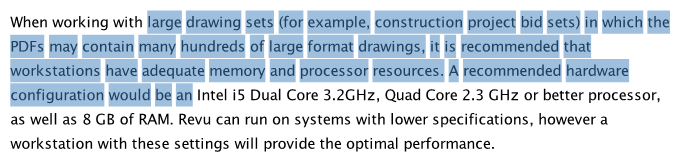
Select text in a specific area
-
Go to Edit > PDF Content > Select Text.
- Hold down Ctrl while you click and drag over the text.
Only text within the area you draw gets selected.
To select all text on a page
- Navigate to the page you want to work with.
- Go to Edit > PDF Content > Select All Text.
All text content on the current page gets selected.
Right-click your selected text to see the available actions.