Highlight tool
The Highlight tool enables traditional highlighter style markups and more.
 Create a highlight markup
- Select the Highlighter tool using one of the following methods:
- Drag to place a free form line (simulating a pen or pencil) over the desired area.
- Release to end the line.
 Highlighter.
The behavior of the Highlighter tool changes when Enable Text Highlighting is enabled in the Preferences and you are highlighting page text (see the note below). Under these conditions, when you drag over page text, the Highlighter tool will select just the text. Additionally, double-clicking a word will highlight that word.
The Enable Text Highlighting preference does not affect the Highlighter tool when it is used on non-text areas, including markups that can have text in them (for example, a Text Box or Callout). Additionally, if you select the Highlighter tool outside of a text area and drag it through some text, it will stay in the original free form mode even if Enable Text Highlighting is enabled.
Tips for using the Highlighter tool:
- When the Enable Text Highlighting preference is enabled, you can override it and draw free-form highlights over a text area by holding CTRL while you click and drag.
- Hold down SHIFT to draw straight horizontal or vertical lines.
- Any number of highlights created at the same time are considered to be the same markup and will appear as one entry in the Markups list. Revu creates the markup list entry after a delay of about a second. To prompt it to create the markup without waiting, press ENTER after drawing a highlight.
The following image shows both a text highlight (with the Enable Text Highlighting preference enabled) and a free-form highlight.

Remove a highlight markup
To remove markups from your PDF, do one of the following:
- Select the markup on the PDF or from the Markups list.
- Press Delete on your keyboard, or right-click and select
 Delete.
Attach a note to a highlight markup
Attach a note to nearly any markup that does not have a text box of its own by double-clicking the markup to open the Note pop-up window. Notes attached to markups are functionally similar to the Note Tool.
Add an action to a highlight markup
You can add an action to almost any markup. Right-click the markup and select Edit Action.
Icon Indicators in Markups
Markups may display indicator icons below and to the right of the markup (or grouped markups). These include:
 Action: Shows that an action is defined for this markup. Select to trigger the action.
 Capture: Shows that the markup has embedded media (typically an image or video). Select this icon to open a preview window.
 Reply: Shows one or more replies exist in the Markups list. Hover to preview replies or select to jump to the markup's entry. Turn off the ability to see reply indicators in the View menu.
Resize or Adjust a highlight markup
Select a markup to reveal its control handles. Each handle controls a different aspect of size and orientation.
Rotate the markup: Drag the orange handle outside the markup (default: 15° increments; hold Shift for 1° increments)
To resize the markup, drag the appropriate yellow handle.
See Editing Markups for more information.
Changing a highlight markup appearance
The appearance of the highlighter line is configurable, including its color, thickness, and opacity. Highlighter lines are, by default, fully transparent to let underlying content show through. This can be turned off (effectively turning the Highlight markup into a Pen markup).
To change the appearance of a Highlight markup, select the markup and select the Properties panel. Go to Window > Panels > Properties to show the Properties panel if it is hidden. Several properties will also be available on the Properties toolbar when the markup is selected.
Appearance properties
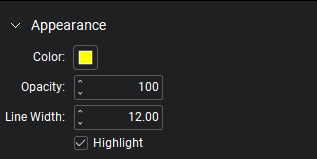
Color: Sets the color of the highlighter.
Opacity: Sets the opacity level of the highlighter.
Line Width: Sets the thickness (in points) of the highlighter line.
Highlight: Enabled by default, this makes the highlighter line appear completely transparent such that the underlying PDF content shows through without affecting its opacity. Unchecking this option effectively transforms the Highlight markup into a Pen markup.


