Use and create filters in the Markups list
Filters provide an efficient mechanism for working with markups on a PDF, which can become numerous in a production environment, causing the PDF to appear cluttered, especially when markups overlap. Filters provide a way of organizing, identifying, and integrating input from many people. This section covers working with filters and creating custom filters.
 Use standard filtering
Markups can be filtered by any or all columns in the Markups list. When filtering is turned on, a new filter header row appears from which you can set filters.
- Go to Window > Panels >
 Markups or press ALT+L to show the Markups list.
 -
On the Markups list toolbar, select
 Filter List. The filter row appears at the top of the Markups List.
- Select the column header in the filter row for the desired column and select the value or values to filter by.
- Repeat as desired to filter by other values.
Filtering has the following effects while the filters are in place:
- The Markups list shows only those markups that match the selected filters.
- If more than one filter value is selected for a column, any markups that satisfies at least one of the criteria are shown. For other filtering logic options, see Creating a Custom Filter.
- If filter criteria are applied to more than one column, only markups that satisfy all of the criteria are shown.
- The text in the filter row of columns that are currently being used as filters changes to reflect the filter selections and turns orange, as applicable.
Text does apply to some columns, like Color, Lock, or Checkmark. When filtering by these columns, the headers will change to images that reflect the filter selections.
-
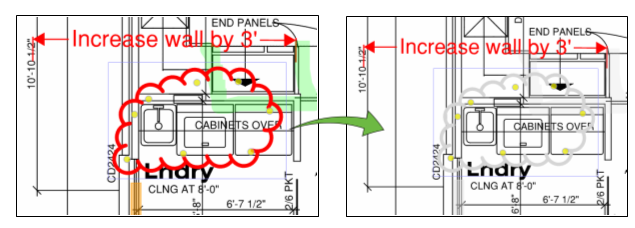
Markups on the PDF that do not match the selected filters are dimmed (as demonstrated below). The exact amount that filtered markups are dimmed is determined by the Filtered Annotation Dim percentage setting in the Markups List Preferences.
Use the search filter
It is also possible to filter by search term. This feature is especially helpful when the column you are filtering has a large number of entries. Search filtering automatically includes all markups; any filters that might be applied to the Markups list at the time will be automatically cleared when your search term is entered.
To filter by search term:
- Go to Window > Panels > Markups or press ALT+L to show the Markups list.
- On the Markups list toolbar, select inside the
 Search field.
 - Enter the desired search term. The Markups list will be filtered down to only those markups that have the search term in at least one of the columns. Further, any markups that are filtered out will be dimmed on the PDF.
Create a custom filter
You can create custom column filters that go beyond the default filtering behavior described in Using Standard Filtering above. This can mean using different conditions and creating more complex filtering logic by utilizing AND and OR Boolean operators.
A custom filter applies only to a single column, but there is no limit to the number of columns that can have a custom filter defined at the same time. Bear in mind that filtering the Markups list by multiple columns will result in only markups that satisfy the criteria of each column filter appearing; complex multi-column filtering should be done thoughtfully.
To define a custom filter:
- Go to Window > Panels > Markups or press ALT+L to show the Markups list.
- Select Filter List on the Markups list toolbar to turn on filtering. The filter row appears at the top of the Markups list.
- Select the column header in the filter row associated with the desired column and select Custom.
- In the Custom Filter dialog, choose from the options to create the desired filter and select OK.
The filtering options available vary by column type. For example, date columns let you filter by before or after a specified date while numerical columns have options for equal to, greater than, or less than an indicated value. Multiple filter options can be applied to the same column using the Boolean operators AND and OR.
When combining multiple filter options with an AND operator, all the conditions must be satisfied for the markup to pass the filter. By contrast, when using multiple filter options with an OR operator, markups will pass the filter if they satisfy any of the conditions. Any number of AND and OR conditions may be created to filter the markups.
In the following example, a custom filter is being defined to show Area markups that are between 100 square feet and 120 square feet. Note that the AND operator that was selected is highlighted to indicate it is active.
.png)
To remove one filter condition, select  Remove to its right. To remove all filter conditions, select Clear at the bottom of the dialog. Note, however, that this will not remove the custom filter itself, merely its current conditions. See Removing Filters for more about removing filters from a column.
Note that it is not possible to create custom filters for some columns. For example, the Lock column can only have one of two values (locked or not locked), so the only possible filter would be by one or the other, which the standard filter can handle. These columns have no Custom selection available.
Save filters
If you configure a filter set that might be useful later or on another PDF, you can save it. Both standard and custom column filters can be saved, but search filters cannot. When saving a filter set that includes a custom column filter, be aware that it can only be used on PDFs that have the same custom column (name and type must match).
- Go to Window > Panels > Markups or press ALT+L to show the Markups list.
- Configure the desired filter set using either standard or custom column filters or a combination of both.
-
Select
 Saved Filters on the Markups list toolbar and select inside the Saved Filter Name field.
.png)
- Enter a name for this filter set and select
 Save Filter.
The saved filter will be listed in the Saved Filters menu for future use. To apply a saved filter, just select it from that menu,
Remove filters
To remove a filter from a single column, select the header in the filter row and select Clear All.
To toggle off filtering without losing the filters you've set, select Filter List on the Markups list toolbar.
To remove all filters, select Saved Filters on the Markups list toolbar and select Clear All.


