Erase content
The Erase Content tool lets you permanently remove text, vector graphics, and images from a PDF. This action deletes content from the PDF’s content stream, similar to a Redaction. However, it won’t remove markups unless you’ve already flattened them. Also, if you erase content on a page with flattened markups, you won’t be able to unflatten those markups later.
You can’t use Erase Content on PDFs that have been digitally signed or certified.
When you erase content, everything inside your selection is permanently removed—even if it’s hidden on another layer or not currently visible. Markups won’t be erased unless you’ve flattened them, and once you save the file, there’s no way to recover what you erased.
To erase content from a PDF, follow these steps:
- Go to Edit > PDF Content >
 Erase Content.
 - Draw a rectangle or click to create a polygon around what you want to erase.
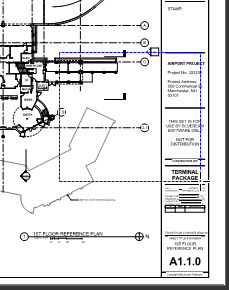
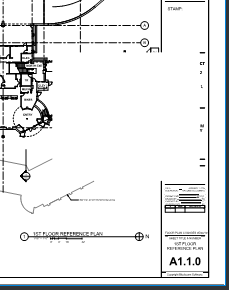
Erase Content doesn’t let you paste what you remove. If you want to move content, use Cut Content instead.
Use this tool with caution to avoid deleting important information.