Creating a PDF from existing files
Revu lets you create PDFs from existing files, including those that are not PDFs themselves. When creating a single PDF out of a single non-PDF file, Revu will use its own plugin whenever available (for example, the Office or CAD plugins). For other operations, the Bluebeam Stapler might be utilized.
 Create a PDF from a single file
- Go to File > Create >
 From File.
 - Navigate to and select a file. The source file can be a document, such as a Word, Excel or PowerPoint document, or a CAD file such as an AutoCAD or SolidWorks drawing. Once the file is selected, select Open.
- By default, the PDF created out of the selected file will have the same name. If desired, enter a new name in the File name field, then choose a folder location and select Save.
A program must be installed on the computer that can open and print the selected file type. If a plugin is available, like the Office or the CAD plugins, then the plugin will be used to create the PDF file. To change the properties used to create the PDF, or to resolve other problems creating the PDF, open the file in the native program and create the PDF using the plugin or by printing to the Bluebeam PDF printer.
Creating a PDF from multiple files (batch creation)
- Go to File > Create >
 From Multiple Files.
 - Navigate to and select the files to include in the PDF. Hold down CTRL or SHIFT to select multiple files.
-
Select Open. The Stapler wizard opens with the source files listed in the order in which they will appear in the PDF. The Stapler can combine all the files into one PDF or convert each to a separate PDF.
.png)
- To add any additional source files, select one of the following buttons:
- Add Folder: Adds all files found within a selected folder. When selected, the Add Files from Folder dialog appears. Navigate to and select the desired folder, then select Select Folder.
To include the files found in this folder's subfolders, select Include Subfolders first.
- Add Files: Adds selected files. When selected, the Open dialog appears. Navigate to and select the desired files (hold down CTRL or SHIFT to select multiple files), then select Open.
- Add Folder: Adds all files found within a selected folder. When selected, the Add Files from Folder dialog appears. Navigate to and select the desired folder, then select Select Folder.
-
PDFs will be combined in the order in which they are sorted. To change the sort order:
- Select
 and select the desired sort option to sort the files automatically.
 - Select a file you wish to move and select either
.png) to move it up in the list or
to move it up in the list or .png) to move it down in the list to reorder the files in the list manually.
to move it down in the list to reorder the files in the list manually. - Select a file and select
 to remove it from the list.
- Select
- To create a single PDF out of the source files, select One Output File and enter a name for the PDF in the corresponding field. Otherwise, select One Output File Per Document to create a separate PDF for each of the source files.
- To save the PDF or PDFs in the same folder as the source files, select Use source file folder. Otherwise, select Pick Custom Folder and select
 to navigate to and select the desired folder.
 - Select Create File.
Selecting OK will open the job in the Stapler configuration window, where you can view the jobs about to be run or queue additional jobs. Further information about using the Stapler Configuration window is accessible from the Help > Help command in the Stapler Configuration window.
Creating a PDF from Windows Explorer
You can combine files (create a single, multi-page PDF out of several source files) or convert them (create multiple, individual PDFs from each source file) directly from Windows Explorer using Stapler.
- Open a Windows Explorer window and navigate to a folder containing files you wish to combine or convert.
- Select the desired files in the Explorer window. Hold down CTRL or SHIFT to select multiple files.
- Right-click any of the selected files and select one of the following:
- Combine Files in Revu will create a single multi-page PDF from the selected files.
- Convert Files in Revu will make individual PDFs from each of the selected files.
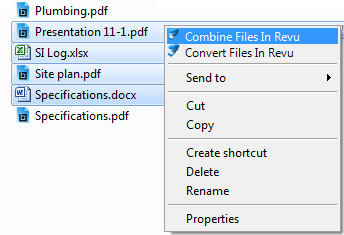
What happens next depends on which you selected:
Combine files in RevuWhen selected, the Stapler wizard opens with the selected files already populated in the source file window.
- To add any additional source files, select one of the following buttons:
- Add Folder: Adds all files found within a selected folder. When selected, the Add Files from Folder dialog appears. Navigate to and select the desired folder, then select Select Folder.
To include the files found in this folder's subfolders, select Include Subfolders first.
- Add Files: Adds selected files. When selected, the Open dialog appears. Navigate to and select the desired files (hold down CTRL or SHIFT to select multiple files), then select Open.
- Add Folder: Adds all files found within a selected folder. When selected, the Add Files from Folder dialog appears. Navigate to and select the desired folder, then select Select Folder.
PDFs will be combined in the order in which they are sorted. To change the sort order:
- Select and select the desired sort option to sort the files automatically.
- Select a file you wish to move and select either to move it up in the list or to move it down in the list to reorder the files in the list manually.
- Select a file and select to remove it from the list.
- Select
- To create a single PDF out of the source files, select One Output File and enter a name for the PDF in the corresponding field. Otherwise, select One Output File Per Document to create a separate PDF for each of the source files.
- To save the PDF or PDFs in the same folder as the source files, select Use source file folder. Otherwise, select Pick Custom Folder and select to navigate to and select the desired folder.
- Select Create File.
Selecting OK will open the job in the Stapler configuration window, where you can view the jobs about to be run or queue additional jobs. Further information about using the Stapler Configuration window is accessible from the Help > Help command in the Stapler Configuration window.
Convert files in RevuWhen selected, a new Stapler job opens with the selected files already populated as sources.
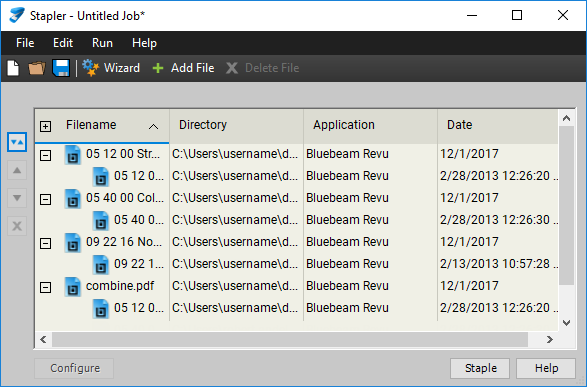
- To include an additional source file:
- Select
 Add File.
 - Navigate to and select the desired file. To convert individual sources into distinct PDFs, select only one file (see the note below for information about selecting multiple files).
Selecting multiple files is allowed, but doing so will open the Stapler wizard in order to combine the new files into a single PDF. If that is desirable, hold down CTRL or SHIFT while selecting the new files. When you select Open, the Stapler wizard appears. Select OK and the new files are added to the Stapler job to be combined into a single PDF.
Select Open. The new source file is added to the job.
- Select
- To remove a source file, select the file and select
 Delete File.
 - Select Staple. The files will be converted to PDFs and opened in Revu.