Importing a trusted identity certificate
Before a digital signature can be validated in Revu, you must import the digital ID certificate of the signer to your trusted repository. The recommended best practice when it comes to importing digital ID certificates is to have signers send you their digital ID certificates (which can be easily exported from Revu) directly and import them into your trusted repository ahead of time.
 Import a digital ID certificate from a file
- Save the .cer file that was sent to you somewhere on your computer or network.
-
In Revu, go to Tools > Signature > Trusted Identities. The Manage Trusted Identities dialog appears.
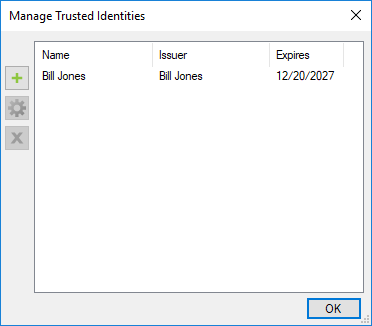
- Select
 Add Trusted Identity.
 - In the Windows Open dialog, browse to the location of the saved .cer file and open it. Revu automatically adds it to your list of trusted identities.
Import the Adobe Root Certificate
To validate documents signed with Adobe CDS, you must first install the Adobe Root Certificate in your Trusted Identities Store. The Adobe Root Certificate and instructions for how to install it are available from your Certificate Authority.