Change the color of multiple markups
The colors of multiple markups can be changed selectively.
- Select the desired markups using any of the multi-select methods.
- Select Change Colors in the Appearance section of the Properties panel. Or, right-click one of the markups and select Change ColorsThe Change Multiple Colors dialog opens.

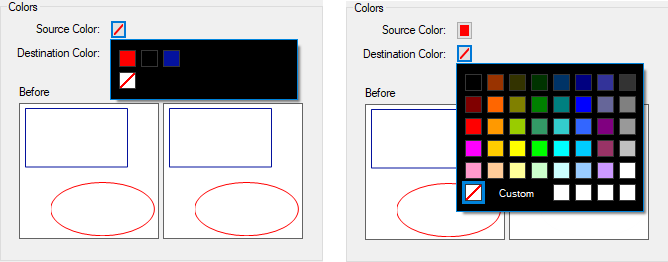
- Select Source Color and then select the color you want to change. The list of colors is pre-filtered to those present in the selected markups.
-
Select Destination Color and select the new color.
- Select OK.