Edit markups
Most markups can be edited extensively after they are created. The most common editing operations are described below.
 Reposition markups
Drag to reposition any markup on the document. Some multi-part markups, such as the Callout markup, can be moved in parts or in whole; see the documentation for those markups for details regarding moving them. The markup's position updates in real time.
Resize markups
- Select the markup.
- Drag the desired control point.


All of the available control points will appear when the markup is selected.
Polygon and Polyline markups will keep their aspect ratio by default when their Resize (purple) control points are moved. Press and hold SHIFT to resize the length and width independently.
Rotate markups
To rotate a markup, drag the orange control point outside the markup's bounding box. The following example shows a rectangle being rotated by 30°. The shape will not actually be rotated until the mouse button is released.

As the mouse pointer moves, the current rotation angle is shown. The rotation angle will snap to 15° increments by default. Press and hold SHIFT to free the rotation so any angle can be defined.
The controls available are slightly different for each type of markup. For example, a line has only two control points and cannot be rotated.
Selecting multiple markups
There are several ways to select more than one markup. This allows the editing of properties, aligning, movement and deletion of markups simultaneously. Selecting multiple markups also enables the grouping of markups.
The selected markups can be manipulated simultaneously through various toolbars, including the Properties toolbar, or the Properties panel. To deselect all markups, press ESC or simply click on any other part of the PDF.
Multi-selecting markups using the Select tool
-
Go to Edit >
 Select or press V on the keyboard.
Or, select the Select tool on the Navigation bar.
Select or press V on the keyboard.
Or, select the Select tool on the Navigation bar. - Use one of the following methods to select the desired markups:
- Drag a rectangle over the desired markups. Markup selection behaves differently depending on dragging direction:
- Dragging from left to right will select any markups that are entirely within the rectangle.
- Dragging from right to left will select any markups that the rectangle touches.
- While holding down SHIFT, select the desired markups.
- Drag a rectangle over the desired markups. Markup selection behaves differently depending on dragging direction:
Multi-selecting markups from the Markups list
- Press and hold SHIFT.
- While holding, select a range of rows in the Markups list to be selected. To select rows that are not in a range, press and hold CTRL instead.
Multi-selecting markups using the Lasso tool
-
Go to Edit >
 Lasso or press SHIFT+O.
Or, select the Lasso tool on the Navigation bar.
Lasso or press SHIFT+O.
Or, select the Lasso tool on the Navigation bar. - Drag to define a free-form region. All markups within and partially within the region will be selected.
Move captions
Revu makes it easy to reposition many measurement captions.
- Select the measurement markup whose caption is to be moved.
- While holding down SHIFT key, drag the caption to a new location.
When moving the caption of a Length measurement, a leader line is automatically drawn from the middle of the measurement to the caption. To hide this leader line, clear Show Caption Leader Line on the Properties panel.
Rotate captions
To rotate Measurement captions, do the following:
- Select the measurement markup whose caption is to be rotated.
-
Drag the anchor point to the desired angle. Notice that the adjusted angle is automatically shown to make precise rotations easier.
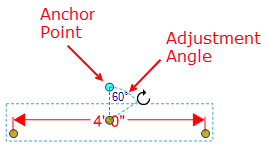
- By default, captions are rotated in 15° increments. Hold down SHIFT while rotating a caption to rotate it 1° at a time.
- For measurements where the default caption can be on an angle (Perimeter, Diameter, or Radius), or for measurements that are themselves rotated, captions are rotated in relation to the page, not the default position. This allows for setting the rotation horizontal or vertical to the page more easily.
To return a rotated caption to its original, default position, right-click the measurement and select Reset Caption Position.
Remove markups
To remove markups from your PDF, do one of the following:
- Select the markup on the PDF or from the Markups list.
- Press Delete on your keyboard, or right-click and select
 Delete.
Cycle through markups
Drawings can become cluttered with multiple overlapping markups, making it challenging to select a specific one.
To cycle through overlapping markups, see Cycle through overlapping markups.