Edit default layer settings
The default Layer settings in Revu are changeable.
- Open a PDF.
- Go to Window > Panels >
 Layers or press ALT+Y to show the Layers panel.
 -
Select
 Add Layer from Page and select any of the menu options. The Layers dialog appears.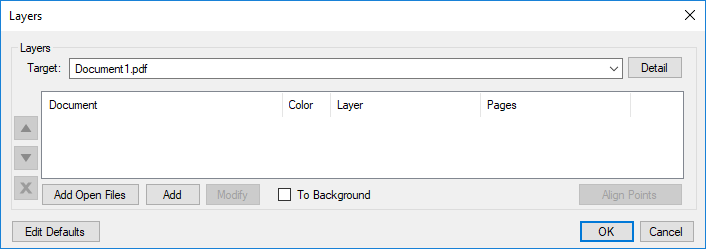
If the Open dialog appears, close it.
-
Select Edit Defaults. The Add Layer Defaults dialog appears. Change any of the available settings, as desired.
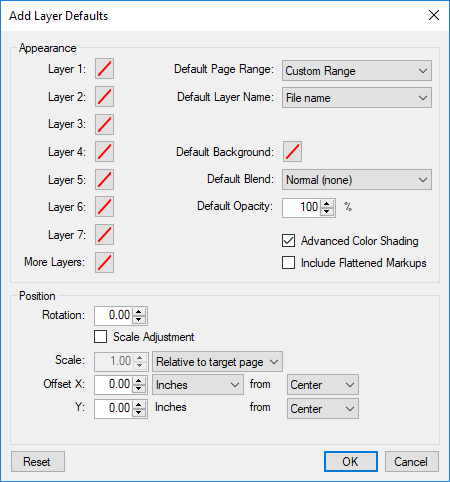
- Appearance: Sets the default line color of the Layers. To change the default line color for a Layer, select the color box and select the desired color.
- Default Background: Set the default background color. The default is transparent. To change the default background colorselect select the color box and select the desired color.
- Default Blend: Determines how the color of overlapping elements are treated.
- Default Opacity: Sets the transparency of the content in the Layer. Range is from 0% (fully transparent) to 100% (fully opaque).
- Auto Align Limit: Filters out objects smaller than the selected limit. Larger values (such as 1/8 inch) may improve performance but don't align smaller details, while smaller values (such as 1/32 inch) may include more detail but could impact performance.
- Advanced Color Shading: When enabled, the overlay process will employ advanced shading methods when blending colors, allowing for greater detail in the resulting drawing.
- Include Flattened Markups: When enabled, overrides the default behavior that ignores markups that have been flattened as "recoverable".
- Position:
- Rotation: Sets the default rotation (in degrees) of the Layer. Range is from 0 to 360.
- Scale: Sets the default scale of the Layer, where 1.00 is equal to 100% (so, for example, a 75% scale should be entered as .75 while a 125% scale should be entered as 1.25). Select Scale Adjustment to enable.
- Offset X & Y: Sets the default offset position of Layer along the X and/or Y axes.
- Select OK.