Search panel
Revu supports two methods for searching PDFs: Text search and Visual search.
-
 Text searches are generally faster and more reliable, but they only work on actual text elements in the PDF. For example, scanned PDFs are images, so even if those images contain words, they are not considered text elements and Text search will not work on them. To make a scanned document searchable, run OCR.
-
 Visual searches allow you to search for graphical symbols in PDFs. It can be slower than Text search, but it offers functionality that Text search cannot.
The  Search panel allows you to search for text or visuals in the current PDF, all open PDFs, PDFs in a folder, or in the files in the Recents list. You can perform a Text search or a Visual search. You can also Search and Replace.
 How to apply actions to search results Video1:59
Apply styling, highlights or other actions to your Text or Visual Search results. Watch at Bluebeam University.
Go to Window > Panels > Search or press either Alt+1 or Ctrl+F to show the Search panel.
 Text search
Text must be present in the PDF file for text search to find it. Scanned PDF files are images and do not contain any text, so they are not searchable. See OCR for details on how to make scanned documents searchable.
Search for text using the search field
- Go to Window > Panels > Search or press either Alt+1 or Ctrl+F to show the Search panel.
-
Select
Text. - Enter the search term in the first parameter field.
-
Select the document(s) or location you would like to search from the menu in the second parameter field. The options are Current Document, Current Page, All Open Documents, Current Set, Recents, Folder or Current Studio Project.
- If Folder is selected, use the path box or select browse to define the location of the folder. Select Include Sub-Folders in the Text search options to include the folders found within the specified folder in the search.
- The Current Set option will be available only if you have a Set open. Select this to search within the open Set.
- The Current Project option will be available only if you are logged into a Project. Select this to search all local (downloaded) files from that Project. This option restricted to file name only searches; it is currently not possible to search within document content.
- Select the search options from those available under Options. The exact options available will vary according to the selection made in the first parameter field.
- Select Search.
A progress bar may appear at the bottom of the Search tab as lengthy searches are performed. Search results will appear in the Results section.
Some search results can have additional operations performed on them. These results will have a checkbox next to them, allowing you to select some or all of them for these actions. See Search results options for more information about these additional operations.
Search for text selected in the document
Searching for selected text searches the current PDF only with the selected search options enabled. To search for text selected from the current PDF, follow these steps.
-
Go to Edit > PDF Content >
 Select Text.
- Select the text to search to search for in the document.
- Right-click the selected text and select Search.
A progress bar may appear at the bottom of the Search tab as lengthy searches are performed. Search results will appear in the Results section.
Text search options

- Include Sub-Folders: Searches any sub-folders found in the designated folder. Only available when Folder is selected as a search parameter.
- Search Pages: Searches for text in the content of the PDF.
- Search Filenames: Searches the file names in the Recents list or designated folder when either Recents or Folder is selected as a search parameter.
- Search File Properties: Searches for text in the Properties metadata fields.
- Search Form Fields: Searches for text in the data entered in the form fields.
- Search Markups: Searches for text in markups.
- Case Sensitive: Searches for text with the exact case typed in the Search Terms field.
- Whole Words Only: Searches only for instances where the search term exists as a complete word. If the search term is partially contained in another word and the Whole Words Only box is checked, it will not be included in the search results.
Text search results
Search results are shown under the Options section. The search term is highlighted in the phrase where the term was found. The page number of the PDF is included at the beginning of each result. Select a particular search result to jump to the location of the term in the main workspace.
If search terms are found in multiple documents (for example if the search was conducted in All Open Documents or Folder), the search results are grouped by document.
Some search results can have additional operations performed on them. These results will have a checkbox next to them, allowing you to select some or all of them for these actions. See Search results options for more information about these additional operations.
Search and Replace
Text found in the PDF content layer during a Text Search can be replaced using the  Replace Checked tool on the Results toolbar. Note that only text in the PDF content layer can be replaced in this manner; since markups do not reside in the content layer until they are flattened, text contained within unflattened markups cannot be replaced using this tool. Performing this action on a page containing flattened markups will prevent all markups on the page from being unflattened.
- Run a Text Search for the text you wish to replace.
- Select the desired results from the Search Results.Results found outside the PDF content layer, such as text found in unflattened markups, do not have a checkbox and cannot be selected for this operation.
-
Select
Replace Checked on the Results toolbar. - In Search and Replace dialog, enter the replacement text in the Replace with field.
- Select one of the Font options to determine how to handle text that uses a font that does not have editable permissions. You may either Skip such replacements, or Use a different font by selecting it from the list.
Visual search
Use Visual search to search for all instances of a visual objection that occurs in a document.
How to use Visual search Video2:22
Discover how to use Visual search to help you get the most out of Revu. Watch at Bluebeam University.
Perform a Visual search
To learn how to perform a Visual search on a PDF, see Visual search overview.
Visual search options
- Sensitivity: Determines how closely the images need to match to be considered a valid result. Adjust the slider to set a lower or higher sensitivity. Lowering the sensitivity will allow for matches that have minor differences, like an adjacent line, but may also result in false positives.
You might need to lower the sensitivity if you are working on a PDF created from a scan because there may be stray pixels or background noise in the PDF.
- Search Multiple Rotations: Symbols will be searched at 0, 45, 90, 135, 180, 225, and 270 degree rotations.
- Filter by Color: Enables the Refine Colors button. The search will filter out colors that are not part of the selection (or in the selected range in the histogram).
-
Limit by Selection: On a vector PDF, this option filters out vector objects that extend out of the selection rectangle, as shown in the example below.
Visual search results
The search results are shown in the Results section. A graphic of the search result and a small area around it will appear in the results list. Select the image, and the main PDF workspace will change to show that result and the area around it.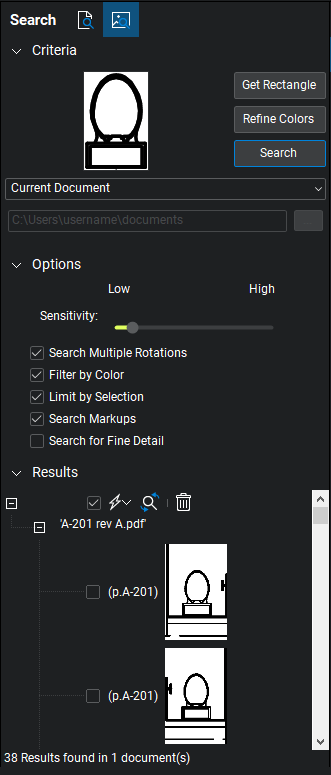
Working with search results for VisualSearch is similar to working with results for Text Search, though text-based actions are not supported. Additionally, Count measurements can be applied to the results of a VisualSearch.
To apply Count measurements to the search results, follow these steps:
- Select the results that should be counted.
-
From the
 Actions menu, go to
 Apply Count Measurement to Checked and select the desired Count symbol to apply to the selected results.

Search results options
For both Text and Visual searches, use these options to manage your search results.

 Select All: Selects all result items that can have additional operations performed on them. This makes it easy to apply bulk changes to search result terms across multiple documents. Note that not all search results can have additional operations performed on them (search results from unflattened markups, for example, are excluded from these operations).
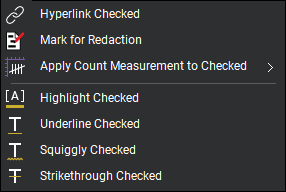
Check Options menu: Contains commands that can be performed on all checked items at once. These commands can also be performed on individual search results by right-clicking the result and choosing the command from the context menu.
-
Hyperlink Checked: Creates a hyperlink for each result selected.
-
Mark for Redaction: Redacts each result selected.
-
Apply Count Measurement to Checked: Adds a Count Measurement markup to each result selected. Select a count symbol from the menu that appears.
-
Highlight Checked: Applies a yellow Highlight markup to each result selected.
-
Underline Checked: Applies an Underline markup to each result selected.
-
Squiggly Checked: Applies a Squiggly markup to each result selected.
-
Strikethrough Checked: Applies a Strikethrough markup to each result selected.
Replace Checked: Allows for replacing the text found in a Text search with other text. See Search and Replace.
 Clear Search Results: Clears the current search results list.