MultiView and MultiView Extended
Revu's exclusive MultiView feature enables breaking the workspace up into multiple splits that can be synchronized. Additionally, MultiView Extended allows a document tab to be separated from the main workspace into a stand-alone, detached workspace.
 Split the workspace with MultiView
MultiView lets you break the workspace up into independent splits (up to sixteen of them). Splits can be synchronized to pan and zoom in unison, and they can show different files or different areas of the same file. Controls for splitting the screen are found on the Navigation bar at the bottom of the workspace or in the View menu.
- To split the window vertically, select
 or press CTRL+2.
 - To split the workspace horizontally, select
 or press CTRL+H.
 - To remove the current split, select
 or press CTRL+SHIFT+2.
To synchronize pan and zoom settings and actions across split views, select a synchronization mode from the View menu or the  Sync menu on the Status bar (if using the Status bar, be sure to enable sync by clicking the Sync icon as well). The available modes are:
-
Synchronize Document: When enabled, synchronizes the viewing windows when displaying PDFs in side-by-side Split View mode or in a detached window by page index, thus viewing page 1 on document A will cause document B to automatically also view page 1.
-
Synchronize Page: When enabled, synchronizes the viewing windows when displaying PDFs in side-by-side Split View mode or in a detached window without regard to page index, allowing you to synchronize different pages across documents or different pages in the same multi-page document.
Synchronization is useful when you need to compare multiple versions of the same document. Panning or zooming the document in one window will automatically adjust the view in the second window.
Moving a Document From One Split to Another
To move a document from one split to another, drag its tab to the document tab bar of the desired split. A small white arrow will appear on the destination tab as you drag to indicate where it will be placed.

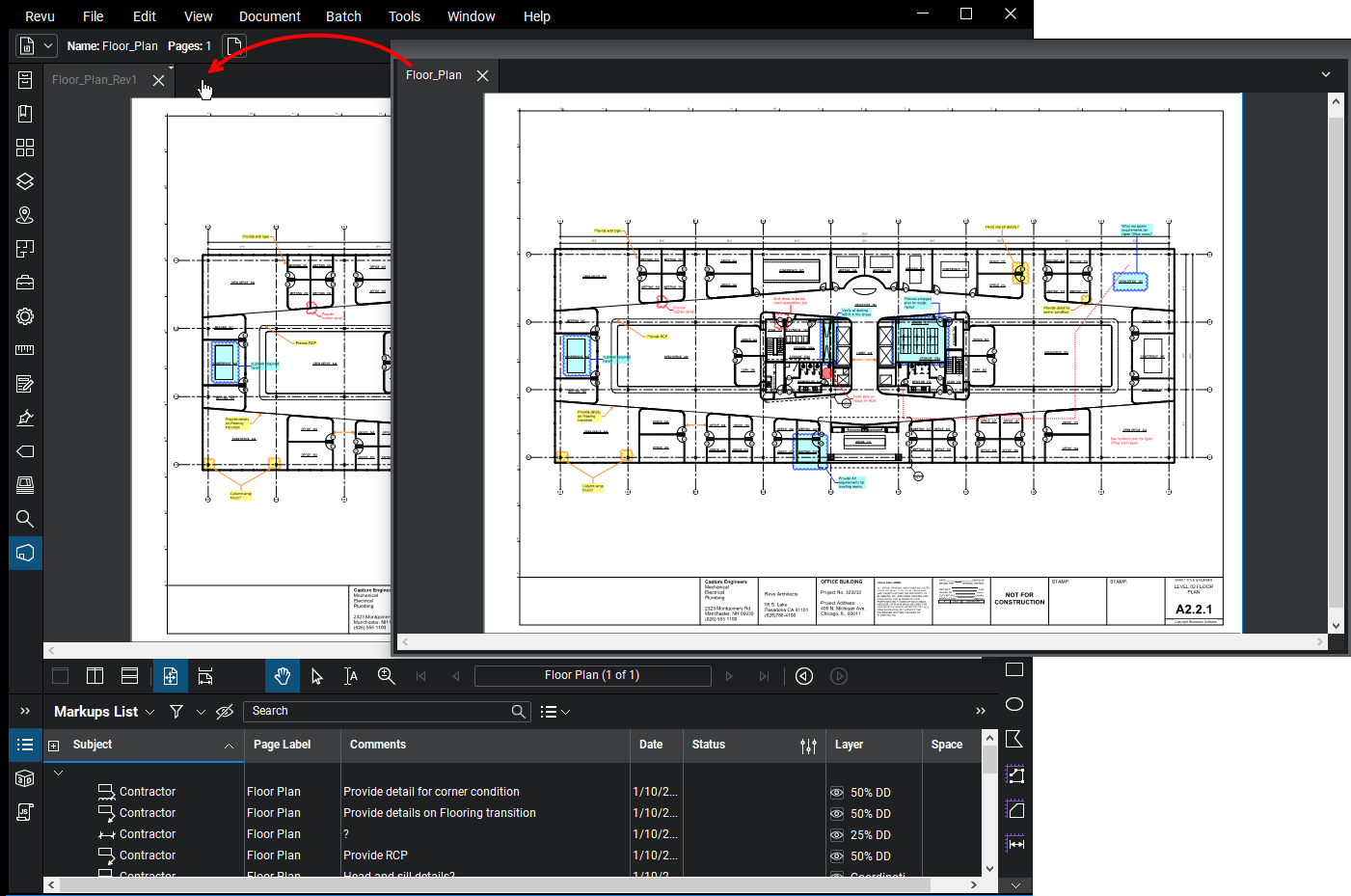
Note that you can also undock a PDF using a similar process, only instead of dragging the document tab to another split, drag it away from the document tab bar.
Work on multiple monitors with MultiView Extended
MultiView Extended lets you separate a document tab from the main workspace into a stand-alone, detached workspace. This is especially useful for working with multiple monitors.
- To detach a tab, drag the tab away from the document tab bar or right-click on a tab and select Detach.
- To detach a document tab while leaving that document open in the main workspace, hold down CTRL while dragging the document tab off the main window.
- To return the detached tab to the main workspace, click and drag the tab back to the document tab bar.
Tabs cannot be moved to another instance of Revu.
Features of Detached Workspaces
- Can contain multiple document tabs, similar to the main Revu workspace.
- Can be split.
- Can Sync with the main Revu workspace.
- Always appears on top of the main Revu window.
The example below shows a document tab being undocked by dragging the tab.

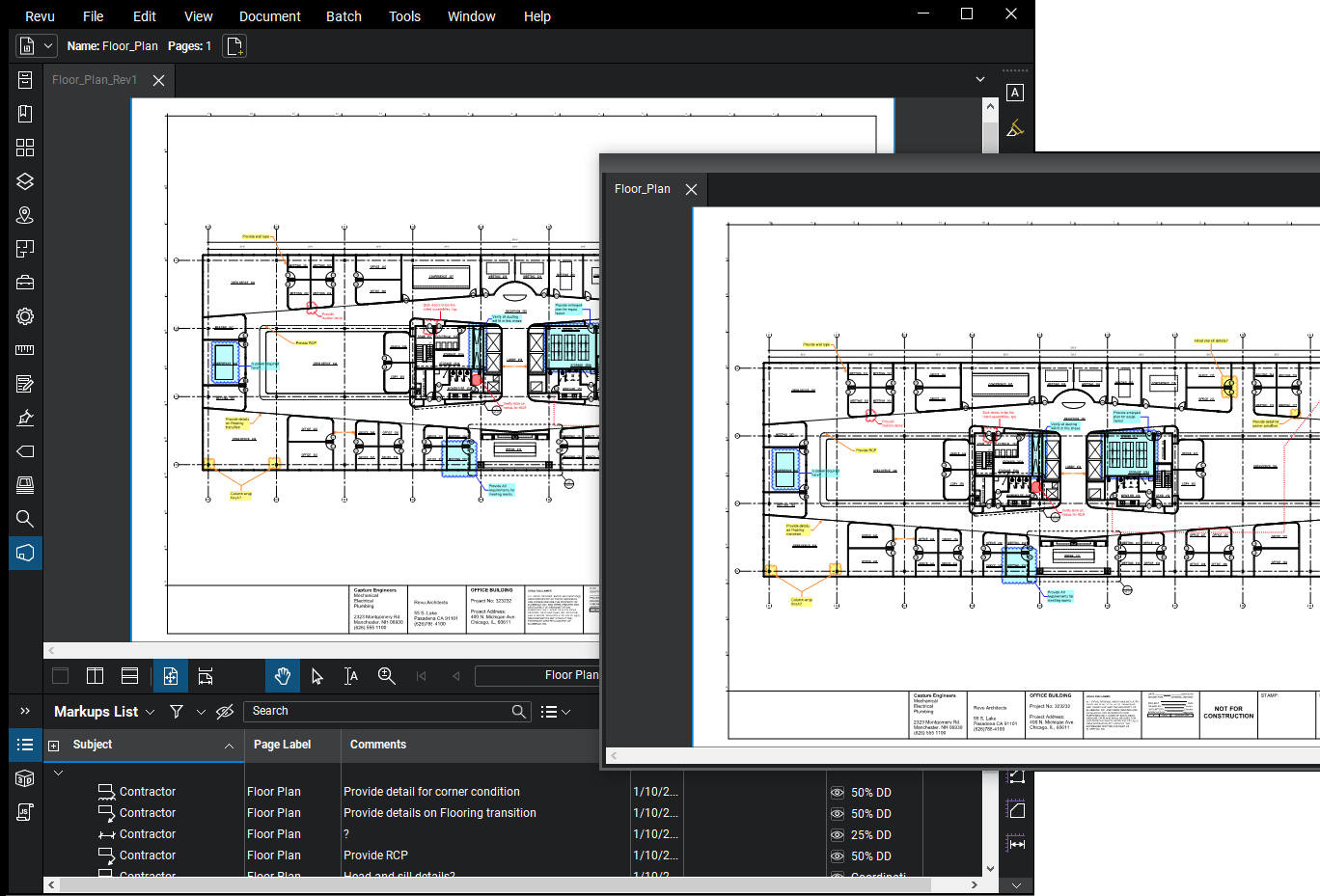
To redock the PDF, simply click its tab and drag it back to the document tab.