Generate and install an offline license
After your account is set up for offline licensing, generate the offline license in Org Admin and use Revu to upload it to the designated machine. Once generated and installed, manage your offline licenses in Org Admin.
Retrieve the machine information
This procedure is performed on the machine receiving the offline license.
-
In Revu 21.4 or later, go to Revu > Preferences.
-
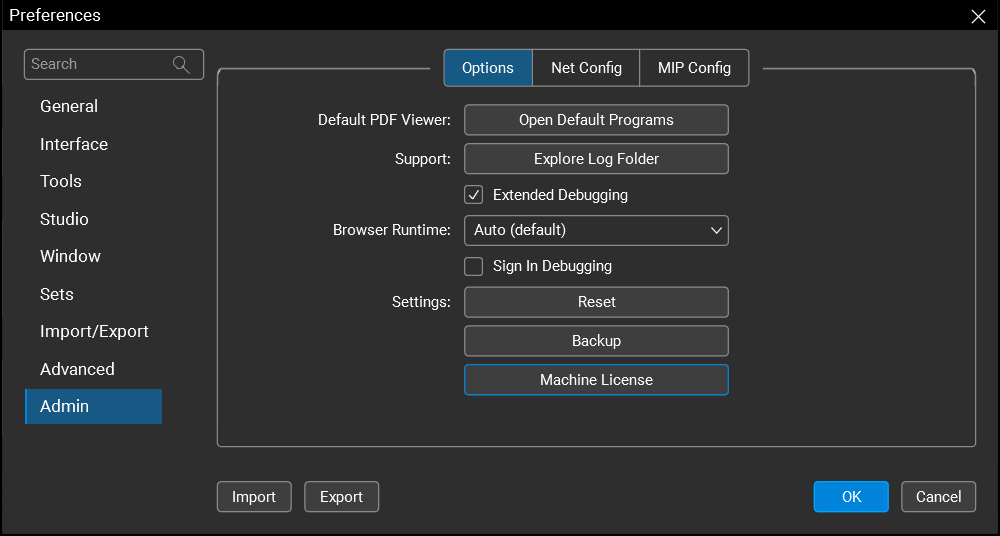
On the Admin page, press and hold Alt.
-
Select Machine License.
-
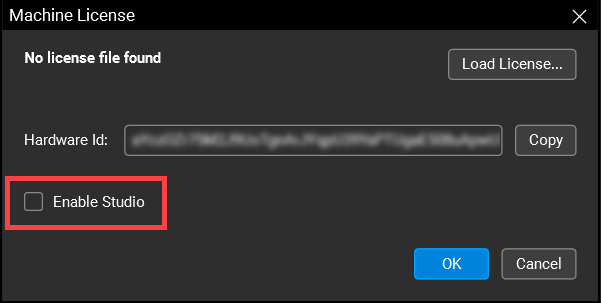
In the Machine License dialog, select Enable Studio if you are using Studio Enterprise and want to enable collaboration via Studio Sessions through your Studio Enterprise server.
-
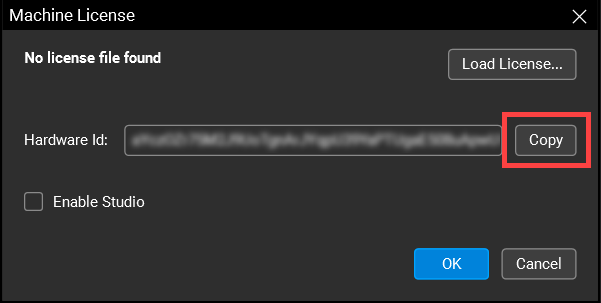
Select Copy to copy the Hardware Id.
-
If needed, transfer the Hardware Id to the Org Admin machine however your company allows (copy/paste, email, shared storage, etc.).
Generate the offline license
This procedure is performed in Org Admin.
-
On the Offline Licenses tab, select Add Machine.

-
Create and enter a Machine Name that will help you identify the machine in Org Admin.
-
In the Machine ID field, paste the hardware ID you copied from Revu, and verify the Machine ID.
-
From the Contract dropdown list, select the serial number for the offline license you want to use.
Make sure the Machine Name, Machine ID, and Contract are correct; these fields cannot be changed once the machine is added.
-
Select Next.
-
To continue adding machines, select Add another machine.
-
Select Add to add the machine to the Authorization Queue.
-
Select the machine(s) you want to generate an offline license for, and select Generate Keys.
An offline license can only be generated once for a machine, unless the contract is updated or renewed. When generating a license, make sure you know which offline license belongs to which machine.
The offline license(s) is generated, and the machine(s) is moved to the Authorized Machines list with a status of Authorized.
-
Move the license to any storage that complies with your security controls (for example, via a USB or other portable storage device, a network connected storage, etc.).
If you're accessing Org Admin on the same machine that's receiving the offline license, you don't need to move the license to any storage. The license can be downloaded directly to the machine.
Install the offline license
This procedure is performed on the machine receiving the offline license.
-
Connect the USP or other portable storage device with the offline license to the authorized machine.
If you're installing the license on the same machine that generated the license via Org Admin, you don't need to connect any storage. The license can be downloaded directly to the machine. -
In Revu 21.4 or later, go to Revu > Preferences.
-
On the Admin page, press and hold Alt.
-
Select Machine License.
-
In the Machine License dialog, select Load License.

-
Browse for and select the offline license for the machine, and select Open.
-
Select OK.
The offline license has been successfully activated, and your term for use of Revu Offline has begun. You can now use Revu Offline.
Resources
Revu 21
Revu Offline
Revu Offline