Recover Unsaved Changes
In the event that Revu crashes before changes to one or more PDFs were saved, a recovery system gives you an opportunity to recover those unsaved changes. The recovery system must have been enabled in Document Preferences before the crash occurs for this to work.
-
Upon reopening Revu after a crash, if any PDFs with unsaved changes are found, the Recover Unsaved Changes dialog appears with affected documents listed.
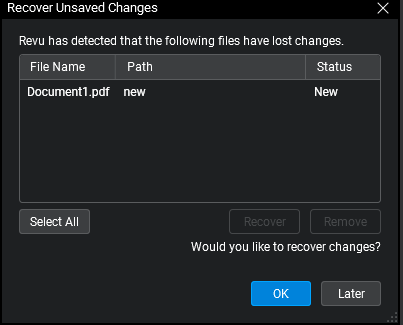
- The unsaved changes to each PDF can be recovered or discarded. By default, they are set to Recover; to recover them all now, select OK. If you'd like to discard the changes for one or more PDF, do the following:
- Select a PDF for which you wish to discard unsaved changes and select Remove.
- If you inadvertently removed a document you want to recover, select it again and select Recover.
- Review the status of each document as shown in the Status column. Be aware that any PDF set to Remove will have its unsaved changes permanently discarded.
- Select OK to enact the selected actions.
-
To take no action at this time and leave these PDFs in their unsaved state, select Later. Revu will finish opening normally and the Recover Unsaved Changes dialog will reappear with the same documents listed the next time you start it, provided no changes are save to those PDFs before then. You will have another opportunity to restore or discard their unsaved changes at that time.
If you save changes to one of these PDFs before recovering it, it will be removed from the recovery list and any unsaved changes will be lost. For example, "A101.pdf" was listed and you select Later. Then, once Revu finished starting, you opened "A101.pdf", added a few markups, and saved it. The next time you started Revu, "A101.pdf" would not be shown on the Recover Unsaved Changes dialog (and if it was the only PDF shown there originally, the dialog wouldn't open at all). Any unsaved changes it had pending will have been permanently lost.


