General Preferences
The General Preferences contain general settings for Revu, including user Options and Document, Navigation, Grid & Snap, and Spelling options. Select General from the Preferences dialog, and select the appropriate tab to view or modify these preferences.
To open the Preferences dialog box, go to Revu >  Preferences.
 Options

User: Determines the user name used to track history (for example, who placed or replied to a markup).
Language: Select the language to be used with Revu. If this selection has never been changed, the language selected at installation is shown. Revu must be restarted for changes to take effect.
Theme: Select the color theme for Revu. Options are Dark and Light.
Tab Truncation: Determines whether to truncate long file names in Revu tabs from the beginning or end of the name.
Show Full-Screen Crosshair: When enabled, the cursor is replaced with full-screen crosshairs in the main workspace, drawing vertical and horizontal lines across the document that meet at the mouse pointer. The color of the crosshairs is the same as the Snap Color defined in the Grid & Snap Preferences.
Startup Mode: Select a default startup mode for Revu, either Markup Mode, View Mode, or the mode that was Last Used.
Open PDF on Startup: Select a PDF for Revu to open whenever it starts up. You can enter the path in the field manually or select Browse and navigate to the file.
Toggle Full Screen with View Mode: When enabled, Revu automatically goes into a full screen view when in View Mode.
Reopen Files from Last Session on Startup: When enabled, files that were open when the last session was closed are reopened on launch.
Open Home Page in Web Tab on Startup: When enabled, Revu loads your homepage in a WebTab on launch.
Show Recent Files on Startup: When enabled, the File Access tab is opened on launch.
Help Bluebeam improve its products by automatically sending usage data: When enabled, data concerning the usage of Revu is captured and automatically sent to Bluebeam servers. No user data is captured or transmitted.
Reset Hidden Messages: Resets the "Don't Show Again" status of all dialogs that have had that option selected so they will appear again.
Document
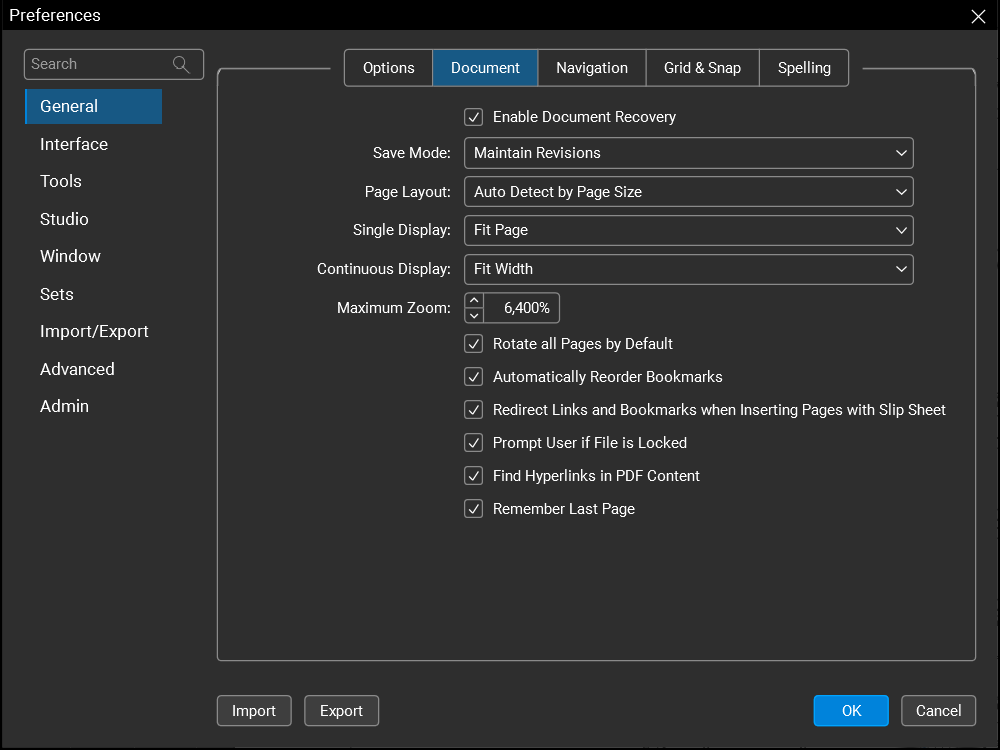
Enable Document Recovery: When enabled, Revu will attempt to recover unsaved changes to documents that were open in the previous session, but could not be saved before Revu was closed.
Save Mode: Sets the default save mode Revu will use when saving PDFs. The options are:
-
Maintain Revisions: Maintains revision history, making it possible to revert back to previously saved versions of the PDF. Revision history is stored within the PDF, resulting in larger file sizes.
-
Publish Without Revisions (Default): Creates a PDF which does not preserve revision information. A smaller file will be created; however, the ability to revert to prior versions is lost.
-
Publish Compressed: Stores some elements of the PDF in a compressed state. Saving in this mode generally results the smallest file sizes, but it can also make PDFs incompatible with older versions of the PDF standard.
See Revisions for additional information about working with PDF Revisions.
Page Layout: Sets the default page layout of PDFs opened in Revu. The options are:
-
Single Page, Continuous, Side by Sideand Continuous Side by Side: The four basic page layouts available in Revu. Selecting any of these causes Revu to open all PDFs in that page layout by default.
-
Document Based: Revu opens multi-page PDFs in Continuous mode and single-page PDFs in Single-Page mode.
-
Auto detect by page size: Revu determines the layout based on the page size: pages under 14" will use the Continuous setting (like a document) and pages longer that 14" will use the Single Page setting (like a drawing).
Single Display: Determines the default page display behavior when in Single Page mode in Revu. The options are:
 Fit Page: Fits the entire page to the available display area.
 Fit Width: Fits the width of the page to the display area.
 Actual Size: Displays the page at 100% or the true size of the page.
Continuous Display: Determines the default page display behavior when in Continuous Page display mode in Revu. The options are:
Maximum Zoom: Sets the maximum amount (by percent) that a PDF can be zoomed in the workspace.
Rotate all Pages by Default: When enabled, the Rotate Page tools rotate every page in a PDF. Otherwise, only the currently active page are rotated.
Automatically Reorder Bookmarks: When enabled, Revu attempts to reorder the PDF bookmarks to match when thumbnails are reordered.
Redirect Links and Bookmarks when Inserting Pages with Slip Sheet: When enabled, links and bookmarks referencing a page are automatically updated to the new page when slip sheeting.
Prompt User if File is Locked: When enabled, a prompt appears when a file is opened that is currently in use by another program and ask whether to open a read-only copy of this file. Otherwise, the read-only version opens automatically without showing a message.
Find Hyperlinks in PDF Content: When enabled, text in a recognized URL format (for example, www.bluebeam.com) is treated as a clickable hyperlink. Revu will attempt to open the URL in a WebTab.
Remember Last Page: When enabled, Revu automatically reopens PDFs to the page that was active when you last closed it. It also causes Revu to remember other View settings, such as the page layout and if the view was rotated.
Navigation

Single Page Mode: Sets the mouse wheel behavior when in single page mode. Choose either Zoom or Scroll. This behavior is independent of the Continuous Mode setting.
Continuous Mode: Sets the mouse wheel behavior when in continuous mode. Choose Zoom or Scroll. This behavior is independent of the Single Page Mode setting.
Reverse Mouse Wheel when Zooming: When enabled, the direction for when the mouse wheel zooms in versus zooms out is reversed.
Sensitivity: Controls how much the zoom level changes per mouse wheel click.
Enable Horizontal Mouse Wheel: When enabled, turns on panning for mice that have tilt-able scroll wheels.
Enable Horizontal Scrollbar: When enabled, a horizontal scroll bar appears at the bottom of the document tab for PDFs that are larger than the viewing area.
Enable Vertical Scrollbar: When enabled, a vertical scroll bar appears at the right of the document tab for PDFs that are larger than the viewing area.
Show Vertical Scrollbar on Left: When enabled, the vertical scroll bar is shown on the left side of the PDF page instead of the right. Enable Vertical Scrollbar must be enabled as well.
Lock Panning in Fit Width: When enabled, panning is constrained to vertical movement when in Fit Width mode. This prevents the page from sliding sideways if the mouse is moved slightly horizontally.
Synchronize Views: When enabled, Revu synchronizes the viewing windows when displaying PDFs in side-by-side Split View mode or in a detached window. This is useful when you need to compare two different versions of the same document. Moving the document in one window automatically adjusts the view in the second window. This can also be turned on and off with the Sync button on the Status bar.
Synchronization Mode: Sets the default Synchronize View mode. Document mode synchronizes document pages by page index (for example, viewing page 1 in document A causes document B to automatically also view page 1). Page mode synchronizes the pages currently being viewed regardless of page index, allowing you to synchronize different pages across documents or different pages in the same multi-page document.
Enable 3D Mouse: When enabled, 3D navigation with a 3D mouse is available.
Access Menus via Keyboard Accelerators: When enabled, keyboard shortcuts for menus on the Menu Bar are available. Press ALT+<shortcut letter> to open the desired menu (the shortcut letter is usually the first letter of the menu; pressing ALT will underscore the shortcut letters in the Menu Bar).
Grid & Snap

Units: Determines the system of measurement to use for rulers and measurement dimensions.
Show Grid: When enabled, a visible grid is overlayed on PDFs in the main workspace. This is the same grid that can be turned on and off with the Show Grid button on the Status bar.
Snap to Grid: When enabled, any points used to define a markup line are forced to align with the grid (even if the grid is not currently visible). This setting can also be turned on and off with the Grid button on the Status bar.
Grid Spacing: Determines the spacing between grid units, which affects the snap-to resolution as well as the spacing of the grid markers that are shown on the PDF. A smaller increment makes a smaller grid; a larger increment makes a larger grid.
Snap to Content: When enabled, markups automatically snap to the underlying PDF vector content. Snap to Content does not snap to text or images in the PDF, only vector images such as lines and shapes. This setting can also be turned on and off with the Content button on the Status bar.
Snap to Markup: When enabled, markups automatically snaps to other markups in the PDF. Two related behaviors will occur: the cursor will snap to points on other markups (similar to how Snap to Content snaps to points in the PDF content) and Revu will also show—and the cursor will snap to—guidelines that are based on lines in nearby markups. This setting can also be turned on and off with the Markup button on the Status bar.
Snap to options: Select specific markup and content elements to which enabled snap to features will conform. Only available when either Snap to Content and/or Snap to Markup is selected.
Sensitivity: Sets the sensitivity of the snap area (range is 5–25). The higher the setting, the larger the snap area.
Snap Color: Determines the color of the indicator box.
Spelling

Enable Auto-Complete: When enabled, Revu will attempt to auto-complete certain text entries based on previously entered text. You can also manage your auto-complete lists manually.
Managing Auto-Complete Lists
-
Select Manage.
- Select the auto-complete list you want to manage from the Category dropdown list. The items in the list are shown below.
- To add a new item to the list, select
 and enter the desired text in the text box that appears.
 - To edit an existing item in the list, select the item and select
 .
. - To delete an item from the list, select the item and select
 . To delete all items in the list, select Clear All.
 - To import a list, select Import, then select the desired file and select Open.
- To export the list, select Export, then name the file and select Save.
- Select OK.
Enable Spell Check: When enabled, Revu automatically performs spell checks.
Include Upper Case Words: When enabled, Revu spell checks words that are in all capitals. Otherwise, these words are ignored by the spell checker.
Spell Check Color: Sets the color of the squiggly underline that will be placed under misspelled words.
Active Dictionary: Determines the language used by the spell checker. Additional dictionaries can be added by selecting Import and navigating to the .zip file containing the new dictionary. Revu recognizes standard, AFF-formatted dictionaries, many of which can be found in the Custom Libraries.
Custom Words: Lists user-defined words in the active dictionary. Select  to add a new custom word.