Batch processing headers and footers
Batch Header and Footer allows you to add or remove headers and footers to multiple PDFs at the same time. Header and footers can't be batch edited; this must be done individually.
 Batch add headers and footers
PDFs don't need to be open in Revu when you run the process. If a document is open in Revu, any changes resulting from the process are made to the document, but the document won't be saved or checked in (if relevant); you must save and check in the document manually. If a document isn't open in Revu, and it isn't checked out/locked by another user, Revu applies and saves the document changes automatically (without opening the document).
To run a batch header and footer:
- Go to Batch >
 Headers & Footers.
-dialog-box.png)
- To use a previously saved batch of PDFs, select Load and select the desired file.
- Revu automatically adds active PDFs to the process. To add more PDFs, select Add and use one or more of the following methods:
- Files: Adds individual files from a network or local drive. Selecting this option causes the Open dialog to appear. Navigate to the appropriate location and select the desired files.
- Open Files: Adds all files currently open in Revu.
- Open Set: Adds all files contained in the current Set.
- Folder: Adds all files in a selected folder on a network or local drive, but not files contained in any of its subfolders. Selecting this option causes the Select Folder dialog to appear. Navigate to the desired folder and select it.
- Folder and Subfolders: Adds all files in a selected folder on a network or local drive as well as all files within any of its subfolders. Selecting this option causes the Select Folder dialog to appear. Navigate to the desired folder and select it.
- By default, any document in the Files list will be affected. To remove a document from the Files list, select it then select Remove.
- To specify which pages of a PDF will be processed, select it, then select the Pages menu and select one of the following options:
- All Pages: Sets the range to all pages.
- Current: Sets the range to the current page only.
- Custom: Sets the range to a custom value. When you select this option, replace any text left in the field with the page or pages to be printed directly. To enter a custom range:
- Use a dash between page numbers to define those two pages and all pages in between.
- Use a comma to define pages that are separated.
For example: 1-3, 5, 9 will include pages 1, 2, 3, 5 and 9.
- Current View: Limits the process to the current zoom.
- Even Pages: Limits the process to only even pages.
- Odd Pages: Limits the process to only odd pages.
- Landscape Pages: Limits the process to only landscape-oriented pages.
- Portrait Pages: Limits the process to only portrait-oriented pages.
- To save this batch for future use, select Save and save the batch to a local or network drive.
- Select Next.
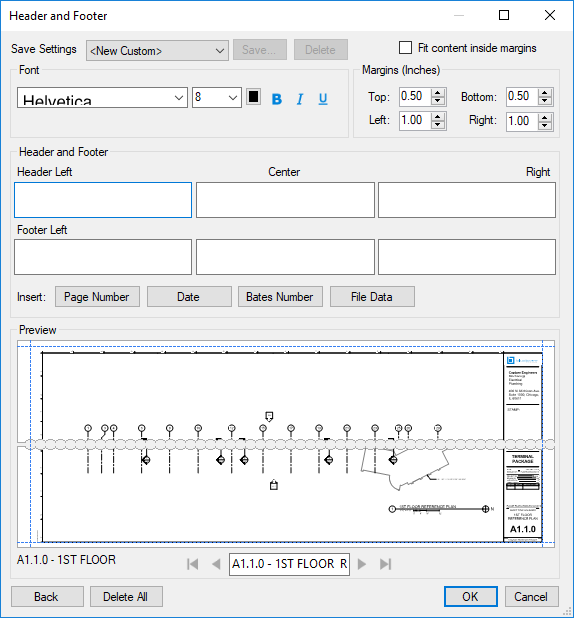
- To use a previously configured header/footer template, select the template from the Save Settings list. Select OK to use the template unmodified, or proceed to the next step to make modifications.
- In the Header and Footer section, there are six boxes representing the right, left, and center areas of the header and footer. Add information to any of these by selecting the desired box and entering text or selecting one of the four Insert buttons:
- Page Number: Auto-generates a page number value in the chosen format.

- Date: Auto-generates the date in the chosen format.
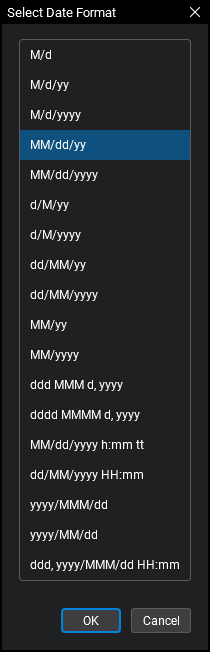
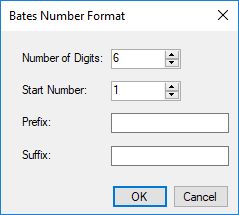
- Bates Number: Auto-generates a Bates number with fixed number of digits and a user-defined prefix and suffix.
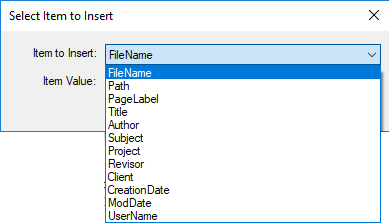
- File Data: Inserts a selected file property, such as the file name, document path, author, and more.
- Page Number: Auto-generates a page number value in the chosen format.
- Select the desired settings in the Font section to define the appearance of the text.
- Adjust margins by setting the values in the Margin section.
- Margin settings are visible in the Preview section as dashed blue lines and update dynamically when changes are made.
- To shrink page content to fit within the margins, select Fit content inside margins.
- Use the navigation controls under the Preview window to check that the header or footer does not overwrite information already on the pages.
- To save this header/footer configuration for use on future documents:
- Select Save at the top of the dialog box.
- Enter a name for this configuration in the Save Header Footer Settings as field and select OK.
- Select OK to apply the header/footer.
Batch remove headers and footers
This process describes removing all headers and footers from multiple documents. To remove just a header or a footer or just a part of either, process the PDFs individually as described in Editing Headers and Footers.
PDFs don't need to be open in Revu when you run the process. If a document is open in Revu, any changes resulting from the process are made to the document, but the document won't be saved or checked in (if relevant); you must save and check in the document manually. If a document isn't open in Revu, and it isn't checked out/locked by another user, Revu applies and saves the document changes automatically (without opening the document).
To remove all headers and footers from multiple documents:
- Go to Batch > Headers & Footers.
- Add documents using one (or both) of the following methods:
- Files: Adds individual files from a network or local drive. Selecting this option causes the Open dialog to appear. Navigate to the appropriate location and select the desired files.
- Open Files: Adds all files currently open in Revu.
- Open Set: Adds all files contained in the current Set.
- Folder: Adds all files in a selected folder on a network or local drive, but not files contained in any of its subfolders. Selecting this option causes the Select Folder dialog to appear. Navigate to the desired folder and select it.
- Folder and Subfolders: Adds all files in a selected folder on a network or local drive as well as all files within any of its subfolders. Selecting this option causes the Select Folder dialog to appear. Navigate to the desired folder and select it.
- To remove headers/footers from specific pages of a PDF, select it, then click the Pages menu and choose from the following:
- All Pages: Sets the range to all pages.
- Current: Sets the range to the current page only.
- Custom: Sets the range to a custom value. When you select this option, replace any text left in the field with the page or pages to be printed directly. To enter a custom range:
- Use a dash between page numbers to define those two pages and all pages in between.
- Use a comma to define pages that are separated.
For example: 1-3, 5, 9 will include pages 1, 2, 3, 5 and 9.
- Current View: Limits the process to the current zoom.
- Even Pages: Limits the process to only even pages.
- Odd Pages: Limits the process to only odd pages.
- Landscape Pages: Limits the process to only landscape-oriented pages.
- Portrait Pages: Limits the process to only portrait-oriented pages.
- Select OK.
- Select Delete All.