Sequences
A Sequence is a specialized markup tool that increments in value each time it is added to the PDF. The updating sequence value can be numeric or alphabetic. The image below shows a Sequence that has been added three times to the PDF.
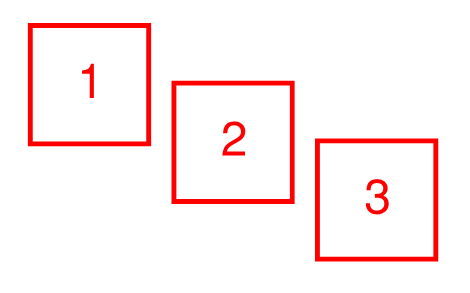
 Using a Sequence on a PDF
Sequences automatically behave as if Reuse is enabled on the Status Bar, meaning that once activated, every click or tap places another copy of the markup (in this case, the next value in the sequence). To place a sequence on a PDF, follow these steps:
-
Go to Window > Panels >
 Tool Chest or press ALT+X to show the Tool Chest panel.
- Select the desired Sequence tool from the appropriate tool set. Sequence tools can reside in any tool set, whether one of several that come installed with Revu or a user-created Sequence tool.
- Select where on the PDF to place the first Sequence markup and continue to select to place more. The value of the next Sequence markup automatically increases.
- Press ESC after placing the last Sequence markup.
The Sequence icon shown on the Tool Chest panel automatically updates to show the next value in the sequence, and the triangle icon shown in the lower-right corner of the icon changes to orange to indicate that the sequence is in use. The image below shows two Sequences, with the one on the right in use.

You can continue to a sequence at any time, even if you have stopped and used another tool or if you have opened a PDF that contains a sequence. To do so, use either of the following methods:
- Select the same Sequence tool from the Tool Chest.
- Right-click on any of the Sequence markups in the PDF and select Resume Sequence.
To select all the members of a sequence at once, right-click any member in the sequence and select Select Sequence.
Resetting a Sequence
Resetting a sequence allows you to place multiple sequences on a PDF using the same Sequence tool. By default, once a Sequence tool has been used to start a sequence on the PDF, any subsequent use of that tool will continue that sequence. To reset the tool and start a new sequence using the same tool, right-click the tool on the Tool Chest panel and go to Sequence > Reset.
Rebuilding Sequences in the PDF
In the event that you change some aspects of a sequence that has already been used on the PDF, you can rebuild the sequences that have already been placed so they conform to those changes. This generally only applies to changes made on the Sequence dialog box.
The first way to rebuild existing sequences appears when a change is made to the sequence: making an applicable change on the Sequence dialog will automatically bring up a dialog prompting you to rebuild the affected sequences. Select Yes to rebuild those sequences automatically.
Sequences can also be rebuilt later. Right-click the tool on the Tool Chest tab and go to Sequence > Rebuild Sequences in Document.
Enabling or Disabling a Sequence
You can temporarily disable a sequence, allowing you to place the "base" markup. To do so, right-click the tool on the Tool Chest tab and go to Sequence > Enabled. When Enabled is selected, the markup behaves as a Sequence tool with all the appropriate properties; when it is not selected, it behaves like any other markup.
Creating a Sequence Tool with a Numbered Count
You can create your own Sequence tool, allowing you to customize its appearance. The example below describes creating a basic Sequence tool out of a shape created using the Rectangle markup tool, but you can use nearly anything (including snapshots or image files).
- Create a Text Box markup that contains some text.
The text itself does not matter (it won't even be visible in the final product), though it's a good idea to include as many characters as there are likely to be digits used when counting with this sequence. For example, if this Sequence tool might be used to count more than 100 items, use three characters. This allows you to ensure that there is enough room for three-digit numbers in your Sequence tool.
- Right-click the Text Box markup and select Properties.
- Make the necessary changes to the appearance of the text and the Text Box itself on the Properties panel. One setting that is strongly recommended is to change the Alignment to Center Alignment (found toward the bottom of the Appearance section) so the text will remain centered when the sequence value is double digits.
- Create a Rectangle markup around the Text Box markup.
While the Text Box markup is a necessary part of the sequence tool, the shape around it is not. You can use any shape markup you wish (including one created from a snapshot or image file) or even no shape at all (just skip ahead to step 8 if that's what you're doing).
- Right-click the Rectangle markup and select Properties.
- Make the necessary changes to the appearance of the text and the Text Box itself on the Properties panel.
- Group the Text Box and Rectangle markups into a single markup.
-
Go to Window > Panels > Tool Chest or press ALT+X to show the Tool Chest panel.
- Drag the markup from Recent Tools into My Tools (or another tool set; the rest of this procedure assumes you moved it to My Tools).
- Right-click on the markup in My Tools and go to Sequence > Define. The Sequence dialog appears.
- The default settings will create a standard sequence tool that starts at 1 and counts up by 1 every time it's placed. Select OK to accept the default settings.
For other sequence options, see The Sequence Dialog.
You will see two things change on the tool's icon. First, the text you initially entered in the Text Box has been replaced with your Sequence tool's starting value (by default, a 1). Second, a small triangle icon has appeared in the bottom right corner of the icon. The image below shows a "before" and "after" view of a Sequence tool created using the above process.

The Sequence Dialog
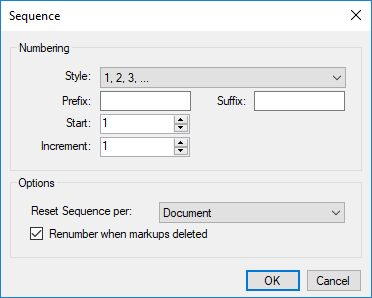
The Sequence dialog contains the following options that can be set when defining a sequence tool:
Numbering
-
Style: Defines the number or letter style of the Sequence.
-
Prefix: Adds text that appears before the Sequence text.
-
Suffix: Adds text that appears after the Sequence text.
-
Start: Sets the start value.
-
Increment: Sets the rate at which each new Sequence will be incremented.
Options
-
Reset Sequence Per: Sets whether the Sequence will restart with each new Page or Document.
-
Renumber when markups are deleted: When selected, automatically renumbers a Sequence when one is deleted. For example, if Sequence 3 is deleted, Sequence 4, 5 and 6 will automatically be renumbered 3, 4 and 5.
The following images show how a Sequence is automatically renumbered.