WebTabs
WebTabs provide an integrated method for accessing web sites from within Revu. When a link to a PDF is clicked in a WebTab, the PDF will be opened in a separate tab in split view within Revu. Page operations may be performed on the PDF just as any other PDF may be manipulated.
 Using WebTabs
To open a new WebTab within Revu, go to Window >  WebTab or press CTRL+T.
By default, the primary Home Page opens in the WebTab.
WebTab or press CTRL+T.
By default, the primary Home Page opens in the WebTab.
The Properties Toolbar above the main Revu workspace changes when a WebTab is active.

To navigate to a specific web page, enter its URL in the address bar and press ENTER. Other functions include:
 Back: Goes back to the previous web page.
 Forward: Goes to the next web page.
 Address Bar: Shows the URL of the current page. Enter a new URL to navigate to a new page.
 Refresh: Reloads existing page.
 Favorites: Shows a list of favorite sites as well as commands to add the current page to Favorites and to edit Favorites.
Additionally, you can zoom in and out of a webtab using either the mouse or the keyboard:
- Mouse: Hold down CTRL while scrolling in and out with the scroll wheel to zoom in and out.
- Keyboard: CTRL+PLUS to zoom in, CTRL+MINUS to zoom out, and CTRL+0 to return to 100% zoom.
Web Favorites
Web Favorites are saved URLs that can be easily reloaded later in a WebTab. They can be found in the Favorites menu alongside tools to add URLs to your current Favorites and manage that list.
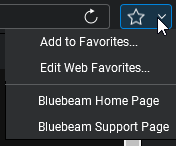
In addition to your current Web Favorites, which are shown at the bottom of the Favorites menu, there are two functions available:
- Add to Favorites: Select to add the current URL to your Favorites list.
- Edit Web Favorites: Select to manage your Favorites list.
Below these two options is a list of current Web Favorites. Select any of them to open that URL in the current WebTab.
Managing Web Favorites
- Go to Window > WebTab or press CTRL+T to open a WebTab.
- Go to Favorites > Edit Web Favorites. The Edit Web Favorites dialog appears.
- To add a new Web Favorite:
- Select
 Add.
Add.
- In the Add/Edit Web Favorite dialog, enter a display name for the Web Favorite in the Title field.
- Enter the URL for the Web Favorite in the URL field.
- Select OK.
- Select
- To delete an existing Web Favorite, select it and select
 Delete.
 - To edit an existing Web Favorite, select it and Add/Edit Web Favorite dialog
 Edit. In the Add/Edit Web Favorite dialog, change the Title and/or URL as desired.
 - To make a Web Favorite the Home page, select it and select
 Home. It is copied to the Home Pages list.
 The Web Favorite at the top of the Home Pages list acts at the home page for Web Tabs. To remove an unused page from the Home Pages list, select it and select
Delete below it. - To import favorites from Internet Explorer, select Import IE Favorites.
- To export your Web Favorites as an XML file that other Revu users can utilize, select Export as Standard Favorites. See WebTab Preferences for more information about configuring Revu to use Standard Favorites.
- Select OK.
Using Standard Favorites
Standard Favorites allows you to share Web Favorites with colleagues. Web Favorites can be exported from Revu as an XML file and then used by other instances of Revu.
A Standard Favorites list can be stored on a network drive so that multiple users can access it. When an instance of Revu is configured to use a Standard Favorites list, it copies that list when it is opened, but does not otherwise open or access the file. This means that a Standard Favorites list can be updated (or replaced) at any time, though users will not see any changes until they close and reopen Revu.
Exporting a Standard Favorites List
Standard Favorites are exported as an XML file. This file can be sent to another Revu user or placed on a network drive to be accessed by several users. It is a static file; none of the users connected to it can edit it directly through Revu. To update a Standard Favorites list, edit it manually or export another XML file and replace the old one.
- Go to Window > WebTab or press CTRL+T to open a WebTab.
- Go to Favorites > Edit Web Favorites.
- In the Edit Web Favorites dialog, select Export as Standard Favorites.
- In the Choose a location to save Standard Favorites dialog, enter a name for the XML file, navigate to a location to save it, and select Save.
Using Standard Favorites
When Revu is configured to use Standard Favorites, you will have two lists of Web Favorites: the Standard Favorites and your local Favorites. You can use a Standard Favorites XML file that is saved on a local or a network drive, though only one Standard Favorites list can be used at a time. Standard Favorites are loaded every time Revu is opened; changes made to a Standard Favorites XML file will not show up until you close and reopen Revu.
-
Go to Revu >
 Preferences.
 -
Go to Window > WebTab.

- Select Use Standardized Favorites, and select
 .
. - Browse to the location of the desired Standard Favorites file, then select it and select Open.
- Select OK.