Window Preferences
The Window Preferences contain settings for the control of Revu on tablet computers, the presentation of documents, and for the appearance and control of WebTabs. Select Window from the Preferences dialog to view or modify these preferences.
To open the Preferences dialog box, go to Revu >  Preferences.
 Tablet
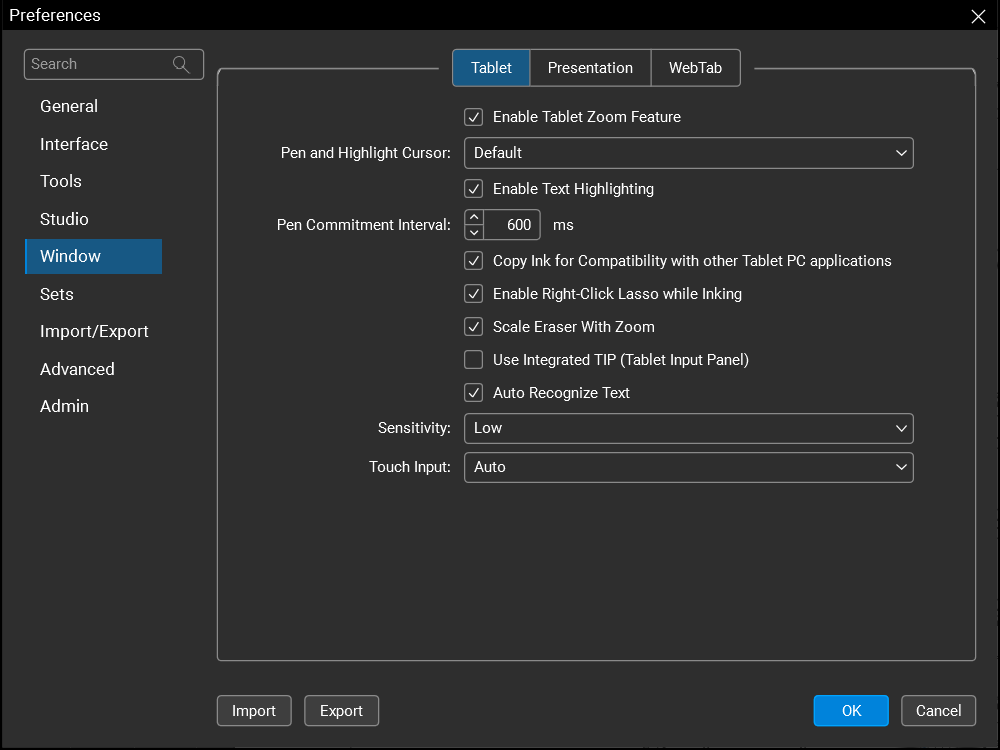
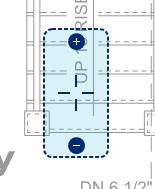
Enable Tablet Zoom Feature: When enabled, the zoom/pan tool appears when the mouse or pen is double-clicked or double-tapped. This tool makes it easier to zoom and pan a PDF using just the stylus. Place the stylus anywhere within the light-blue area and drag up to zoom in or drag down to zoom out. Select anywhere outside the light-blue area to pan. This tool looks like:
Pen and Highlight Cursor: Determines the type of cursor to show when placing annotations. If running on a tablet PC, selecting the Tablet PC option uses the tablet cursors.
Enable Text Highlighting: When enabled, highlighting text works similarly to text selection, for more controlled text highlighting. Hold CTRL to override this behavior and use the highlighter more like a pen.
Pen Commitment Interval: Sets the number of milliseconds (delay) prior to markups being applied to the document. For example, when using the Pen markup tool, a lower number results in a series of letters applied to a document separately, while a higher number results in a series of letters grouped together as one annotation.
Copy Ink for Compatibility with other Tablet PC applications: When enabled, copying markups to and from Revu and other applications is permitted.
Enable Right-Click Lasso when Inking: When enabled, if the mouse is right-clicked when the inking markups (pen & highlighter) are used, the lasso tool is selected. Sometimes a tablet computer stylus has a button enabled to emulate the right-click mouse behavior. This can interfere with using the pen annotation within Revu if one of the buttons on the stylus is accidentally pressed. Disable this setting to prevent the pen and highlighter annotations from switching to the lasso tool if there is a right-click event.
Scale Eraser With Zoom: When enabled, the eraser automatically scales when zooming in or out on a drawing.
Use Integrated (Tablet Input Panel): When enabled, Revu enables the older, legacy Tablet input panel.
Enable Pressure Sensitivity: When enabled, Revu automatically detects the amount of pressure being applied while placing Pen or Highlight markups on a tablet PC and reacts accordingly. For example, pushing down firmer with the stylus generates a thicker line.
Auto Recognize Text: When enabled, Revu recognizes text when using the pen tool and adds that text in the comment field.
Sensitivity: Determines the pressure sensitivity when using the pen and highlight annotations on a tablet PC with a tablet pointing device. Pushing down firmer with the stylus generates a thicker line.
Touch Input: Sets the Touch functionality. When Pan and Zoom Only is selected, all commands outside of pan and zoom, such as placing and moving markups or writing with the Pen require a stylus.
Presentation
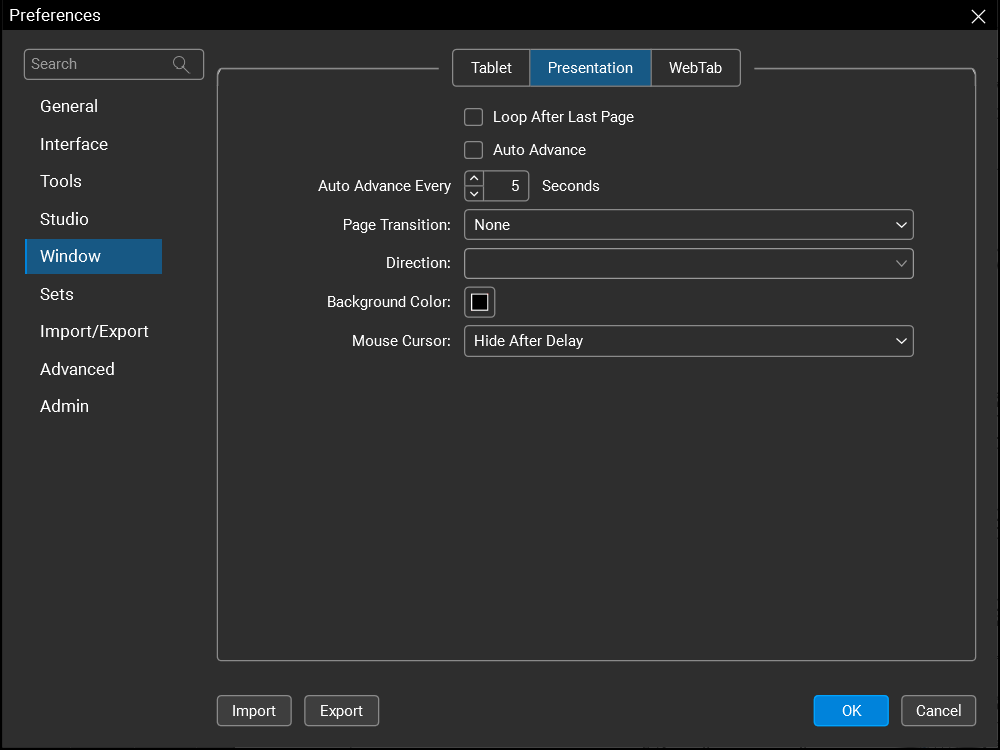
Loop after last page: When enabled, Revu loops back to the first page after the last page is shown.
Auto advance Every X Seconds: When enabled, Revu automatically advances the page at the interval defined in the associated field.
Page Transition: Determines the kind of page transition used in Presentation mode.
Direction: When a Page Transition is used, determines the direction of the transition.
Background Color: Sets the background color used when the page does not fill the entire workspace.
Mouse Cursor: Determines how Revu handles the visibility of the mouse cursor while in Presentation mode.
WebTab

Use GPU Acceleration: When enabled, GPU acceleration is utilized on WebTabs. Enabling or disabling this option might address rendering issues with WebTabs.
Always Switch to New WebTabs upon Creation: When enabled, Revu switches to new WebTabs when they are created.
Open PDF Hyperlinks in WebTabs: When enabled, Revu opens PDF hyperlinks in a new WebTab. Otherwise, links are opened in the default web browser.
Open web PDFs in Split-View: When enabled, clicking a hyperlink in a PDF causes Revu to split the main workspace so the WebTab and the PDF are both shown.
Show Script Errors: When enabled, scripting errors encountered are shown in a popup window.
Use Standardized Favorites: When enabled, Revu uses the Standard Favorites found in the location specified in the corresponding field.
Edit Web Favorites: Select to manage your favorites.