Kopf- und Fußzeilen erstellen
Sie können benutzerdefinierte Kopf- und Fußzeilen zu einer oder mehreren PDFs hinzufügen oder vorhandene Kopf- und Fußzeilen bearbeiten. Dieser Abschnitt beschreibt das Hinzufügen und Bearbeiten von Kopf- und Fußzeilen zu einer einzelnen Datei. Um Kopf- und Fußzeilen bei mehreren Dateien anzuwenden oder zu bearbeiten, siehe Stapelverarbeitung von Kopf- und Fußzeilen.
 Kopf- oder Fußzeilen hinzufügen
Generell können Dokumente nur eine bearbeitbare Kopfzeile und Fußzeile haben; in Revu wird dies als die erste Kopfzeile und Fußzeilen betrachtet, die für ein Dokument definiert ist.
Um einem Dokument mit einer Kopf- und/oder Fußzeile Inhalte hinzuzufügen, ziehen Sie in Betracht, die Master-Kopf- und Fußzeile zu bearbeiten.
Jedoch können Sie auch Inhalte zu den Kopf- oder Fußzeilenbereichen eines Dokuments hinzufügen, die nicht Teil der Master-Kopf- und Fußzeilenkonfiguration sind (zum Beispiel, um Informationen in einem ungenutzten Bereich der Kopf- oder Fußzeile in einer anderen Schriftart oder Farbe zu platzieren). Beachten Sie, dass, obwohl dies möglich ist, jede auf diese Weise hinzugefügte Kopf- oder Fußzeileninformation nicht bearbeitet werden kann. Revu platziert die gewünschten Informationen auf den dafür vorgesehenen Seiten, ohne die Konfiguration der Master-Kopf- und -Fußzeilen zu ändern. Wenn jedoch Inhalte, die über diese sekundären Kopf- und Fußzeilen platziert wurden, später aktualisiert werden müssen, müssen sie entfernt und neu angewendet werden. Seien Sie zusätzlich vorsichtig bei überlappenden Inhalten, wenn Sie sekundäre Kopf- und Fußzeilen hinzufügen.
Um dem aktiven PDF eine Kopf- oder Fußzeile hinzuzufügen, folgen Sie diesen Schritten:
-
Gehe zu Dokument >
 Kopf- und Fußzeilen > Hinzufügen.
 - Um einen zuvor gespeicherten Stapel von PDFs zu verwenden, wählen Sie Laden und dann die gewünschte Datei aus.
- Revu fügt dem Prozess automatisch aktive PDFs hinzu. Um weitere PDFs hinzuzufügen, wählen Sie Hinzufügen aus und verwenden Sie eine oder mehrere der folgenden Methoden:
- Dateien: Fügt einzelne Dateien aus einem Netzwerk oder einem lokalen Laufwerk hinzu. Wenn Sie diese Option auswählen, wird das Dialogfeld Öffnen angezeigt. Gehen Sie zum entsprechenden Speicherort und wählen Sie die gewünschten Dateien aus.
- Dateien öffnen: Fügt alle derzeit in Revu geöffneten Dateien hinzu.
- Open Set: Fügt alle Dateien im aktuellen Set hinzu.
- Ordner: Fügt alle Dateien in einem ausgewählten Ordner auf einem Netzwerk oder lokalen Laufwerk hinzu, aber nicht die Dateien, die in einem der Unterordner enthalten sind. Wenn Sie diese Option auswählen, wird das Dialogfeld Ordner auswählen angezeigt. Gehe Sie zum gewünschten Ordner und wählen Sie ihn aus.
- Ordner und Unterordner: Fügt alle Dateien in einem ausgewählten Ordner auf einem Netzwerk- oder lokalen Laufwerk sowie alle Dateien in einem seiner Unterordner hinzu. Wenn Sie diese Option auswählen, wird das Dialogfeld Ordner auswählen angezeigt. Gehe Sie zum gewünschten Ordner und wählen Sie ihn aus.
- Standardmäßig sind alle Dokumente in der Dateiliste betroffen. Um ein Dokument aus der Dateiliste zu entfernen, wählen Sie es aus und klicken Sie anschließend auf Entfernen.
- Um anzugeben, welche Seiten einer PDF-Datei verarbeitet werden, wählen Sie diese aus, gehen Sie dann in das Seitenmenü und wählen Sie eine der folgenden Optionen:
- Alle Seiten: Stellt den Bereich auf alle Seiten fest.
- Aktuell: Der Bereich bezieht sich nur auf die aktuelle Seite.
- Benutzerdefiniert: Legt den Bereich auf einen benutzerdefinierten Wert fest. Wenn Sie diese Option auswählen, ersetzen Sie den gesamten im Feld Links Text durch die Seite oder Seiten, die direkt gedruckt werden sollen. So geben Sie einen benutzerdefinierten Bereich ein:
- Verwenden Sie einen Bindestrich zwischen den Seitenzahlen, um diese beiden Seiten und alle dazwischenliegenden Seiten zu definieren.
- Verwenden Sie ein Komma, um getrennte Seiten zu definieren.
Zum Beispiel: 1-3, 5, 9 enthalten die Seiten 1, 2, 3, 5 und 9.
- Aktuelle Ansicht: Beschränkt den Prozess auf den aktuellen Zoom.
- Even Pages: Beschränkt den Prozess auf nur gerade Seiten.
- Ungerade Seiten: Beschränkt den Prozess auf nur ungerade Seiten.
- Landschaftsseiten: Beschränkt den Prozess auf nur Landschaftsseiten.
- Hochformatseiten: Beschränkt den Prozess auf nur porträtorientierte Seiten.
- Um diese Stapelverarbeitung für die spätere Verwendung zu speichern, gehen Sie auf Speichern und speichern Sie die Stapelverarbeitung auf einem lokalen oder Netzwerklaufwerk.
- Wähle Weiter.
- Um eine zuvor konfigurierte Kopf-/Fußzeilenvorlage zu verwenden, wählen Sie die Vorlage aus der Speichern-Einstellungen -Liste aus. Wählen Sie OK aus, um die Vorlage unverändert zu verwenden oder fahren Sie mit dem nächsten Schritt fort, um Änderungen vorzunehmen.
-
Im Bereich Kopf- und Fußzeilen gibt es sechs Felder, die jeweils die rechten, linken und mittleren Bereiche der Kopf- und Fußzeilen darstellen. Um diese Felder mit einer zuvor konfigurierten Kopf- und Fußzeilenvorlage zu bestücken, wählen Sie diese aus der Einstellungen speichern -Liste aus. Andernfalls fügen Sie Informationen zu einem dieser hinzu, indem Sie das gewünschte Feld auswählen und Text eingeben oder eine der Einfügen -Schaltflächen auswählen, die unten beschrieben werden.

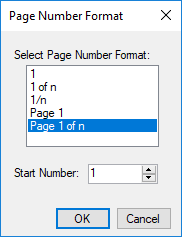
- Seitenzahl: Generiert automatisch eine Seitenzahl im gewählten Format.
- Datum: Erzeugt das Datum automatisch im gewählten Datumsformat.

- Bates-Nummer: Generiert automatisch eine Bates-Nummer mit einer festen Anzahl von Ziffern und einem nutzerdefinierten Präfix und Suffix.

- Dateidaten: Fügt eine ausgewählte Dateieigenschaft ein, wie den Dateinamen, Dokumentpfad, Verfasser und mehr.

- Seitenzahl: Generiert automatisch eine Seitenzahl im gewählten Format.
- Definieren Sie das Aussehen des Kopf- und Fußzeilen-Texts mithilfe der Schriftart -Steuerelemente oben im Dialogfeld.
- Passen Sie die Ränder Oben, Unten, Links und Rechts an, indem Sie die Rand werte ändern.
- Randeinstellungen sind im Abschnitt Vorschau sichtbar und werden dynamisch aktualisiert, wenn Änderungen vorgenommen werden.
- Um den Seiteninhalt an die Ränder anzupassen, wählen Sie Inhalt in Ränder einpassen.
- Verwenden Sie das Vorschaufenster , um zu überprüfen, ob der Header oder Footer keine bereits auf den Dokument-Seiten vorhandenen Informationen enthält. Durchblättern Sie die Seiten mit den Navigationssteuerungen unter dem Vorschaufenster.
- Um diese Kopf- und Fußzeilenkonfiguration für die Verwendung in zukünftigen Dokumenten zu speichern:
Wählen Sie oben im Dialogfeld „Speichern“.
- Geben Sie einen Namen für diese Konfiguration in das Feld Kopf- und Fußzeileneinstellungen speichern unter ein, und wählen Sie OK aus.
- Klicken Sie auf OK, um die Kopf- und Fußzeile anzuwenden.
Kopf- und Fußzeilen entfernen
Dieser Prozess beschreibt das Entfernen aller Kopf- und Fußzeilen aus ausgewählten Dokumenten. Um bestimmte Informationen aus einem Header oder Fußzeilen zu entfernen, siehe Bearbeiten und Aktualisieren von Headern und Fußzeilen.
Um alle sekundären Überschriften und Fußzeilen zu entfernen (siehe Hinzufügen eines Kopfes und Fußes für Informationen zu sekundären Überschriften und Fußzeilen), während der Hauptkopf und Fuß erhalten bleiben, siehe Bearbeitung und Aktualisierung von Überschriften und Fußzeilen.
Um alle Kopf- und Fußzeilen aus einem Dokument zu entfernen, gehen Sie wie folgt vor:
-
Gehen Sie zu Dokument >
Kopf- und Fußzeilen > Bearbeiten. - Um einen zuvor gespeicherten Stapel von PDFs zu verwenden, wählen Sie Laden und dann die gewünschte Datei aus.
- Revu fügt dem Prozess automatisch aktive PDFs hinzu. Um weitere PDFs hinzuzufügen, wählen Sie Hinzufügen aus und verwenden Sie eine oder mehrere der folgenden Methoden:
- Dateien: Fügt einzelne Dateien aus einem Netzwerk oder einem lokalen Laufwerk hinzu. Wenn Sie diese Option auswählen, wird das Dialogfeld Öffnen angezeigt. Gehen Sie zum entsprechenden Speicherort und wählen Sie die gewünschten Dateien aus.
- Dateien öffnen: Fügt alle derzeit in Revu geöffneten Dateien hinzu.
- Open Set: Fügt alle Dateien im aktuellen Set hinzu.
- Ordner: Fügt alle Dateien in einem ausgewählten Ordner auf einem Netzwerk oder lokalen Laufwerk hinzu, aber nicht die Dateien, die in einem der Unterordner enthalten sind. Wenn Sie diese Option auswählen, wird das Dialogfeld Ordner auswählen angezeigt. Gehe Sie zum gewünschten Ordner und wählen Sie ihn aus.
- Ordner und Unterordner: Fügt alle Dateien in einem ausgewählten Ordner auf einem Netzwerk- oder lokalen Laufwerk sowie alle Dateien in einem seiner Unterordner hinzu. Wenn Sie diese Option auswählen, wird das Dialogfeld Ordner auswählen angezeigt. Gehe Sie zum gewünschten Ordner und wählen Sie ihn aus.
- Standardmäßig sind alle Dokumente in der Dateiliste betroffen. Um ein Dokument aus der Dateiliste zu entfernen, wählen Sie es aus und klicken Sie anschließend auf Entfernen.
-
Wähle Weiter.
-
Wählen Sie Alle löschen. Wenn ein Warndialogfenster erscheint, wählen Sie OK aus, um die Löschung der Kopf- und Fußzeilen zu bestätigen.
Kopf- und Fußzeilen bearbeiten und aktualisieren
Einige Kopf- und Fußzeilen können direkt bearbeitet werden. Für PDFs, die mit Revu erstellt wurden, umfasst dies alle Kopf- oder Fußzeilen, die mit Revu Windows Version 12 oder höher oder Revu Mac erstellt wurden.
Sollten aus irgendeinem Grund die Kopf- und Fußzeilen eines Dokuments nicht direkt bearbeitet werden können, wird empfohlen, diese vollständig zu entfernen und neue Kopf- und Fußzeilen hinzuzufügen.
Das Bearbeiten einer vorhandenen Kopf- und Fußzeile wendet diese automatisch auf alle vorgesehenen Seiten an, einschließlich neuer Seiten. Auf diese Weise können Sie die Kopf- und Fußzeilen des Dokuments aktualisieren, um neue Seiten aufzunehmen (zum Beispiel, um die Seitenzahlen zu aktualisieren). Beachten Sie, dass, wenn die Kopf- oder Fußzeile einer Seite aktualisiert wird, alle Kopf- und Fußzeileninformationen überschrieben werden; alle sekundären Kopf- oder Fußzeilen gehen verloren (siehe Hinzufügen einer Kopf- und Fußzeile für Informationen zu sekundären Kopf- und Fußzeilen).
Um Kopf- und Fußzeilen zu bearbeiten, gehen Sie wie folgt vor:
-
Gehen Sie zu Dokument >
Kopf- und Fußzeilen > Bearbeiten. - Um einen zuvor gespeicherten Stapel von PDFs zu verwenden, wählen Sie Laden und dann die gewünschte Datei aus.
- Revu fügt dem Prozess automatisch aktive PDFs hinzu. Um weitere PDFs hinzuzufügen, wählen Sie Hinzufügen aus und verwenden Sie eine oder mehrere der folgenden Methoden:
- Dateien: Fügt einzelne Dateien aus einem Netzwerk oder einem lokalen Laufwerk hinzu. Wenn Sie diese Option auswählen, wird das Dialogfeld Öffnen angezeigt. Gehen Sie zum entsprechenden Speicherort und wählen Sie die gewünschten Dateien aus.
- Dateien öffnen: Fügt alle derzeit in Revu geöffneten Dateien hinzu.
- Open Set: Fügt alle Dateien im aktuellen Set hinzu.
- Ordner: Fügt alle Dateien in einem ausgewählten Ordner auf einem Netzwerk oder lokalen Laufwerk hinzu, aber nicht die Dateien, die in einem der Unterordner enthalten sind. Wenn Sie diese Option auswählen, wird das Dialogfeld Ordner auswählen angezeigt. Gehe Sie zum gewünschten Ordner und wählen Sie ihn aus.
- Ordner und Unterordner: Fügt alle Dateien in einem ausgewählten Ordner auf einem Netzwerk- oder lokalen Laufwerk sowie alle Dateien in einem seiner Unterordner hinzu. Wenn Sie diese Option auswählen, wird das Dialogfeld Ordner auswählen angezeigt. Gehe Sie zum gewünschten Ordner und wählen Sie ihn aus.
- Standardmäßig sind alle Dokumente in der Dateiliste betroffen. Um ein Dokument aus der Dateiliste zu entfernen, wählen Sie es aus und klicken Sie anschließend auf Entfernen.
-
Wähle Weiter.
-
Im Abschnitt Kopf- und Fußzeilen gibt es sechs Felder, die jeweils die rechten, linken und mittleren Bereiche der Kopf- und Fußzeilen darstellen. Der aktuelle Kopf- und Fußzeileninhalt wird in diesen Feldern angezeigt.
Bearbeiten Sie diesen Inhalt ganz oder teilweise, indem Sie das gewünschte Feld auswählen und den Text manuell bearbeiten oder indem Sie eine der vier Einfügen -Schaltflächen auswählen:
- Seitenzahl: Generiert automatisch eine Seitenzahl im gewählten Format.
- Datum: Erzeugt das Datum automatisch im gewählten Datumsformat.
- Bates-Nummer: Generiert automatisch eine Bates-Nummer mit einer festen Anzahl von Ziffern und einem nutzerdefinierten Präfix und Suffix.
- Dateidaten: Fügt eine ausgewählte Dateieigenschaft ein, wie den Dateinamen, Dokumentpfad, Verfasser und mehr.
- Seitenzahl: Generiert automatisch eine Seitenzahl im gewählten Format.
- Wählen Sie die gewünschten Schriftarteinstellungen , um das Erscheinungsbild des Kopf- und Fußtextes zu ändern.
- Passen Sie die Ränder Oben, Unten, Links und Rechts an, indem Sie die Rand werte ändern.
- Die Randeinstellungen sind im Vorschaufenster sichtbar und werden dynamisch aktualisiert, wenn Änderungen vorgenommen werden.
- Um den Seiteninhalt in die Ränder einzupassen, wählen Sie Inhalt in Ränder einpassen.
- Verwenden Sie die Navigationssteuerung im Vorschaufenster , um zu überprüfen, dass Kopf- und Fußzeile Seiteninhalte nicht überlappen.
- Um diese Kopf- und Fußzeilenkonfiguration zur Verwendung in zukünftigen Dokumenten zu speichern, wählen Sie oben im Dialogfeld Speichern aus und geben Sie im daraufhin angezeigten Dialogfeld einen Namen dafür ein. Wählen Sie dann OK.
- Klicken Sie auf OK, um die Kopf- und Fußzeile anzuwenden.