Erstellen einer PDF von Scanner oder Kamera
Scanner- und Kamerabilder können direkt in ein PDF konvertiert werden.
 Erstellen einer PDF aus Scannerbildern
Gehen Sie wie folgt vor, um ein PDF von einem Scanner zu erstellen.
-
Gehen Sie zu Datei > Erstellen >
 Über Scanner/Kamera.
 -
Wählen Sie den Scanner aus, den Sie verwenden möchten, um das Bild zu erfassen, und wählen Sie Auswählen. Ein scannerspezifisches Dialogfenster wird angezeigt. Weitere Informationen zur Verwendung finden Sie in der Dokumentation Ihres Scanners.
-
Nachdem der Scan vom Scanner verarbeitet wurde, wird ein Dialogfenster „Nächste Seite scannen“ geöffnet.
Um zusätzliche Seiten zu scannen (Erstellen einer mehrseitigen PDF-Datei), ändern Sie die Quellseite im Scanner und wählen Sie Weiter scannen. Wiederholen Sie diesen Vorgang nach Bedarf.
-
Um eine PDF aus den gescannten Seiten zu erstellen, wählen Sie Fertig stellen. Das Dialogfeld Bluebeam OCR-Optionen wird geöffnet.
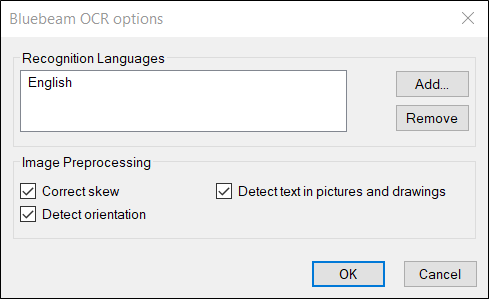
- Die Sprachen, die vom OCR-Prozess verwendet werden, werden unter **Sprache** angezeigt. Die amerikanisch-englische Bibliothek wird standardmäßig geladen. Um andere Bibliotheken hinzuzufügen, wählen Sie Hinzufügen aus. Um eine Bibliothek zu entfernen, wählen Sie die Bibliothek aus und wählen Sie Entfernen. Mehrere Bibliotheken lassen sich auf demselben Dokument verwenden.
-
Wählen Sie aus den verfügbaren Bildverarbeitungsoptionen aus:
- Verzerrung korrigieren: Korrigiert Winkelabweichungen in gescannten Dokumenten.
- Ausrichtung erkennen: Erkennt die Seitenausrichtung (90, 180 und 270 Grad) jeder Seite und korrigiert sie bei Bedarf.
- Vertikalen Text erkennen: Erkennt Text, der vertikal ausgerichtet ist.
- Text in Bildern und Drawings erkennen: Erkennt Text in Grafiken.
- Wählen Sie OK.
Erstellen einer PDF aus Kameraaufnahmen
Gehen Sie wie folgt vor, um ein PDF von einer Kamera zu erstellen:
-
Gehen Sie zu Datei > Erstellen >
Über Scanner/Kamera. -
Wählen Sie die Kamera aus, die Sie verwenden möchten, um das Bild aufzunehmen, und wählen Sie Auswählen. Ein kamerainternes Dialogfenster erscheint und zeigt eine Vorschau des Kamerabilds an. Lesen Sie in der Dokumentation Ihrer Kamera nach, um weitere Informationen zu ihrer Verwendung zu erhalten.
-
Nachdem das Bild aufgenommen wurde, erscheint das „Bluebeam OCR-Optionen“ -Dialogfeld.
Die Sprachen, die vom OCR-Prozess verwendet werden, werden unter **Sprache** angezeigt. Die amerikanisch-englische Bibliothek wird standardmäßig geladen. Um andere Bibliotheken hinzuzufügen, wählen Sie Hinzufügen aus. Um eine Bibliothek zu entfernen, wählen Sie die Bibliothek aus und wählen Sie Entfernen. Mehrere Bibliotheken lassen sich auf demselben Dokument verwenden.
-
Wählen Sie aus den verfügbaren Bildverarbeitungsoptionen aus:
- Verzerrung korrigieren: Korrigiert Winkelabweichungen in gescannten Dokumenten.
- Ausrichtung erkennen: Erkennt die Seitenausrichtung (90, 180 und 270 Grad) jeder Seite und korrigiert sie bei Bedarf.
- Vertikalen Text erkennen: Erkennt Text, der vertikal ausgerichtet ist.
- Text in Bildern und Drawings erkennen: Erkennt Text in Grafiken.
- Wählen Sie OK.