Seitenlayout
Revu ermöglicht verschiedene Seitenlayouts, einschließlich verschiedener Konfigurationen und Ansichten.
 Seitenlayoutkonfigurationen
PDF-Dateien können in verschiedenen Konfigurationen innerhalb des Arbeitsbereichs angezeigt werden.
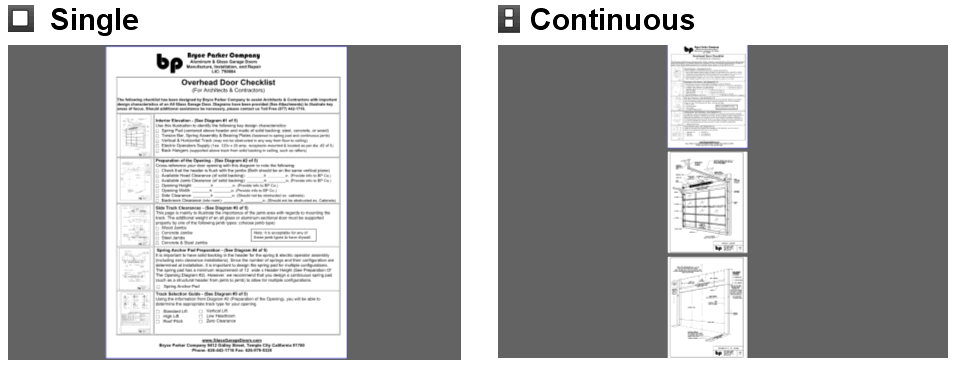

Um das Seitenlayout einzustellen, wählen Sie im Ansicht-Menü den gewünschten Modus:
 Einzelseitenmodus: Passt einzelne Seiten an das aktuelle Arbeitsbereich-Fenster an.
 Fortlaufender Modus: Zeigt alle Seiten in einer einzigen Spalte.
 Nebeneinander-Modus: Zeigt zwei Seiten nebeneinander pro Fenster, wobei die gerade Seite rechts und die ungerade Seite links angezeigt wird. Wenn Deckblatt im Nebeneinander-Modus einblenden aktiviert ist, wird die erste Seite einzeln angezeigt, und die restlichen Seiten zeigen dieses Verhalten.
 Fortlaufend nebeneinander: Zeigt alle Seiten im Nebeneinander-Modus in einem fortlaufenden Fenster. Wenn Deckblatt im Nebeneinander-Modus einblenden aktiviert ist, wird die erste Seite einzeln angezeigt, und die restlichen Seiten zeigen dieses Verhalten.
Seitenansicht
Der Standard-Zoom der Seiten wird mit den Seitenansichtsbefehlen gesteuert. Wählen Sie den gewünschten Modus im Ansicht-Menü aus:
 Passseite: Passt die gesamte Seite an den verfügbaren Anzeigebereich an.
 Fit-Breite: Passt die Seitenbreite an den Anzeigebereich an.
 Tatsächliche Größe: Zeigt die Seite zu 100 % oder in ihrer wahren Größe an.
Der Dimmer
Der Dimmer dunkelt die Inhaltsebene eines PDF ab, um Anmerkungen besser sichtbar zu machen. Es befindet sich im Menü „Ansicht“. Gehen Sie zu Ansicht > Dimmer > Inhalt dimmen oder drücken Sie Strg+F5, um den Dimmer ein- und auszuschalten. Der Effekt ist in diesem Beispiel sichtbar:
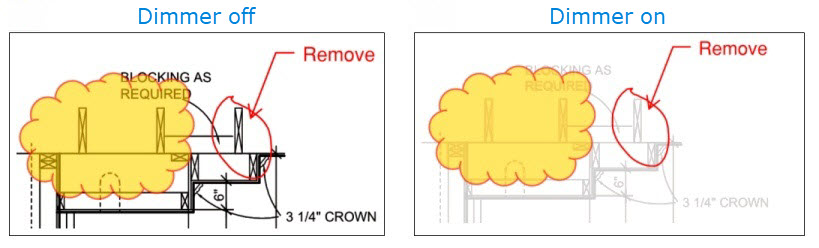
Legen Sie die Dimmstufe fest, indem Sie einen Prozentsatz aus dem  Dimmer -Menü auswählen. Je niedriger der Prozentsatz, desto weniger intensiv wird der zugrunde liegende PDF-Inhalt im Vergleich zu den Anmerkungen wirken.
