Work with files in Studio offline
Generally, Studio Projects and Sessions require an online connection to view and collaborate on documents, but it's not always possible to be online 100% of the time. Studio provides different strategies for dealing with being offline while working in Sessions or Projects.
 Offline mode in Studio Sessions
Studio Sessions benefit from a seamless transition between online and offline modes. While you are online, any changes made to a PDF in the Session (such as, adding markups or comments) are updated in real time. If you make changes to a Session document while offline, the changes are preserved and automatically synced with the Session once you reestablish your connection. Pending markups are indicated with a  Pending Upload icon and listed on the Pending tab at the bottom of the Studio panel.
Offline mode in Studio Projects
You can synchronize all or part of a Project's folder hierarchy locally onto a device so the files remain accessible without requiring an active Internet connection to Studio. That process is described below.
Synchronize Project files
In order to use a Project file while offline, the file must first be downloaded to your device as a locally cached copy that can be viewed when offline and, when you are online and reconnected to the Project, used to update the server copy if desired.
Synchronize Project files with your device
This process determines which files and folders are downloaded to your device and saves locally cached copies of Project files. It is device-specific. To download Project files to multiple devices, complete this process on each one.
To download Project files with your device, follow these steps:
- Connect to the Project. Files and folders that are tagged with the
 icon are already set to be synchronized.
For these purposes, synchronization only takes place in one direction: from the Project to your device. Updating a Project file with one from your device is covered below.
- To set a new file or folder to be included in the synchronization process, hover over its name, and select
 Sync Include.
If a folder is selected, all of its files and sub-folders will be automatically selected as well. If you do not want all of these files and folders to be synchronized, deselect them individually.
- To synchronize files, right-click them on the Project tab and select
 Sync. When done to a single file, only that file is synchronized. When done to a folder or the Project, only files that are being synchronized for the first time and files that have been changed since the last time they were synchronized are affected. When the Project file and your locally cached file are the same, no action is taken.
Opening or checking out a file also automatically caches a local copy.
Synchronize locally cached files with the Project
This process updates the version of a file found in Project with the one on your device. The Project file must be checked out to you; if it is not, check out the Project file first.
To synchronize files on your device with the Project, follow these steps:
- Connect to the Project.
- Right-click the desired file and select one of the following:
 Check In: Updates the Project file with the one on your device and checks it back in.
- Update Server Copy: Updates the Project file with the one on your device but does not check it back in.
A typical Project offline workflow
When using Projects offline, the following is an example of a typical scenario:
You are about to go out to the field to inspect the progress of a project. The files for this project are stored in a shared Studio Project called "Project 101." The jobsite does not have Internet access, and you know that you will need a few Project files related to the second and third floors of the project. The recommended workflow is as follows:
- Before leaving the office,
 Check Out the files you think you will need while you are offline.
Checking out the files not only saves a locally cached copy of the file to your device, it also lets other Project members know that you are using the files and prevents them from making changes to those files while you are offline.
- While in the field, make needed changes to the files that you have checked out.
- When you get back to the office, connect to Project 101 and Check In the files.
If you decide to not update the Project files with the changes you made while offline, you can also choose to
 Undo Check Out, which will discard your changes and release your check out.
Edit offline without Checking Out files
Checking out the documents you need to edit prior to going offline is critical as it ensures other users cannot edit those documents while you are working offline. As such, it is a highly recommended best practice. However, an Edit Offline option is available for situations in which no Internet connection is available and a file that has not been checked out needs to be edited.
If an Offline Access PIN has been set up on this device, it will be needed before Studio documents can be accessed while offline.
When choosing to use the  Edit Offline function on documents that were not checked out prior to working offline, be aware that a conflict might occur if another user checks out and changes the file. Both scenarios are outlined below.
No Online Check Out - No Conflict
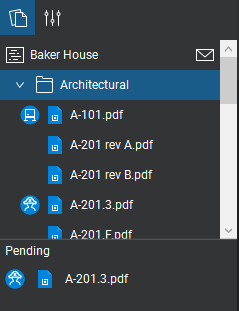 While offline, right-click a file and select Edit Offline. A warning dialog will give notice that the file may be edited simultaneously by others.
The file will appear in the Pending Changes panel with the  Edit Offline icon, which denotes that the file has not been checked out.
In this scenario, no other users have checked out the file and made changes to it.
The file can be used offline and checked in when reconnected to the server. To check the file into the Studio Project, right-click the file name in the Pending Changes panel or main Project list and select Check Out. If there are no other conflicts, the file will be checked out and appear in the Pending Changes panel with a  checked out icon. You can then Check In the file with your changes.
No Online Check Out - Conflict
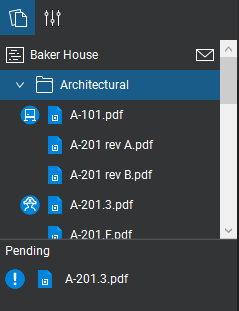 While offline, right-click and select Edit Offline. A warning dialog will give notice that the file may be edited simultaneously by others.
The file will appear in the Pending Changes panel with the Edit Offline icon, which denotes that the file has not been checked out.
For this scenario, consider that another user has checked out the file and made changes to it while you were in Edit Offline mode.
When connected back to the Project server, the icon on the file in the Pending Changes panel is changed to  Conflict State.
In this case, you should use Save As to save a copy of your changes locally on your computer.
Please consult with your Project administrator to determine if specific procedures have been established to address the integrating changes between project team members.