Sets Preferences
The Sets Preferences contain settings for the display and control of Sets in Revu, including their Categories and Tags. Select Sets from the Preferences dialog to view or modify these preferences.
To open the Preferences dialog box, go to Revu >  Preferences.
 Set Options

Open Document: Determines how new files in a Set should open when one file from the Set is already open in a tab.
- Open In place: New documents from a Set open in the same tab as the previous document.
- New Tab: New documents from a Set open in new tabs.
- New Tab in Front: New documents from a Set open in new tabs. Each new document is placed to the left of all the open tabs.
Open Edited Documents: Determines how new files in a Set should open when one file from the Set has been edited, but not yet saved.
- New Tab: Any new documents from the Set open in a new tab, keeping the last document open.
- New Tab in Front: New documents from a Set open in new tabs. Each new document is placed to the left of all the open tabs.
Use Relative Paths: When enabled, relative paths for the files in Sets are used by default. Otherwise, full paths are used. Relative paths store the location of PDFs in the Set relative to the Set's .bex file. See Understanding Relative and Full Paths for more information.
Show File Paths: When enabled, the full path to the documents in Sets is shown by default. When disabled, only the documents' names are shown.
Show: Determines what data will be shown to identify documents in a Set. The options are to show file names and page labels or just one or the other, and to show sheet names and sheet numbers or just one or the other.
In the examples below, File Name and Page Label has been selected. Where they appear depends on whether Sets is currently in Thumbnail View or List View.
|
|
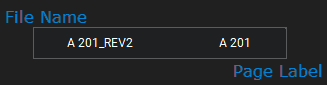
|
| Thumbnail View mode | List View mode |

Show preview of PDF: When enabled, a flyout preview of a PDF in a Set appears when the mouse cursor hovers over the PDF's entry in the Set list (only applies when the Set list is in List View).
Categories: Determines the default Categories mode for Sets. This mode can be changed for specific Sets when they are created. The options are:
- Off: Sets Categories are not used.
- Manual: Sets Categories are used, but sheets added to a Set are not automatically assigned a category. All sheets being added to the Set can be assigned to a category or categories can be assigned one at a time after the sheets have been added.
- Auto: Sets Categories are used and sheets are automatically assigned a category upon being added to the Set.
How Revu assigns a sheet to a category is determined by which Template is used. See Categories below for a more detailed explanation of how the category templates work.
Default Template: Determines the default Sets category template that is used to categorize sheets in a Set.
Always Prompt for Template Selection: Works in conjunction with the Auto and Manual Category modes. When selected, a dialog is presented during Set creation, allowing the user to choose a Category template. When not selected, the Default Template is automatically used.
Sorting
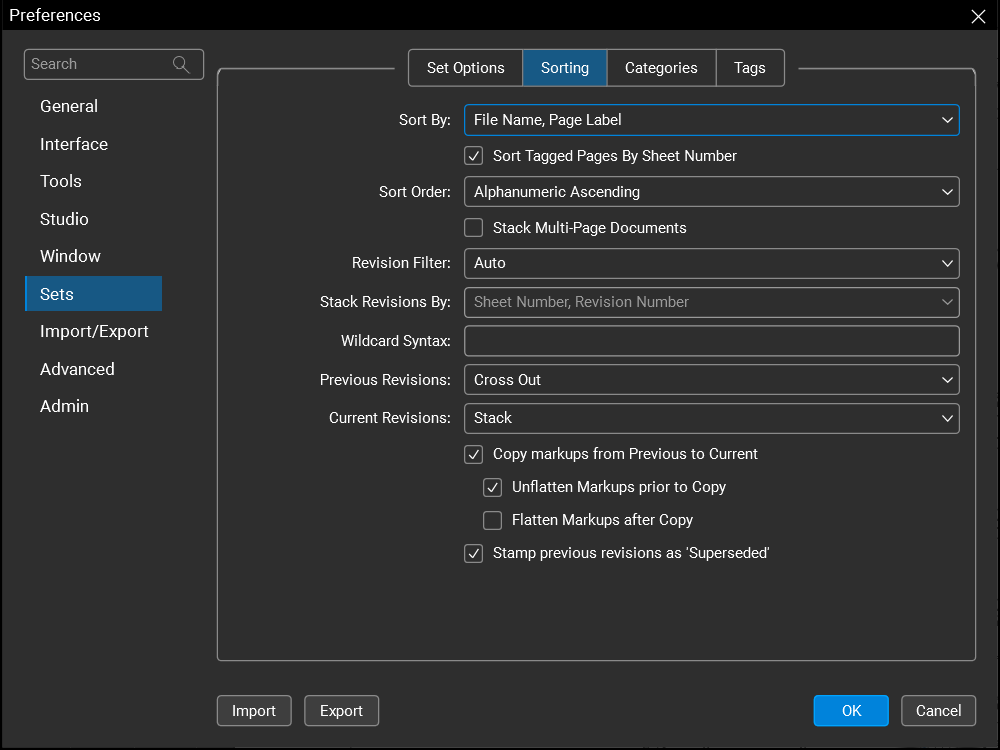
Sort By: Determines how files are arranged in a Set.
- Page Label Only: Files are sorted by Page Labels only.
- File Name, Page Label: Files are sorted by File Name and Page Label.
- File Name, Page Index: Files are sorted by File Name and Page Index.
Sort Tagged Sheets By Sheet Number: When enabled, tagged sheets are automatically sorted by the sheet number. Only applicable when the Sheet Number tag is in use. Any sheets in the Set that do not have a Sheet Number tag will be sorted by the Sort By preference found in Sets Preferences or determined when the Set is created.
Sort Order: Determines how pages with alphanumeric page labels will be arranged in a Set.
-
Alphabetic Descending: Sorts pages in descending order based on the first character and then the second character of its alphanumeric page label.
For example, a Set with page labels of 2, 1, 04, 3, 20 would be ordered as 3, 20, 2, 1, 04.
-
Alphabetic Ascending: Sorts pages in ascending order based on the first character and then the second character of its alphanumeric page label (this is the default setting).
For example, a Set with page labels of 2, 1, 04, 3, 20 would be ordered as 04, 1, 2, 20, 3.
-
Alphanumeric Descending: Sorts pages in descending order based on the whole number in the page label.
For example, a Set with page labels of 5.0, 50, 44.1, 40 and 4.1 would be sorted as 50, 44.1, 40, 5.0, 4.1.
-
Alphanumeric Ascending: Sorts pages in ascending order based on the whole number in the page label. Negative and decimal numbers will be at the beginning of the sort, and lettered page labels will appear after the numbered page labels.
For example, a Set with page labels of 5.0, 50, 44.1, 40 and 4.1 would be sorted as 4.1, 5.0, 40, 44.1, 50.
Stack Multi-Page Documents: When enabled, multi-page documents will be automatically stacked by index (ascending).
Revision Filter: Filters can be applied to a Set if the file naming or page labeling convention supports a revision strategy. Select the type of revision filter to be used. Options include:
- Auto: Revu automatically determines the revision naming strategy by analyzing the file names in the Set and applies appropriate filters. As long as the file naming convention is consistent, this option should work in most cases. See Auto-Matching in Sets for more information.
- Wildcard: Uses the wildcards defined in the Wildcard Filter field (below).
- Off: Turns off the use of revision filters, but saves the current configurations (they just go unused so long as this option is set).
Stack Revisions By: Selections available here are determined by the Sort By selection in the Sets (Sorting) Preferences. If the Set is being sorted by a single field, this option is grayed out. Otherwise, select the field that the Revision Filter (above) will be applied to.
Wildcard Syntax: This field is only available when Revision Filter (above) is set to Wildcard. Enter the desired Wildcard conditions.
Some notes regarding Wildcard syntax
* Represents zero or more characters
# Represents a series of characters that form a number
? Represents a series of alphabetic letters
; Separator for specifying multiple filters
\ Escape character to treat above characters as literal
All other characters are literal
Example: *A# means any characters followed by an 'A' then a number.
Previous Revisions: Select an option to determine how previous revisions of documents will be displayed in this Set.
- Hide: Hides any previous revisions when viewing a Set.
- Gray Out: Grays out any previous revisions.
- Cross Out: Crosses out any previous revisions.
- Show: Shows previous revisions in the Set and the workspace.
Current Revisions: Select an option to determine how revisions will be displayed in this Set.
- Highlight: Places a highlighted border around the outline of the thumbnail.
- Stack: Stacks revisions on top of each other and places a blue arrow on the thumbnail, which can be selected to see the revisions.
Copy markups from Previous to Current: When enabled, Revu copies the unflattened markups from current revisions over to their new revisions.
Unflatten Markups prior to Copy: Unflattens any flattened markups on the current pages before performing the copy.
Flatten Markups after Copy: Flattens markups on the new pages after performing the copy.
Stamp previous revisions 'Superseded': When enabled, Revu applies a "Superseded" stamp to the PDF of previous revisions, informing users who view the PDF—even outside the Set—that a new revision exists.
Categories
Categories are used to automatically sort sheets in Sets. Default categories are set up here.
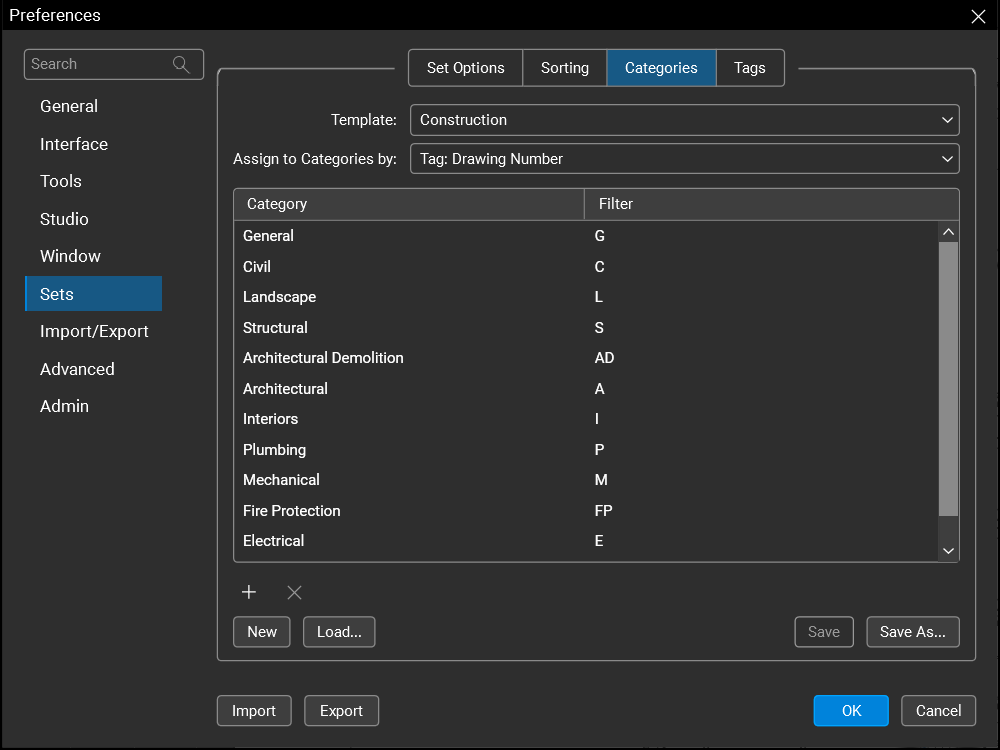
Template: Indicates the current category template. To edit the categories in a template, select it from the dropdown menu.
Assign to Categories by: Select what data Revu uses to determine a sheet's category by default. The options are:
- File Name: The first letter or letters of a sheet's file name are used to determine its category.
- Tag: Drawing Number: The first letter or letters of a sheet's sheet number (as determined by the Drawing Number tag) are used to determine its category. If this option is selected, but the Sheet Number tag is disabled on the Tags tab, all sheets will be Uncategorized.
Manage default categories
The default categories of the template selected from Template dropdown menu are shown in the table in the bottom of the tab. They can be modified by doing any of the following:
- Categories are arranged in the Set according to the sort order found here. Drag and drop to adjust the sort order.
- When a Set is configured to automatically assign Categories to sheets that are added, Revu compares the first letter or letters of the sheet's file name or Sheet Number tag to the values in the Filter column and, if a match is found, assigns the sheet to the corresponding Category. To change a Filter, double-click it and enter the desired value.
Multiple Filters can be assigned to the same Category. Separate multiple filters by a semi-colon (;). Some rules to consider when adding or changing Filters:
- Spaces and other special characters are considered literal characters.
- When a sheet can be sorted into multiple Categories, Revu will automatically choose the strongest match.
- Identical filters are not allowed.
- Categories can be added (
 ) or removed (
 ).
). - Save As saves the configuration as a new template with a name you specify without changing the original template.Revu can be configured to prompt which template to use by enabling Prompt for Template selection in Sets (Options) Preferences.
Tags
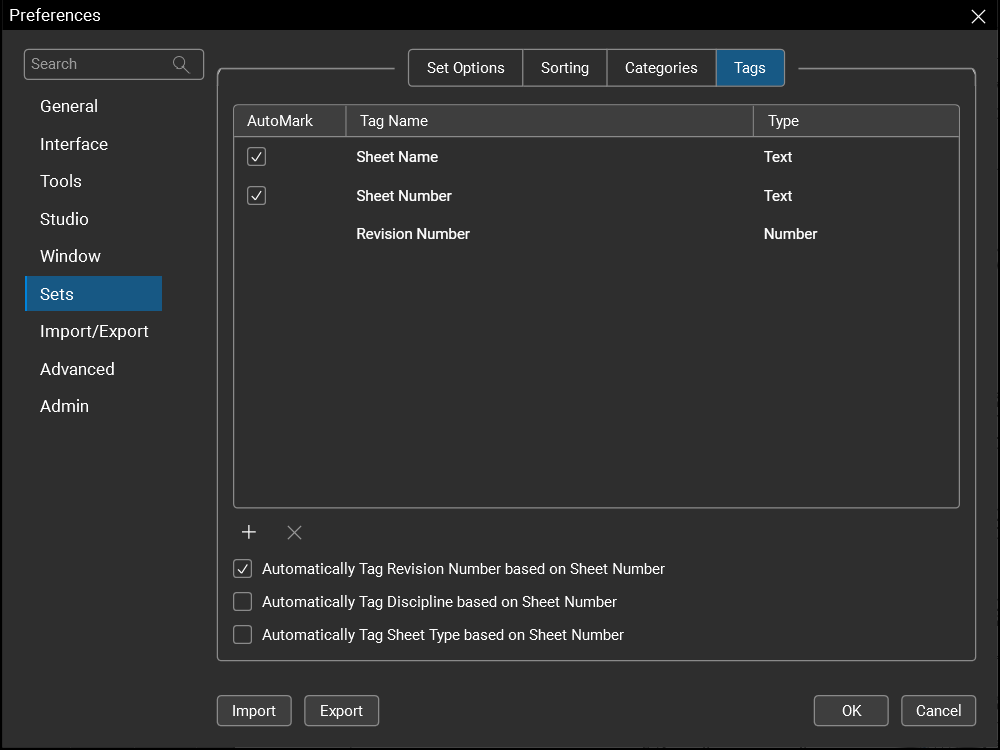
To add a new tag
-
Select
. - To add one of the standard tags, select the Default tab and select the desired tag from the menu.
- To add a custom tag, select the Custom tab, then enter the desired Tag Name of the tag and select the appropriate Tag Type.
- Select OK.
To remove a tag
- Select the tag to be removed.
- Select .
To reorder a tag
- Select the tag to be moved.
- Drag and drop it to the desired position in the list.
Some tags (Revision, Discipline, and Sheet Type) can be extrapolated from sheet numbers. To do so, select any or all of the following options:
- Automatically Tag Revision Number based on Sheet Number: When enabled, the Revision tag automatically extrapolated from the Sheet Number tag. If the drawing's sheet number already exists within the Set, Revu assumes it is the next revision of that sheet. This option is only available when the Sheet Number and Revision Number tags are enabled. If either is not currently included in the list of tags being used, enabling this option adds it automatically.
- Automatically Tag Discipline based on Sheet Number: When enabled, the Discipline tag is automatically extrapolated from the Sheet Number tag. This option is only available when the Sheet Number and Discipline tags are in use. If either is not currently included in the list of tags being used, enabling this option adds it automatically.
- Automatically Tag Sheet Type based on Sheet Number: When enabled, the Sheet Type tag is automatically extrapolated from the Sheet Number tag. This option is only available when the Sheet Number and Sheet Type tags have been added to the Set. If either is not currently included in the list of tags being used, enabling this option adds it automatically.