Polyline Sketch tool
Like the Polyline Tool, the Polyline Sketch tool draws a segmented line as a markup; however, the length and rotation of the segments are input directly for exact control over the shape. Once placed, a Polyline Sketch markup behaves much like a Polyline markup.
Before placing any Sketch markup on a drawing, make sure that it is calibrated to the correct scale.
 Create a Polyline Sketch markup
-
Go to Tools > Sketch to Scale >
 Polyline Sketch to Scale.
 - In the PDF, select where you want to place the first point. The Polyline Sketch cursor displays the measurements dialog, and the text cursor is automatically placed in the Length field.

- Enter the length of this segment of the polyline and press Tab to go to the Rotation field.
- Enter the rotation of the this segment of the polyline and press Enter. The rotation can be relative to the last angle entered or to the page, as determined by the Sketch Tools Preferences.
- Repeat steps 3-4 to draw the remaining segments of the polyline.
- To complete the line, do one of the following:
- Press Enter twice.
- Press C.
- Double-click the last point placed.
Use control points and curves
Control points define where line segments meet in a multi-segment markup. Add or remove control points to adjust the shape. See Working with Control Points for more information.
Convert line segments to curves or arcs at control points to match complex shapes. See Working with Curved Markups for more information.
Attach a note to a Polyline Sketch markup
Attach a note to nearly any markup that does not have a text box of its own by double-clicking the markup to open the Note pop-up window. Notes attached to markups are functionally similar to the Note Tool.
Add an action to a Polyline Sketch markup
You can add an action to almost any markup. Right-click the markup and select Edit Action.
Resize or adjust a Polyline Sketch markup
Select a markup to reveal its control handles. Each handle controls a different aspect of size and orientation.
Rotate the markup: Drag the orange handle outside the markup (default: 15° increments; hold Shift for 1° increments)
Resize a segment or change its angle: Drag the appropriate yellow handle.
- Hold Ctrl while dragging a yellow control handle to curve the lines attached to it. See Working with Curved Markups for more information.
Scale the markup up or down: Drag the appropriate purple handle.
See Editing Markups for more information.
Change the appearance of a Polyline Sketch markup
You can change the appearance of the Polyline Sketch Tool markup, including its color, thickness, pattern, ends, and opacity.
To change the appearance of a Polyline Sketch Tool markup, select the markup and select the Properties panel. Go to Window > Panels > Properties to show the Properties panel if it is hidden. Several properties will also be available on the Properties toolbar when the markup is selected.
Appearance properties
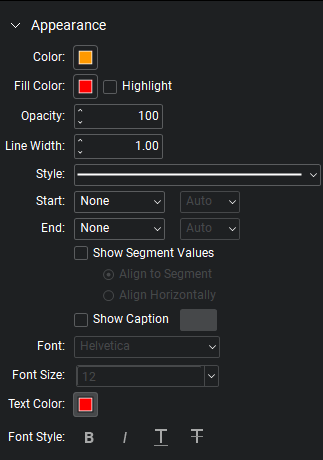
Color: Sets the line color.
Fill Color: Sets a fill color.
Highlight: Makes the fill color and/or hatch pattern transparent so underlying content shows through.
Opacity: Sets opacity level of the line and endpoints, from 0 (invisible) to 100 (opaque).
Line Width: Sets the line thickness in points. A setting of 0 effectively renders the line invisible.
Style: Determines the line pattern.
Start and End: Controls the appearance of the endpoints for each side of the line. The diagram below shows samples of each type of endpoint.

Each endpoint has an associated Scale that determines the size of the endpoint in relation to the Line Width. By default, it is set to Auto and will automatically adjust as the Line Width is changed.
Show Segment Values: Shows all measurements available for the markup. When enabled, select an alignment for the measurements, either equal to the angle of the segments or horizontally.
Show Caption: Toggles the markup to show or hide the markup caption (as seen in the Preview Window).
Font: Sets the font used for the selected text. Available fonts are divided into three regions:
- The first region shows all fonts used in the currently selected text element.
- The second region lists the standard PDF fonts that are supported by all PDF viewers. These fonts don't need to be embedded in the PDF when used, thereby cutting down on file size.
- The third region shows all other available fonts. When used, these fonts need to be embedded in the PDF.
Font settings are retained in the PDF and will substitute as needed if the original font is unavailable.
Font Size: Sets the font size for text. You can choose a size from 2 to 72 points in the list, or enter any value from 1 to 144 points manually. You can also use decimal values with one digit after the decimal point.
Text Color: Sets the color of text.
The Font Style settings control the formatting of the text. Options include Bold, Italic, Underline, Strikethrough, Superscript and Subscript. Generally, any combination of these styles can be applied to format the text.