Typewriter tool
The Typewriter tool is useful for entering information into form-like PDFs where rows are regularly spaced. The Typewriter tool also allows you to enter text without having to define a text box.
 Create a Typewriter markup
- Select the Typewriter tool using one of the following methods:
- Go to Tools > Markup >
 Typewriter.
 - Select on the Text toolbar.
- Press W on the keyboard.
- Go to Tools > Markup >
- Select a place on the document to begin typing.
Remove a Typewriter markup
To remove markups from your PDF, do one of the following:
- Select the markup on the PDF or from the Markups list.
- Press Delete on your keyboard, or right-click and select
 Delete.
Resize or adjust a Typewriter markup
Select a markup to reveal its control handles. Each handle controls a different aspect of size and orientation.
Rotate the markup: Drag the orange handle outside the markup (default: 15° increments; hold Shift for 1° increments)
To resize the markup, drag the appropriate yellow handle.
See Editing Markups for more information.
Add an action to a Typewriter markup
You can add an action to almost any markup. Right-click the markup and select Edit Action.
Icon indicators in markups
Markups may display indicator icons below and to the right of the markup (or grouped markups). These include:
 Action: Shows that an action is defined for this markup. Select to trigger the action.
 Capture: Shows that the markup has embedded media (typically an image or video). Select this icon to open a preview window.
 Reply: Shows one or more replies exist in the Markups list. Hover to preview replies or select to jump to the markup's entry. Turn off the ability to see reply indicators in the View menu.
Change the appearance of a Typewriter markup
The Appearance Properties for the Typewriter tool are generally the same as those for the Text Box Tool, though the default Font is Courier to better match the style of a typewriter. The most common thing that needs to be adjusted in a Typewriter markup is the amount of space between rows of text in order to fit properly on a form. To do so, change the Line Space setting.
To change the appearance of a Typewriter markup, select the markup and select the Properties panel. Go to Window > Panels > Properties to show the Properties panel if it is hidden. Several properties will also be available on the Properties toolbar when the markup is selected.
Appearance properties
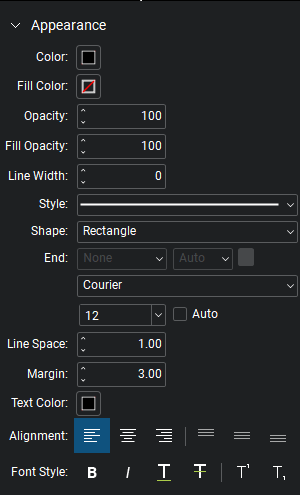
The Appearance section of the Properties panel contains the following options:
Color: Sets the color of the text box and leader line, if any.
Fill Color: Controls the fill color of the text box.
Opacity: Sets transparency level for the text box and the leader line.
Fill Opacity: Sets transparency level (100 = opaque, 0 = completely transparent) for the fill color.
Line Width: Sets the thickness of the line segment in points. If the Line Width is set to 0, it is effectively invisible.
Style: Determines the pattern of the line segment. The Cloud style only affects the text box; the leader line (when applicable) is solid. Any styles other than Cloud affects both the text box and the leader line.
Size: Sets the width of the cloud segments. Only applies when Style is set to Cloud.
Invert: Inverts the cloud segments inward on the shape. Only applies when Style is set to Cloud.
Shape: Sets the shape of the text box. Options include Rectangle, Circle, Triangle, and Hexagon. Note that if no Line Width has been set for the text box and the shape is changed, the line width is automatically set to "1.00". This can be changed afterward, if needed.
End: This setting is grayed out because it does not apply to Typewriter markups.
Font: Sets the font used for the selected text. Available fonts are divided into three regions:
- The first region shows all fonts used in the currently selected text element.
- The second region lists the standard PDF fonts that are supported by all PDF viewers. These fonts don't need to be embedded in the PDF when used, thereby cutting down on file size.
- The third region shows all other available fonts. When used, these fonts need to be embedded in the PDF.
Font settings are retained in the PDF and will substitute as needed if the original font is unavailable.
Font Size: Sets the font size for text. You can choose a size from 2 to 72 points in the list, or enter any value from 1 to 144 points manually. You can also use decimal values with one digit after the decimal point.
Auto: Automatically adjusts the font size of the text to the maximum value that will fit in the text box.
Line Space: Adjusts the spacing between multi-line rows of text.
Margin: Defines the amount of space between the text characters and the border of the Text Box.
Text Color: Sets the color of text.
Alignment: Defines the alignment of text within the box. The icons represent Left, Center, Right, Top Justified, Middle Justified and Bottom Justified respectively.
The Font Style settings control the formatting of the text. Options include Bold, Italic, Underline, Strikethrough, Superscript and Subscript. Generally, any combination of these styles can be applied to format the text.