Performing Punch with the Tool Chest
Once you have defined your Spaces, made a punch template, and pasted snapshots of your defined rooms onto sketch pages, it's time to punch.
Revu's Tool Chest stores commonly used markups for easy access. Bluebeam includes many industry standard symbols for your convenience, but making and saving your own custom markups is also very easy with Revu.
 Preparing Your Punch Tool Set
Tool sets are categories of tools that reside in the Tool Chest. For example, Revu groups Electrical tools together in one tool set, Plumbing tools in another, and so on. If you have not already created one, you will probably want a Punch tool set (and possibly several). There are a few ways you can go about getting one.
Download a Bluebeam Punch Tool Set
Bluebeam has several Punch tool sets available for free download from their website, including a general Punch tool set as well as more specialized tool sets (for example, Punch Cleaning or Punch Electrical). To download one of these tool sets:
- Open the Bluebeam support article Revu Custom Libraries, and select the desired tool set.
- When prompted, choose to save the file. It will have a .zip extension.
- In Windows Explorer, navigate to the downloaded ZIP file and double-click it.
- Depending on your version of Windows, the ZIP file will either open or you will be prompted to extract it; if it is the latter, extract it and navigate to the extracted file. You should now see a file with a .btx extension. Double-click this file to import it. Revu will alert you when the tool set has been imported successfully.
Use a Shared Tool Set
There are two ways to use shared tool sets: add them to your Tool Chest or import them to your Tool Chest. The difference depends on whether you need to access a shared resource or you just want to put a copy of somebody else's tool set in your Tool Chest:
- Adding will list the tool set while leaving the tool set's file in its original location. Add a tool set when you want to share a tool set on a network drive and keep all user's versions of that set the same.
- Importing the tool set will make a copy of the tool set and store it in your default location. Use import when the tool set will be used only by the local user or if you do not want local changes to sync with other users' copies.
Tool sets that are shared are generally exported from somebody else's copy of Revu. These files have a .btx extension and can be stored on a network drive or (in the event that you are importing the tool set) sent to you directly (for example, as an email attachment). You will need to know the location of the BTX file and have access to it to add or import the tool set.
Adding a Tool Set
-
Go to Window > Panels >
 Tool Chest or press ALT+X to show the Tool Chest panel.
-
Go to Tool Chest > Manage Tool Sets.
-
In the Manage Tool Sets dialog, select Add.

- In the Add Tool Set dialog, select Existing and select
 .
. - In the Open dialog box, navigate to and select the desired BTX file, and select Open.
- To show the new tool set in the Tool Chest, select Display.
- To show the new tool set in all Profiles, select Show In All Profiles.
- To store the location to this tool set relative to the location of the current Profile, select Relative Path. Clear this option to save the full folder path to the tool set instead. For more information about Relative vs Full Paths, see Understanding Relative vs Full Paths.
- Select OK.
Importing a Tool Set
-
Go to Window > Panels > Tool Chest or press ALT+X to show the Tool Chest panel.
-
Go to Tool Chest > Manage Tool Sets.
- Select Import.
- In the Open dialog, navigate to and select the desired BTX file, and select Open.
Tool sets can also be imported automatically by double-clicking the BTX file in Windows Explorer or by dragging the BTX file into the Revu window.
Make Custom Punch Tools
You can create your own tool set and fill it with custom tools. For an overview regarding creating new tool sets and saving markups into them as tools, see Saving Markups in the Tool Chest.
When it comes to Punch tools, creating new ones can be pretty straightforward, especially if your Punch tools are similar.
Let's say that your Punch tools are all the same basic symbol: a red circle with a text code (also in red) in the middle. You probably already have at least one of these in another tool set, but if you don't, it's fairly simple to create a red circle markup, put a text box in the middle of it with the code you want, and then group them. When you have the markup the way you want it, save it to your Tool Chest.
Once you have one Punch tool, you can use it to create more. As an example, let's say you have a Punch tool for Glass Cleaning ("GL") in your Punch Cleaning tool set and you need one for Broken Glass ("BG"). To make your new tool:
- Use the GL tool to place a markup on any PDF.
-
On the markup, double-click the letters to select them.


- Type "BG" for Broken Glass.
-
Right-click the new markup, then go to Add to Tool Chest and select your tool set.
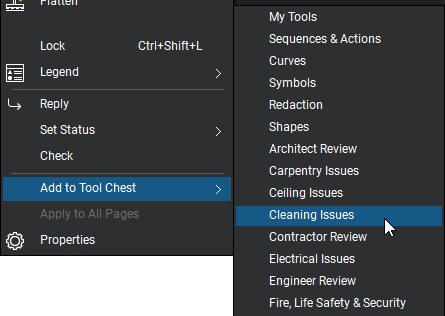
Placing Punch Markups
Placing a Punch markup is the same as placing any other markup using the Tool Chest: drag the tool out of your tool set and drop it in the desired position on the PDF. See Working with the Tool Chest for more detail.
Adding Callouts
In traditional punch, additional information that cannot be expressed with standard symbols is written on the sketches by hand and transcribed later. But with Revu, you can add callouts to provide information quickly and easily.
- Select the Callout tool using one of the following methods:
- Go to Tools > Markup >
 Callout.
 - Select on the Shapes toolbar.
- Press Q on the keyboard.
- Go to Tools > Markup >
- Select where to set the location of the terminus at the end of the leader line.
- Select where to set the location of the text box. The leader line will automatically connect to the callout box, which will be ready to accept text.
- Enter the desired text. Press ALT+Z to autosize the text box to fit the text.
- Select away from the text box or press ESC to finish.

If your default Callout markup does not include a box around the text, you can add one by clicking the markup and selecting the Properties tab. In the Appearance section, give the Line Width a value greater than 0 (the higher the value, the thicker the box). Note that the line width of the leader line will automatically adjust to match (the default width of the leader line when there is no box around the text is 1.00).
If you want your callout to point multiple places, right-click on the callout and click Add Leader. A new leader line will appear at your cursor; drag it to the desired location and click to place the arrow.
Using Images or Videos
Sometimes an image or video can explain a problem much more effectively than a written note. Images and video can be embedded in a markup or images can be used to create new markups.
To embed an image or video from the Camera tool
- Select the markup in which the image or video is to be embedded.
- Go to Tools > Markup > Image >
 From Camera. Or , press CTRL+ALT+I or right-click the markup in which the image is to be embedded and go to Capture > From Camera. The camera preview window appears.
- Select Photo (for an embedded image) or Video (for an embedded video) from the
 Media Type menu in the lower-left corner of the camera preview window.
 - If more than one camera is attached to the device, select
 Switch to toggle between them.
 - To change the Camera Preferences before capturing the image or video, select
 Preferences.
 - Select
 Shutter (for Photo) or
  Lens (for Video) to capture the media.
 - To embed the captured media, select Use. The media is automatically embedded in the selected markup.
- To discard the media and capture it again, select Retake.
- Media embedded directly from the Camera tool automatically take the name of the markup's Subject, followed by a number as needed (for example, "Cracked Tile," then "Cracked Tile - 2," then "Cracked Tile - 3" and so on).
- To review images embedded in a markup, select the embedded media icon just below the markup () or in the Capture column (
 ) of the Markups list.
To embed an image from a file
- Right-click the markup in which the image is to be embedded and go to Capture > From File.
- In the Open dialog, navigate to and select the image to be embedded and select Open. The image is embedded in the selected markup.
- To review images embedded in a markup, select the embedded photo icon below the markup () or in the Capture column () of the Markups list.
Creating an Image Markup
- Go to Tools > Markup > Image > From File.
-
Select the desired image file and select Open.
- To place the image at its default size, select the image tool cursor
 on the document.
 - To force the image to fit a particular space, drag a rectangle with the image tool cursor .