Seitenleiste „Suche“
Revu unterstützt zwei Methoden zur Suche in PDFs: Textsuche und visuelle Suche.
-
 Textsuchen sind im Allgemeinen schneller und zuverlässiger, funktionieren aber nur bei tatsächlichen Textelementen in der PDF-Datei. Zum Beispiel sind gescannte PDFs Bilder, daher gelten sie, selbst wenn diese Bilder Wörter enthalten, nicht als Textelemente und die Textsuche funktioniert auf ihnen nicht. Um ein gescanntes Dokument durchsuchbar zu machen, führen Sie OCR aus.
 -
 Visuelle Suche ermöglicht die Suche nach grafischen Symbolen in PDFs. Es kann langsamer sein als die Textsuche, aber es bietet Funktionen, die die Textsuche nicht bieten kann.
Die  Such-Seitenleiste ermöglicht es Ihnen, nach Text oder Bildern in der aktuellen PDF, allen geöffneten PDFs, PDFs in einem Ordner oder in den Dateien in der Liste „Zuletzt verwendet“ zu suchen. Sie können eine Textsuche oder eine Visuelle Suche durchführen. Sie können auch Suchen und Ersetzen.
Gehen Sie zu Fenster > Seitenleisten > Suche oder drücken Sie Alt+1 oder Strg+F, um die Such-Seitenleiste anzuzeigen.
 Textsuche
Text muss in der PDF-Datei vorhanden sein, damit die Textsuche ihn finden kann. Gescannte PDF-Dateien sind Bilder und enthalten keinen Text, somit sind sie nicht durchsuchbar. Siehe OCR für Details, wie gescannte Dokumente durchsuchbar gemacht werden können.
Suche Sie nach Text im Suchfeld.
- Gehen Sie zu Fenster > Seitenleisten > Suche oder drücken Sie Alt+1 oder Strg+F, um die Such-Seitenleiste anzuzeigen.
-
auswählen
Text. - Geben Sie den Suchbegriff in das erste Parameterfeld ein.
-
Wählen Sie im Menü im zweiten Parameterfeld das Dokument(e) oder den Ort, den Sie suchen möchten, aus. Die Optionen sind Aktuelles Dokument, Aktuelle Seite, Alle offenen Dokumente, Aktuelles Set, Aktuelles, Aktuelles, Ordner oder Aktuelles Studio-Projekt.
- Wenn Ordner ausgewählt ist, verwenden Sie das Pfadfeld oder wählen Sie „Durchsuchen“ aus, um den Speicherort des Ordners festzulegen. Wählen Sie Unterverzeichnisse einschließen in den Textsuchoptionen aus, um die Ordner, die im angegebenen Ordner gefunden wurden, in die Suche einzuschließen.
- Die Option Aktuelles Set ist nur verfügbar, wenn Sie ein Set geöffnet haben. Wählen Sie dies, um innerhalb des geöffneten Sets zu suchen.
- Die Option Aktuelles Projekt ist nur verfügbar, wenn Sie bei einem Projekt angemeldet sind. Wählen Sie dies, um alle lokalen (heruntergeladenen) Dateien aus diesem Projekt zu Suche. Diese Option ist auf Dateinamen-Suchen beschränkt. Es ist derzeit nicht möglich, innerhalb des Dokumentinhalts zu suchen.
- Wählen Sie die Suchoptionen aus den unter Optionen verfügbaren aus. Die genauen verfügbaren Optionen variieren je nach der Auswahl, die im ersten Parameterfeld getroffen wurde.
- Wählen Sie Suche.
Es kann ein Fortschrittsbalken im unteren Bereich der Registerkarte **Suche** erscheinen, während lange Suchen durchgeführt werden. Suchergebnisse werden im Abschnitt „Ergebnisse“ angezeigt.
An einigen Suchergebnissen können zusätzliche Vorgänge ausgeführt werden. Diese Ergebnisse werden ein Kontrollkästchen daneben haben, wodurch Sie einige oder alle davon für diese Aktionen auswählen können. Weitere Informationen zu diesen zusätzlichen Vorgängen finden Sie unter Optionen für Suchergebnisse.
Nach im Dokument ausgewähltem Text suchen.
Das Suchen nach ausgewähltem Text durchsucht nur das aktuelle PDF, wobei die ausgewählten Suchoptionen aktiviert sind. Gehen Sie wie folgt vor, um den aus dem aktuellen PDF ausgewählten Text zu suchen.
-
Gehen Sie zu Bearbeiten > PDF-Inhalt >
 Text auswählen.
 - Wählen Sie den Text aus, nach dem im Dokument gesucht werden soll.
- Klicken Sie mit der rechten Maustaste auf den ausgewählten Text und auswählen Sie „Suche“ aus.
Es kann ein Fortschrittsbalken im unteren Bereich der Registerkarte **Suche** erscheinen, während lange Suchen durchgeführt werden. Suchergebnisse werden im Abschnitt „Ergebnisse“ angezeigt.
Textsuchoptionen

- Unterordner einschließen: Durchsucht alle in dem angegebenen Ordner gefundenen Unterordner. Nur verfügbar, wenn der Ordner als Suchparameter ausgewählt ist.
- Seitensuche: Sucht nach Text im Inhalt des PDFs.
- Dateinamen suchen: sucht die Dateinamen in der Liste Zuletzt verwendet oder im ausgewählten Ordner, wenn entweder Zuletzt verwendet oder Ordner als Suchparameter ausgewählt ist.
- Dateieigenschaften-Suche: Sucht nach Text in den Metadatenfeldern der Eigenschaften.
- Formularfelder durchsuchen: Durchsucht Text in den in die Formularfelder eingegebenen Daten.
- Suche Markierungen: Sucht nach Text in Markierungen.
- Großschreibungssensitiv: Sucht nach Text mit dem exakten Fall, der im Feld Suchbegriffe eingegeben ist.
- Nur ganze Wörter: Sucht nur nach Vorkommen, bei denen der Suchbegriff als vollständiges Wort vorhanden ist. Wenn der Suchbegriff teilweise in einem anderen Wort enthalten ist und das Kontrollkästchen Nur ganze Wörter aktiviert ist, wird er nicht in den Suchergebnissen berücksichtigt.
Text-Suchergebnisse
Suchergebnisse werden unter dem Abschnitt „Optionen“angezeigt. Der Suchbegriff wird in dem Ausdruck hervorgehoben, in dem der Begriff gefunden wurde. Die Seitennummer der PDF ist am Anfang jedes Ergebnisses enthalten. Wählen Sie ein bestimmtes Suchergebnis aus, um zu der Stelle des Begriffs im Hauptarbeitsbereich zu springen.
Wenn Suchbegriffe in mehreren Dokumenten gefunden werden (zum Beispiel wenn die Suche in **Alle offenen Dokumente** oder **Ordner** durchgeführt wurde), werden die Suchergebnisse nach Dokumenten gruppiert.
An einigen Suchergebnissen können zusätzliche Vorgänge ausgeführt werden. Diese Ergebnisse werden ein Kontrollkästchen daneben haben, wodurch Sie einige oder alle davon für diese Aktionen auswählen können. Weitere Informationen zu diesen zusätzlichen Vorgängen finden Sie unter Optionen für Suchergebnisse.
Suchen und Ersetzen
In der PDF-Inhaltsebene gefundener Text kann während einer Textsuche mithilfe des  **Geprüften Text ersetzen**-Werkzeugs in der Ergebnis-Symbolleiste ersetzt werden. Beachten Sie, dass nur Text in der PDF-Inhaltsebene auf diese Weise ersetzt werden kann. Da Markierungen erst dann in der Inhaltsebene liegen, wenn sie geglättet werden, kann Text in nicht geglätteten Markierungen mit diesem Werkzeug nicht ersetzt werden. Das Ausführen dieser Aktion auf einer Seite, die geglättete Markierungen enthält, wird verhindern, dass alle Markierungen auf der Seite aufgehoben werden.
- Führen Sie eine Textsuche nach dem Text durch, den Sie ersetzen möchten.
- Wählen Sie die gewünschten Ergebnisse aus den Suchergebnissen aus.Ergebnisse, die außerhalb der PDF-Inhaltsebene gefunden wurden, wie z. B. Text in nicht fixierten Markierungen, haben kein Kontrollkästchen und können für diesen Vorgang nicht ausgewählt werden.
-
Wählen Sie
Ersetzte auswählen auf der Symbolleiste „Ergebnisse“ aus. - Im Dialogfeld „Suchen und Ersetzen“ geben Sie den Ersatztext in das Feld „Ersetzen durch“ ein.
- Wählen Sie eine der Schriftart-Optionen , um zu bestimmen, wie Sie mit Text umgehen, der eine Schriftart verwendet, die keine bearbeitbaren Berechtigungen hat. Sie können solche Ersetzungen entweder überspringen oder eine andere Schriftart verwenden , indem Sie sie aus der Liste auswählen.
VisualSearch
Verwenden Sie Visual Search, um nach allen Fundstellen eines visuellen Objekts zu suchen, das in einem Dokument vorkommt.
Führe eine visuelle Suche durch
Um zu erfahren, wie Sie eine visuelle Suche in einem PDF durchführen, lesen Sie Übersicht über die visuelle Suche.
Visuelle Suchoptionen
- Empfindlichkeit: Bestimmt, wie genau die Bilder übereinstimmen müssen, um als gültiges Ergebnis zu gelten. Stellen Sie den Schieberegler ein, um eine niedrigere oder höhere Empfindlichkeit einzustellen. Eine Verringerung der Empfindlichkeit ermöglicht Übereinstimmungen mit geringfügigen Unterschieden, wie einer benachbarten Linie, kann aber auch zu falsch-positiven Ergebnissen führen.
Möglicherweise musst du die Empfindlichkeit senken, wenn du an einem PDF arbeitest, das aus einem Scan erstellt wurde, da es im PDF möglicherweise Streupixel oder Hintergrundrauschen gibt.
- Suche in mehreren Drehungen: Symbole werden bei 0, 45, 90, 135, 180, 225 und 270 Grad durchsucht.
- „Nach Farbe filtern“: Aktiviert die Schaltfläche „Farben verfeinern“. Die Suche schließt Farben aus, die nicht Teil der Auswahl sind (oder im ausgewählten Bereich im Histogramm).
-
Begrenzen nach Auswahl: Bei einem Vektor-PDF filtert diese Option Vektorobjekte heraus, die über das Auswahl-Rechteck hinausgehen (wie im folgenden Beispiel gezeigt wird).
- Empfindlichkeit: Bestimmt, wie genau die Bilder übereinstimmen müssen, um als gültiges Ergebnis zu gelten. Stellen Sie den Schieberegler ein, um eine niedrigere oder höhere Empfindlichkeit einzustellen. Eine Verringerung der Empfindlichkeit ermöglicht Übereinstimmungen mit geringfügigen Unterschieden, wie einer benachbarten Linie, kann aber auch zu falsch-positiven Ergebnissen führen.
Möglicherweise musst du die Empfindlichkeit senken, wenn du an einem PDF arbeitest, das aus einem Scan erstellt wurde, da es im PDF möglicherweise Streupixel oder Hintergrundrauschen gibt.
- Suche in mehreren Drehungen: Symbole werden bei 0, 45, 90, 135, 180, 225 und 270 Grad durchsucht.
- „Nach Farbe filtern“: Aktiviert die Schaltfläche „Farben verfeinern“. Die Suche schließt Farben aus, die nicht Teil der Auswahl sind (oder im ausgewählten Bereich im Histogramm).
-
Begrenzen nach Auswahl: Bei einem Vektor-PDF filtert diese Option Vektorobjekte heraus, die über das Auswahl-Rechteck hinausgehen (wie im folgenden Beispiel gezeigt wird).
Visuelle Suchergebnisse
Die Suchergebnisse werden im Abschnitt Ergebnisse angezeigt. Eine Grafik des Suchergebnisses und ein kleiner Bereich darum werden in der Ergebnisliste angezeigt. Wählen Sie das Bild aus, und der Haupt-PDF-Arbeitsbereich ändert sich, um dieses Ergebnis und die Fläche darum herum anzuzeigen.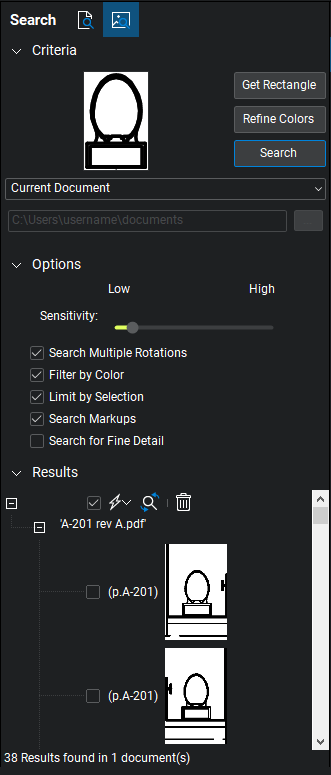
Die Arbeit mit Suchergebnissen für VisualSearch ähnelt der Arbeit mit Ergebnissen für Textsuche, allerdings werden textbasierte Aktionen nicht unterstützt. Zusätzlich können Count-Messungen auf die Ergebnisse einer VisualSearch angewendet werden.
Gehen Sie wie folgt vor, um Anzahlmessungen auf die Suchergebnisse anzuwenden:
- Wählen Sie die Ergebnisse aus, die gezählt werden sollen.
-
Gehen Sie im
 Aktionen -Menü zu
  Anzahlmessung auf Auswahl anwenden, und wählen Sie das gewünschte Anzahl-Symbol aus, um es auf die ausgewählten Ergebnisse anzuwenden.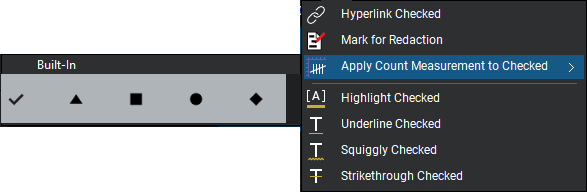
Suchergebnisseoptionen
Für Text- und visuelle Suchen nutzen Sie diese Optionen zum Verwalten Ihrer Suchergebnisse.

 Alle auswählen: Wählt alle Ergebnisobjekte aus, auf die zusätzliche Vorgänge ausgeführt werden können. Dadurch lassen sich Massenänderungen an Suchbegriffen in mehreren Dokumenten leicht anwenden. Beachten Sie, dass nicht alle Suchergebnisse zusätzlichen Vorgängen unterzogen werden können (Suchergebnisse aus nicht-reduzierten Markierungen sind beispielsweise von diesen Vorgängen ausgeschlossen).
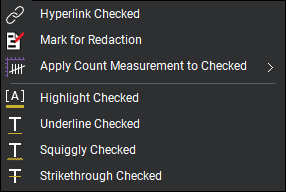
Check Options -Menü: Enthält Befehle, die auf alle markierten Objekte gleichzeitig ausgeführt werden können. Diese Befehle können auch für einzelne Suchergebnisse ausgeführt werden, indem man mit der rechten Maustaste auf das Ergebnis klickt und den Befehl aus dem Kontextmenü wählt.
-
Hyperlink ausgewählt: Erstellt einen Hyperlink für jedes ausgewählte Ergebnis.
-
Zur Schwärzung markieren: Schwärzt jedes ausgewählte Ergebnis.
-
Anzahlmessung auf Auswahl anwenden: Fügt jedem ausgewählten Ergebnis eine Anzahlmessungsmarkierung hinzu. Wählen Sie ein Anzahlsymbol aus dem Menü, das erscheint.
-
Hervorhebung aktiviert: Wendet eine gelbe Hervorheben -Markierung auf jedes ausgewählte Ergebnis an.
-
Auswahl unterstreichen: Wendet eine Unterstreichen -Markierung auf jedes ausgewählte Ergebnis an.
-
Auswahl verschnörkeln: Wendet eine verschnörkelte Markierung auf jedes ausgewählte Ergebnis an.
-
Auswahl durchstreichen: Wendet eine Durchstreichen -Markierung auf jedes ausgewählte Ergebnis an.
Ausgewählte ersetzen: Ermöglicht das Ersetzen des in einer Textsuche gefundenen Textes durch anderen Text. Siehe Suche und Ersetzen.
 Suchergebnisse löschen: Löscht die aktuelle Suchergebnisliste.