In Revu navigieren
Revu bietet zahlreiche Methoden zum Navigieren, Schwenken sowie Heran- und Herauszoomen in einem Dokument.
 Navigieren mit der Maus oder Tastatur
Die primäre Navigationsmethode ist die Maus. Revu funktioniert mit allen Maustypen; es wird jedoch empfohlen, für eine optimale Leistung eine 3-Tasten-Maus mit Scrollrad zu verwenden. Das folgende Diagramm zeigt, wie die Maustasten verwendet werden.

Zoomen mit der Maus
Das Scrollrad ist eine bequeme Möglichkeit, ein PDF hereinzu- und herauszuzoomen, aber beachten Sie, dass es auch die Seite basierend auf Ihren aktuellen Navigationseinstellungen und dem Seitenmodus hoch- und runterscrollen kann.
Doppelklicken Sie auf das Scrollrad, um die gesamte PDF-Seite an das aktuelle Arbeitsbereichfenster anzupassen.
Doppelklicke die linke Maustaste (oder tippe doppelt auf einen Tablet-PC-Stylus), um die Zoom-Steuerung anzuzeigen.
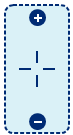
Um mit der Zoom-Steuerung des Tablets zu scrollen, klicken und halten Sie im blau schattierten Fläche und ziehen Sie dann den Cursor nach oben oder unten, um zu zoomen. Klicken Sie außerhalb der blauen Fläche, um die Steuerung zu beenden und das Dokument zu schwenken.
Zoomen mit der Tastatur
Navigationstastenkombinationen:
- Herauszoomen — STRG+MINUS
- Heranzoomen – STRG+PLUS
- Tatsächliche Größe — STRG+8
- Anpassungsseite — STRG+9
- Breite anpassen – STRG+0
- Zoom-Werkzeug auswählen — Z
- Wechseln Sie zwischen Schwenken- oder Auswählen-Tool und Zoom-Tool — SHIFT+Z
Mit der Maus schwenken
Klicken und halten Sie das Mausrad gedrückt, um das Dokument zu schwenken.
Ziehen Sie die horizontalen und vertikalen Bildlaufleisten wie in jeder Windows-Anwendung.
Schwenken mit der Tastatur
Drücken Sie die Tasten LINKEN PFEIL, RECHTEN PFEIL, PFEIL OBEN und NACH UNTEN.
Navigieren mit der Navigationsleiste
Die Navigationsleiste am unteren Rand des Arbeitsbereichs enthält typischerweise die Werkzeuge Schwenken, Auswählen und Zoom in der Mitte.

Um auf einen bestimmten Bereich eines Dokuments heranzuzoomen, wählen Sie das  Zoom -Werkzeug oder drücken Sie Z, ziehen Sie dann ein Rechteck über den gewünschten Bereich. Beim Loslassen wird die definierte Fläche so gezoomt, dass sie den Arbeitsbereich ausfüllt.
Um im Dokument zu schwenken, wählen Sie das  Schwenken oder drücken Sie ESC, dann ziehen Sie, um die Ansicht im Hauptarbeitsbereich zu verschieben.
Es ist auch möglich, die Zoom manuell auf einen Prozentsatz einzustellen oder die Anzeige automatisch an die Breite oder die gesamte Seite anzupassen. Um dies zu tun, wählen Sie einen Zoomwert aus der Zoom liste  und wählen Sie einen bestimmten Seitenprozentsatz aus. Um statt eines Prozentsatzes auf eine Einstellung zu zoomen, wählen Sie eine der Optionen am unteren Ende der Liste (Tatsächliche Größe, Seite anpassen oder Breite anpassen).
Um zwischen Seiten und Ansichten zu wechseln, verwenden Sie die Werkzeuge auf der rechten Seite der Navigationsleiste. Diese Buttons sind so konzipiert, dass sie einen effizienten Wechsel zwischen Seiten und Ansichten im Arbeitsbereich ermöglichen.

Jede der Schaltflächen wird unten erläutert:
 Erste Seite: Springt zur ersten Seite des PDFs.
 Vorherige Seite: Führt zur vorherigen Seite des Dokuments.
 Seitenzahl: Gibt den aktuellen Standort im PDF an.
 Nächste Seite: Geht zur nächsten Seite des aktuellen Dokuments.
 Letzte Seite: Springt zur letzten Seite des Dokuments.
 Vorherige Ansicht: Kehrt zur vorherigen Ansicht im Hauptarbeitsbereich zurück.
 Nächste Ansicht: Wechselt zur nächsten Ansicht im Hauptarbeitsbereich.
Navigieren nach Miniaturansicht
Die Seitenleiste „Miniaturen“ eignet sich ideal zum Navigieren großer PDFs mit vielen Seiten. Öffnen Sie die Seitenleiste „Miniaturen“ und auswählen Sie die Miniatur einer Seite, um direkt dorthin zu springen.
Nach Lesezeichen navigieren
Viele PDFs enthalten Lesezeichen für eine schnelle Navigation zu Abschnitten des Dokuments. Finden Sie die Lesezeichen eines Dokuments in der Lesezeichen-Seitenleiste. Um zum Standort eines Lesezeichens zu springen, klicken Sie darauf.
Navigieren nach Kennzeichen
Die Kennzeichen sind eine Möglichkeit zum einfachen Navigieren zu bestimmten Seiten und Stellen in einem PDF und sind in der Seitenleiste „Kennzeichen“ verfügbar. Obwohl sie Lesezeichen ähneln, sollen Kennzeichen auf etwas Spezifisches im Dokument aufmerksam machen und werden im Allgemeinen freier hinzugefügt und entfernt als Lesezeichen. Öffnen Sie die Kennzeichen-Seitenleiste und wählen Sie ein Kennzeichen aus, um zu seiner Position zu springen. Weitere Informationen finden Sie im Abschnitt Kennzeichen-Seitenleiste.


