Tools Preferences
The Tools Preferences contain settings for the appearance and control of markups, measurements, sketch markups, forms, and digital signatures in Revu. Select Tools from the Preferences dialog to view or modify these preferences.
To open the Preferences dialog box, go to Revu >  Preferences.
 Markup

Dynamically Set as Default properties: When enabled, Revu remembers the last property settings for a markup type. For example, if the appearance properties for a rectangle markup type were set to a Green color, 2-point wide line, the next time that the rectangle markup is selected, these properties will be used. Note that this does not take effect when the properties of a specific markup are changed. So, if you select a markup on a drawing and change its properties, the default properties for that markup type are not changed.
Reuse Tools: When enabled, after placing a markup, the same markup can be added to the PDF without having to reselect it. This mode is helpful when adding the same markup onto the PDF sequentially. This setting can also be turned on and off with the Reuse button on the Status Bar.
Autosize Text Box and Callout Markups: When enabled, Revu automatically fits text boxes for callouts and text markups to their text. After editing the text in a Free Text or Callout markup, the text box also resizes automatically to fit the text.
Scale Appearance Properties for Grouped Markups: When enabled, the properties of grouped markups (for example, line width or text size) automatically scales up or down as the markup is scaled up or down.
Retain Layer information when copying Markups: When enabled, layer information is copied along with a copied markup. If a copied markup is pasted to another PDF, its layer is created in the new PDF.
Embed Fonts: When enabled, Revu automatically embeds fonts used for markups in the PDF.
Show Author and Date in Pop-Ups: When enabled, Revu shows the Author and Date in popup notes when an markup is double-clicked. The title and author also appear when a note annotation is added to a PDF.
Print Pop-Ups: When enabled, Notes and Comments popup boxes are printed with the PDF.
Pop-Up Opacity: Determines the opacity used for printed Notes and Comments popup boxes when Print Pop-Ups is enabled.
Copy Highlighted Text into Markup Comment: When enabled, any time a text edit markup (Highlight, Underline, Squiggly line or Strikethrough) is used, the text it is applied to is copied into the Comments column in the Markups list for the associated markup.
Default Image Encoding: Sets the format in which embedded images and inserted image annotations are stored in the PDF.
Drag Behavior for Shapes: Determines whether, when drawing certain shapes (for example, polygons or area measurements), a rectangle is used or whether the drag behavior sets control points for the Bézier curves used to define the shape. The effect will be either a rectangle is dragged or a curve shape will be drawn.
Snapshot Resolution: Sets the DPI at which raster snapshots will be taken. Generally, the setting should be between 96 and 300 DPI. The resolution is only used when the Snapshot is pasted into another program. The Snapshot is pasted as it appears in the PDF when it is pasted within Revu.
Take Vector Snapshots: When enabled, Revu preserves the vector elements of the snapshot region as vector data. The information is stored much more efficiently and generates high-resolution representation of the snapshot region. Otherwise, a raster image is taken. Snapshots are only pasted as vector when you paste within Revu. Snapshots are pasted as bitmaps when you paste into another program.
Include Markups in Snapshots: When enabled, markups are included in snapshots. Otherwise, only the underlying PDF content is included in the snapshot.
Include Markups in Snapshots from Spaces: When enabled, markups are included in Snapshots from Spaces. Otherwise, only the underlying PDF content is included in the snapshot.
Measure
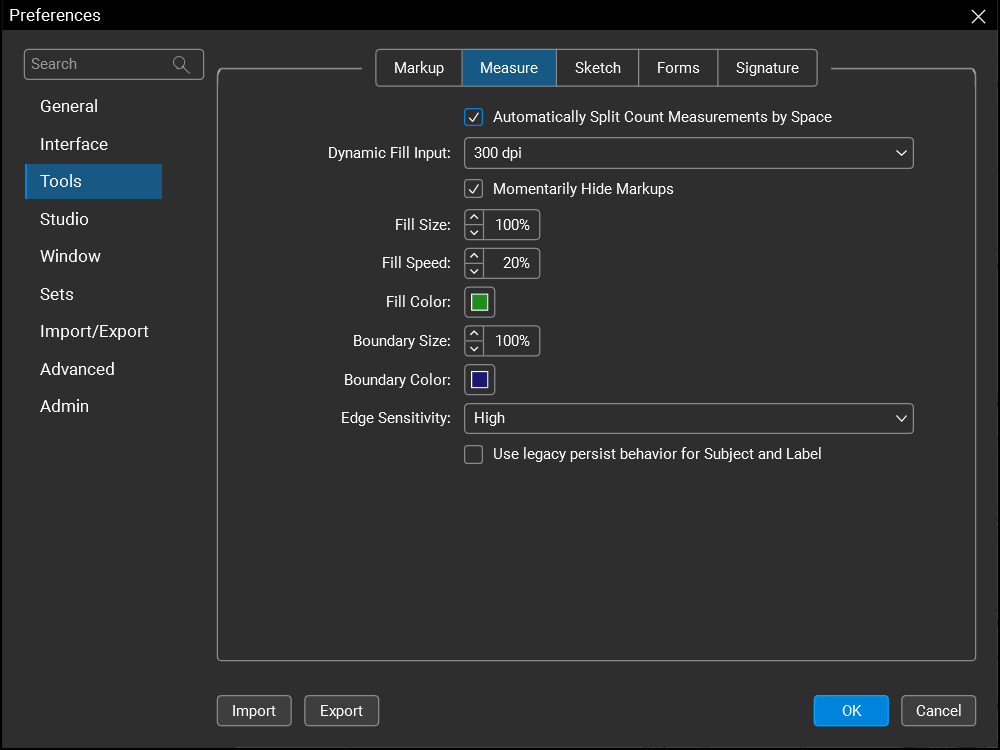
Automatically Split Count Measurements by Space: When enabled, Counts placed across multiple Spaces in a drawing are automatically grouped by Space in the Markups list. When not enabled, the placement of the first Count in the group determines its Space label: if it is placed in a Space, all other Counts in the group are labeled as belonging to the same Space, and if it is not placed in a Space, they all are labeled as not belonging to a Space.
Sketch

Rotation Input: Sets the method by which rotation angles are determined with the Polygon Sketch Tool and Polyline Sketch Tool.
- Relative: When selected, the rotation angle of a line is relative to the angle of the line it is connected to.
- Absolute: When selected, the rotation angle of a line is always relative to the page, where 0° is horizontal and 90° is vertical. This can be affected by changes to the page's rotation (for example, when Rotate Pages is used).
Ellipse Mode: Sets the mode used when drawing an ellipse with the Ellipse Sketch Tool.
- Width x Height: When selected, input Width, Height and Rotation. The result can be an ellipse or a circle.
- Radius: When selected, input just the Radius. The result will always form a circle.
Forms
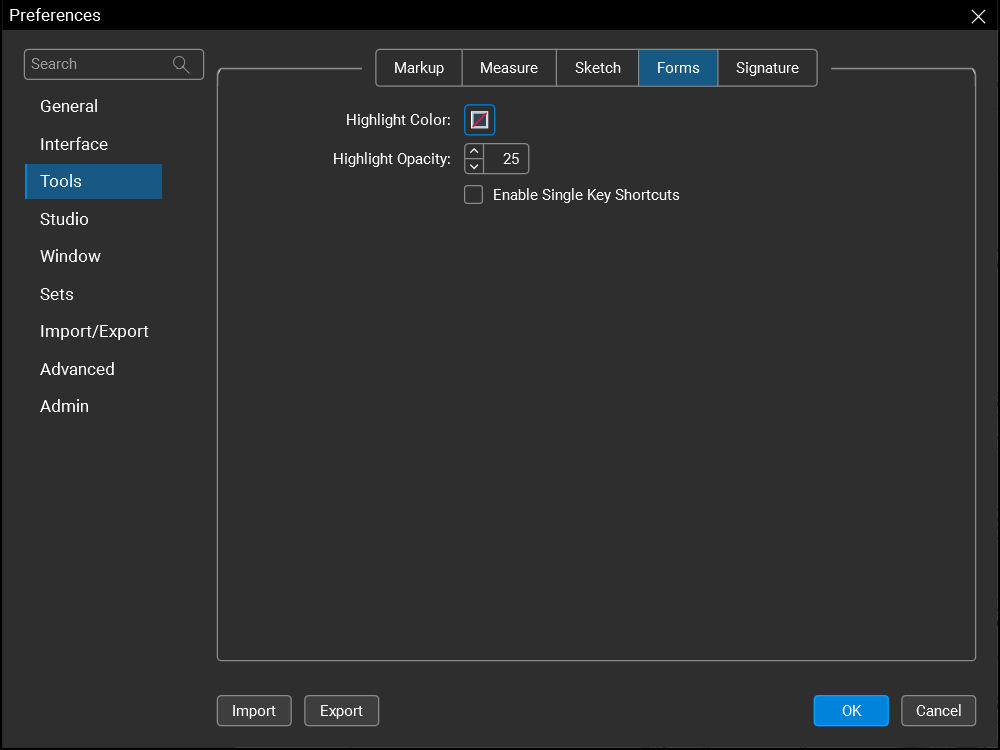
Highlight Color: Sets the color of form field highlights. Select the color box to change the highlight color.
Highlight Opacity: Sets the opacity of form field highlights. Move the slider between Opaque and Transparent to set the opacity.
Enable Single Key Shortcuts: When enabled, keyboard shortcuts that are activated by a single keystroke (as, for example, several Markup tools are) function normally when filling out a form. Disabled by default.
Signature
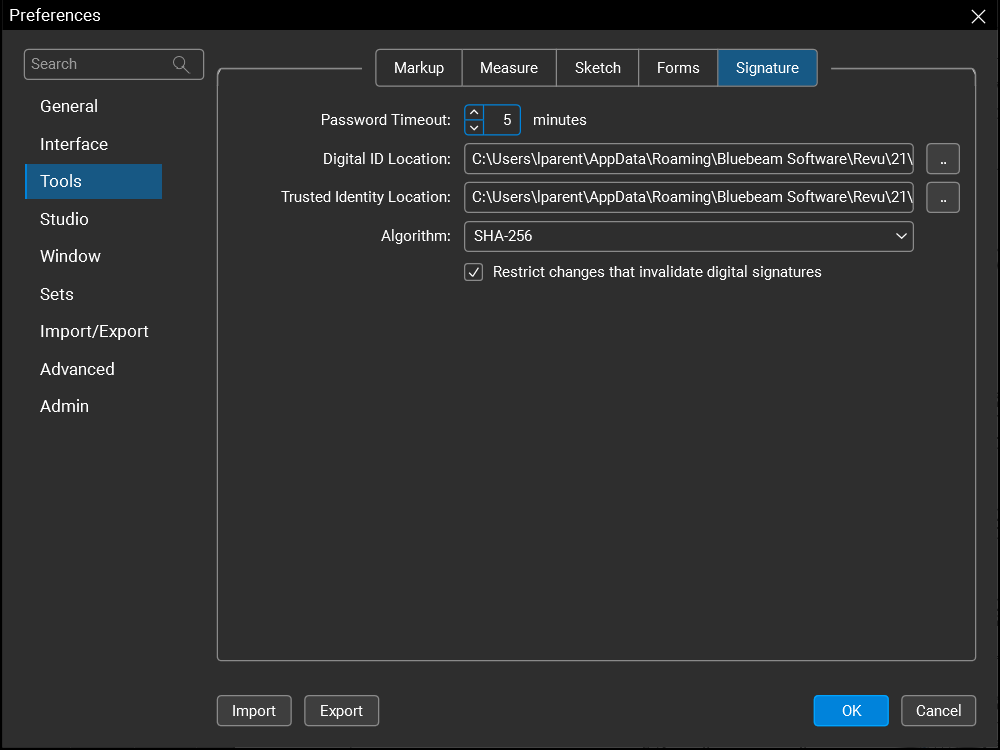
Password Timeout: Sets the amount of time after you enter your password that it remains valid. If many documents are to be signed at once, a larger value enables signing without having to reenter your password with each signature. In an insecure computing environment, a smaller value will reduce the chance of forgery.
Digital ID Location: Sets the path to the location of digital ID files.
Trusted Identity Location: Sets the path to the location of trusted identity files.
Algorithm: Determines the Secure Hash Algorithm (SHA) used. SHA-1 is widely accepted currently, but is expected to be deprecated over time. SHA-256 is newer and also commonly accepted.
Restrict changes that invalidate digital signatures: When enabled, documents that have been digitally signed cannot be changed at the content layer (markups may still be added). Disabling this feature allows content-level changes to PDFs that have been digitally signed; however, doing so will invalidate the digital signature.