円弧ツール
円弧ツールは、ドキュメント上に円弧のマークアップを配置します。Revu で作成できる基本的な円弧には、楕円弧、2点円弧、3点円弧の3種類があります。円弧に塗りつぶしの色またはハッチパターンを設定すると、自動的に扇形に変わります。
 [円弧] に移動します。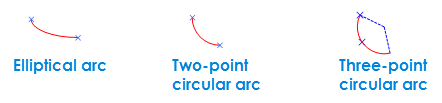
 [削除] を選択します。
 円弧マークアップにメモを添付する
マークアップをダブルクリックしてメモポップアップウィンドウを開くと、テキストボックスのないマークアップのほとんどにメモを付けることができます。マークアップに添付されたメモは、機能的にはメモツールと同様です。
円弧マークアップにアクションを追加する
ほぼすべてのマークアップにアクションを追加できます。マークアップを右クリックして、[アクションの編集] を選択します。
マークアップのアイコンインジケーター
マークアップでは、マークアップ (またはグループ化されたマークアップ) の下と右側にインジケーターアイコンが表示される場合があります。これらには以下が含まれます。
 アクション : このマークアップにアクションが定義されていることを示します。選択してアクションをトリガーします。
 キャプチャ : マークアップに埋め込みメディア (通常は画像や動画) があることを示します。このアイコンを選択すると、プレビューウィンドウが開きます。
 返信:マークアップリストに1つ以上の返信があることを示します。カーソルを合わせて返信をプレビューするか、選択してマークアップのエントリにジャンプします。表示メニューで返信インジケーターを表示する機能をオフにします。
円弧マークアップのサイズ変更または調整
マークアップを選択すると、そのコントロールハンドルが表示されます。各ハンドルは、サイズと方向の異なる側面を制御します。
マークアップを回転する:マークアップの外側にあるオレンジ色のハンドルをドラッグします (デフォルト:15°刻み、Shift キーを押しながらで1°刻み。
マークアップのサイズを変更するには、適切な黄色のハンドルをドラッグします。線の端点にあるコントロールハンドルをドラッグすると、円弧は元の楕円に沿って自動的に継続されます。円弧を 15° 刻みで自動的に長くしたり短くしたりするには、SHIFT キーを押しながらドラッグします。
詳細は「マークアップの編集」をご覧ください。
円弧マークアップの外観を変更する
円弧マークアップの外観は、線と塗りつぶしの色、ハッチパターン、線の幅とスタイル、不透明度などを含めて設定可能です。[塗りつぶしの色] または [ハッチパターン] を選択すると、円弧は自動的に扇形に変わります。
円弧マークアップの外観を変更するには、マークアップを選択して、[プロパティパネル] を選択します。[ウィンドウ] > [パネル] > [プロパティ] に移動して、[プロパティ] パネルが非表示の場合は表示します。マークアップを選択すると、いくつかのプロパティがプロパティツールバーでも利用できるようになります。
外観のプロパティ
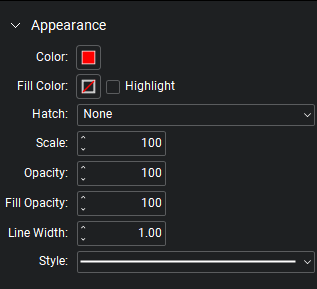
[色]:線の色を設定します。
塗りつぶしの色:塗りつぶしの色を設定します。
蛍光ペン:塗りつぶしの色やハッチパターンを透明にし、下のコンテンツが透けて見えるようにします。
ハッチング: ハッチパターンを設定します。関連付けられたカラーセレクターで、ハッチパターンの線の色を設定します。
縮尺:ハッチパターンの縮尺を 50 (デフォルトの半分の縮尺) から 200 (デフォルトの 2 倍の縮尺) の間で設定します。
[不透明度]: 線と端点の不透明度レベルを 0 (非表示) から 100 (不透明) の範囲で設定します。
塗りつぶしの不透明度:塗りつぶしとハッチパターンの不透明度を 0(非表示)から 100(不透明)の間で設定します。
[線の幅]:線の太さをポイント単位で設定します。設定を 0 にすると、線は実質的に非表示になります。
スタイル:線のパターンを決定します。
標準の線のスタイルに加え、いくつかの詳細なスタイルがあり、必要に応じてカスタムの線のスタイルを作成することもできます。