管理者基本設定
管理基本設定には、Revu の管理設定が含まれています。これらの基本設定を表示または変更するには、[ 基本設定] ダイアログから [ 管理] を選択します。
基本設定ダイアログボックスを開くには、Revu >  [基本設定] に移動します。
 オプション
オプション

デフォルトの PDF ビューアー:デフォルトのプログラムを開くを選択して、オペレーティングシステムのデフォルトプログラムコントロールパネルを開き、PDF ファイルのデフォルトアプリケーションを設定します。
[サポート]:[ログ フォルダの参照] を選択して、Revu ログが含まれるフォルダーを開きます。
[拡張デバッグ]: 有効にすると、追加のデバッグデータがログファイルに保持されます。この設定の変更を有効にするには、Revu を再起動する必要があります。
[ブラウザエンジン]: Revu は、ブラウザエンジンとして以下のいずれかを使用します。
-
自動(デフォルト):システムで使用可能な最新バージョンの WebView2。
-
システム:システムにインストールされている WebView2 のバージョン(通常は Microsoft Edge がインストールしている最新バージョンです)。
-
[埋め込み]:Revu にバンドルされている WebView2 のバージョン。
[サインイン方法]: この設定により、Revu の内部ブラウザではなく、デフォルトのブラウザを使用してサインインできるようになります。
-
埋め込みブラウザ(デフォルト):Revu にバンドルされている WebView2 のバージョン。
-
システムブラウザ(米国のみ):コンピュータ上のデフォルトの Web ブラウザです。米国リージョンにサインインしており、組織が優先するデフォルトの外部ブラウザの使用に関して特定のセキュリティおよびユーザー管理要件を設けている場合は、この設定を使用できます。
設定:
-
[リセット]: Revu をデフォルト設定にリセットします。既存の設定は自動的にバックアップされます。
-
[バックアップ]: 現在の Revu 設定を保存します。
-
復元: 保存された Revu の設定を復元します。
ネットワーク構成
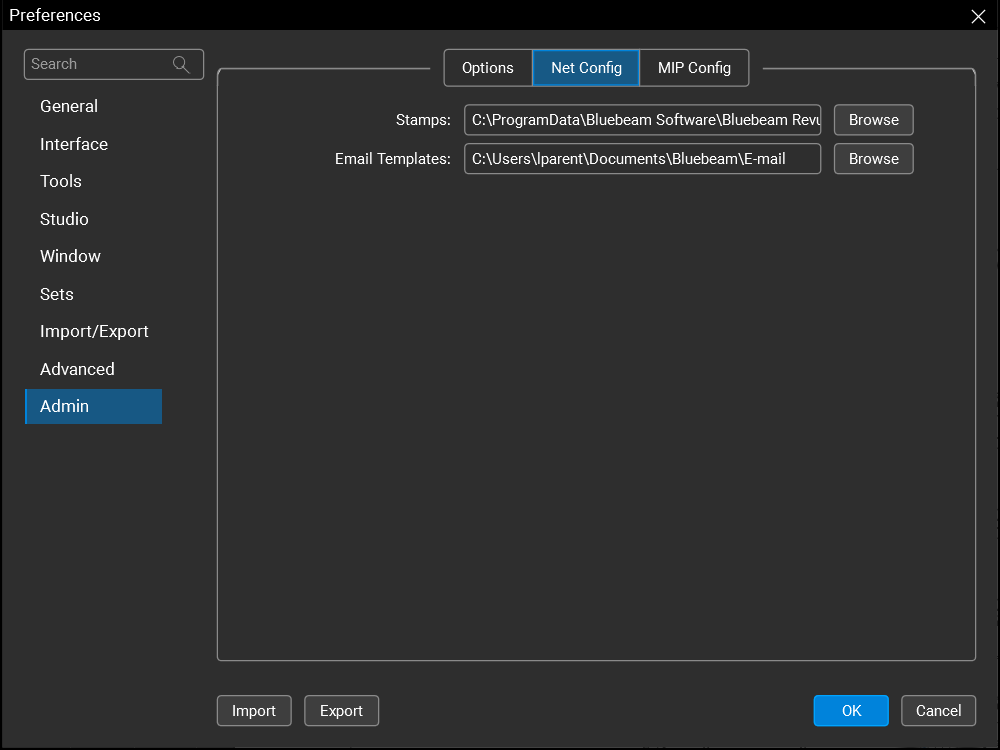
[スタンプ]: デフォルトのスタンプフォルダへのパスを表示します。このフォルダを変更するには、[参照] を選択します。
メールテンプレート:デフォルトのメールテンプレートフォルダへのパスを表示します。このフォルダを変更するには、[参照] を選択します。
MCP
[Claude for Windows]: 選択して Revu と Claude MCP を接続します。
GitHub Copilot CLI: Revu と GitHub Copilot CLI を接続するには選択します。
ChatGPT (Codex): Revu と ChatGPT を接続するには選択します。
AnythingLLM Desktop:Revu と AnythingLLM を接続するには選択します。