Winkelmessung
Das Winkelmesswerkzeug erstellt spezialisierte Markierungen, die einen Winkel berechnen.
Bevor Sie beginnen, müssen Sie zuerst den Seitenmaßstab für Ihr Dokument festlegen. Wenn Sie versuchen, eine Messung auf einer Seite ohne Maßstab zu platzieren, werden Sie aufgefordert, einen festzulegen.
 Führen Sie eine Winkelmessung durch
- Gehen Sie zu Werkzeuge > Messen >
 Winkel.
 - Klicken Sie, um einen Punkt entlang des ersten Strahls zu definieren.
- Klicken Sie den Scheitelpunkt, um den zweiten Punkt zu definieren.
- Klicken Sie entlang des zweiten Strahls, um den Winkel zu vervollständigen.
Wenn Sie den Seitenmaßstab festgelegt haben, wird eine Vorschau der wichtigsten Messwerte in der unteren rechten Ecke angezeigt, während Sie Abmessungen vornehmen, um Präzision zu gewährleisten. Blenden Sie es bei Bedarf aus oder blenden Sie es wieder ein, indem Sie das X oder das Maßsymbol auswählen.
Tipps:
- Halten Sie die Umschalttaste gedrückt, um Linien horizontal, vertikal oder im 45°-Winkel zu zeichnen.
- Halten Sie die Strg-Taste gedrückt und ziehen Sie eine vorhandene Markierung, um sie automatisch zu kopieren.
Winkelmessung entfernen
Gehen Sie wie folgt vor, um Markierungen aus Ihrer PDF-Datei zu entfernen:
- Wählen Sie die Markierung in der PDF-Datei oder aus der Markierungsliste aus.
- Drücken Sie die Taste Entf auf Ihrer Tastatur oder klicken Sie mit der rechten Maustaste und wählen Sie
 Löschen.
Fügen Sie eine Aktion zu einer Winkelmessung hinzu.
Sie können zu fast jeder Markierung eine Aktion hinzufügen. Klicken Sie mit der rechten Maustaste auf die Markierung und wählen Sie Aktion bearbeiten aus.
Symbolanzeiger in Markierungen
Markierungen können unterhalb und rechts neben der Markierung (oder gruppierten Markierungen) Symbolanzeiger anzeigen. Dazu gehören:
 Aktion: Zeigt an, dass für diese Markierung eine Aktion definiert ist. Wählen Sie diese Option, um die Aktion auszulösen.
 Bildaufnahme: Zeigt an, dass die Markierung eingebettete Medien enthält (in der Regel ein Bild oder ein Video). Klicken Sie auf dieses Symbol, um ein Vorschaufenster zu öffnen.
 Antwort: Zeigt an, dass in der Markierungsliste eine oder mehrere Antworten vorhanden sind. Bewegen Sie den Mauszeiger darüber, um eine Vorschau der Antworten anzuzeigen, oder wählen Sie die Option aus, um zu dem entsprechenden Eintrag der Markierung zu springen. Sie können die Anzeige von Antwortanzeigern im Menü Ansicht deaktivieren.
Größe einer Winkelmessung ändern oder anpassen
Wählen Sie eine Markierung aus, um die entsprechenden Ziehpunkte anzuzeigen. Jeder Ziehpunkt steuert einen unterschiedlichen Aspekt der Größe und Ausrichtung.
Markierung drehen: Ziehen Sie den orangefarbenen Ziehpunkt außerhalb der Markierung (Standard: 15°-Schritte; halten Sie die Umschalttaste gedrückt für 1°-Schritte).
Bildbeschriftung drehen: Ziehen Sie den orangefarbenen Ziehpunkt direkt über die Bildbeschriftung.
Die gesamte Markierung verschieben: Ziehen Sie einen beliebigen Teil, außer den Ziehgriffen.
Größe eines Segments ändern oder dessen Winkel anpassen: Ziehen Sie den entsprechenden gelben Ziehpunkt.
Markierung vergrößern oder verkleinern: Ziehen Sie den entsprechenden violetten Ziehpunkt.
Sie können auch Drehungswerte in das Feld Drehung im Abschnitt Layout der Seitenleiste Eigenschaften eingeben. Um eine gedrehte Beschriftung zurückzusetzen, klicken Sie mit der rechten Maustaste darauf und wählen Sie Beschriftungsposition auswählen.
Ändern des Aussehens einer Winkelmessung
Sie können Linienfarbe, Linienstil, Linienbreite, Liniendeckkraft, Schriftstil und Sichtbarkeit der Beschriftung anpassen.
Um die Darstellung einer Winkelmessung zu ändern, wählen Sie die Markierung aus und wählen Sie die Seitenleiste Eigenschaften. Gehen Sie zu Fenster > Seitenleisten > Eigenschaften, um die Seitenleiste Eigenschaften anzuzeigen, falls sie ausgeblendet ist. Mehrere Eigenschaften sind auch in der Symbolleiste „Eigenschaften“ verfügbar, wenn die Markierung ausgewählt ist.
Darstellungseigenschaften
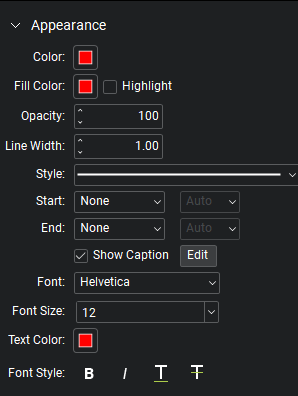
Farbe: Sets die Linienfarbe.
Füllfarbe: Steuert die Füllfarbe der Endpunkte.
Hervorheben: Macht die Füllfarbe und Linie transparent, sodass der darunterliegende Inhalt sichtbar wird.
Opazität: Setzt das Opazitätsniveau der Linie und Endpunkte von 0 (unsichtbar) bis 100 (undurchsichtig).
Linienstärke: Legt die Linienstärke in Punkten fest. Eine Einstellung von 0 macht die Linie effektiv unsichtbar.
Stil: Legt das Muster der Linie fest. Darüber hinaus stehen mehrere erweiterte Linieneigenschaften zur Verfügung, und Sie können benutzerdefinierte Linieneigenschaften erstellen.
Start und End: Kontrolliert das Erscheinungsbild der Endpunkte auf jeder Seite der Linie. Das untenstehende Diagramm zeigt Beispiele für jeden Endpunkttyp.
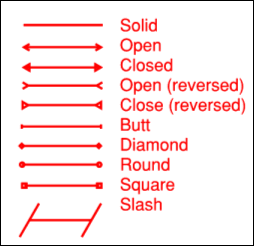
Jeder Endpunkt hat eine zugehörige Skala , die die Größe des Endpunkts in Bezug auf die Linienbreite bestimmt. Standardmäßig ist er auf Auto eingestellt und passt sich automatisch an, wenn die Linienbreite geändert wird.
Bildbeschriftung anzeigen: Bildbeschriftungstext anzeigen. Wählen Sie Bearbeiten , um auszuwählen, welche Abmessungen angezeigt werden sollen.
Schriftart: Legt die Schriftart für den ausgewählten Text fest. Verfügbare Schriftarten sind in drei Bereiche unterteilt:
- Der erste Bereich zeigt alle Schriftarten an, die im aktuell ausgewählten Textelement verwendet werden.
- Im zweiten Bereich werden die Standard-PDF-Schriftarten aufgeführt, die von allen PDF-Viewern unterstützt werden. Diese Schriftarten müssen bei der Verwendung nicht in die PDF-Datei eingebettet werden, was die Dateigröße reduziert.
- Im dritten Bereich werden alle anderen verfügbaren Schriftarten angezeigt. Wenn diese Schriftarten verwendet werden, müssen sie in das PDF-Dokument eingebettet werden.
Die Schriftarteneinstellungen werden in der PDF-Datei beibehalten und bei Bedarf ersetzt, falls die ursprüngliche Schriftart nicht verfügbar ist.
Schriftgröße: Legt die Schriftgröße für Text fest. Sie können eine Größe zwischen 2 und 72 Punkten aus der Liste auswählen oder einen beliebigen Wert zwischen 1 und 144 Punkten manuell eingeben. Sie können auch Dezimalwerte mit einer Stelle nach dem Komma verwenden.
Textfarbe: Sets die Farbe des Textes fest.
Schriftart: Steuert die Formatierung des Textes. Optionen umfassen Fett, Kursiv, Unterstreichen und Durchstreichen. Im Allgemeinen kann jede Kombination dieser Stile angewendet werden, um den Text zu formatieren.